
1. My Account Management
To access account settings:
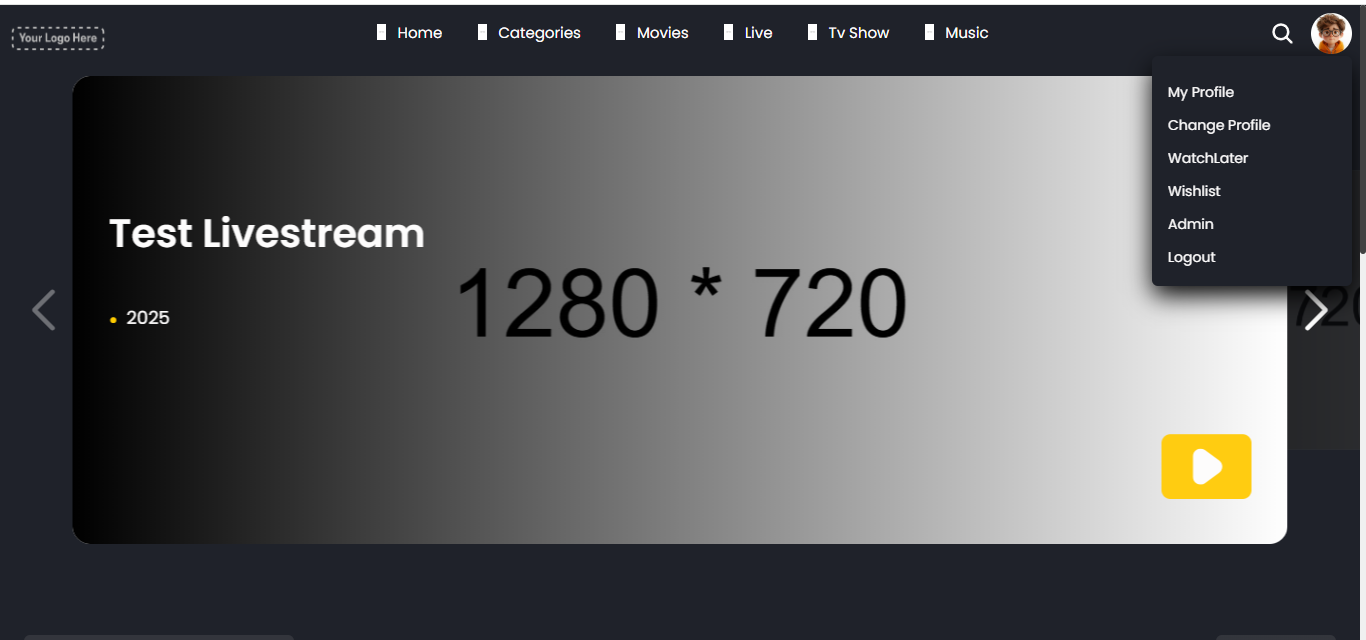
- Click on your profile picture at the top-right corner of the page.
- A dropdown menu will appear with the following options:
Dropdown Options:
- My Profile – Access and manage your personal account details.
- Change Profile – Switch between user profiles under the same account.
- WatchLater – View the list of videos you’ve saved to watch later.
- Wishlist – Access your list of favorited or saved content.
- Admin – (Visible only for admin users) Access the backend/admin dashboard.
- Logout – Securely sign out of your account.
1. My Profile Page
After selecting “My Profile”, you’re directed to the Account Info section. This page allows you to view and edit your account details.
Left Sidebar Sections:
1. Account Info
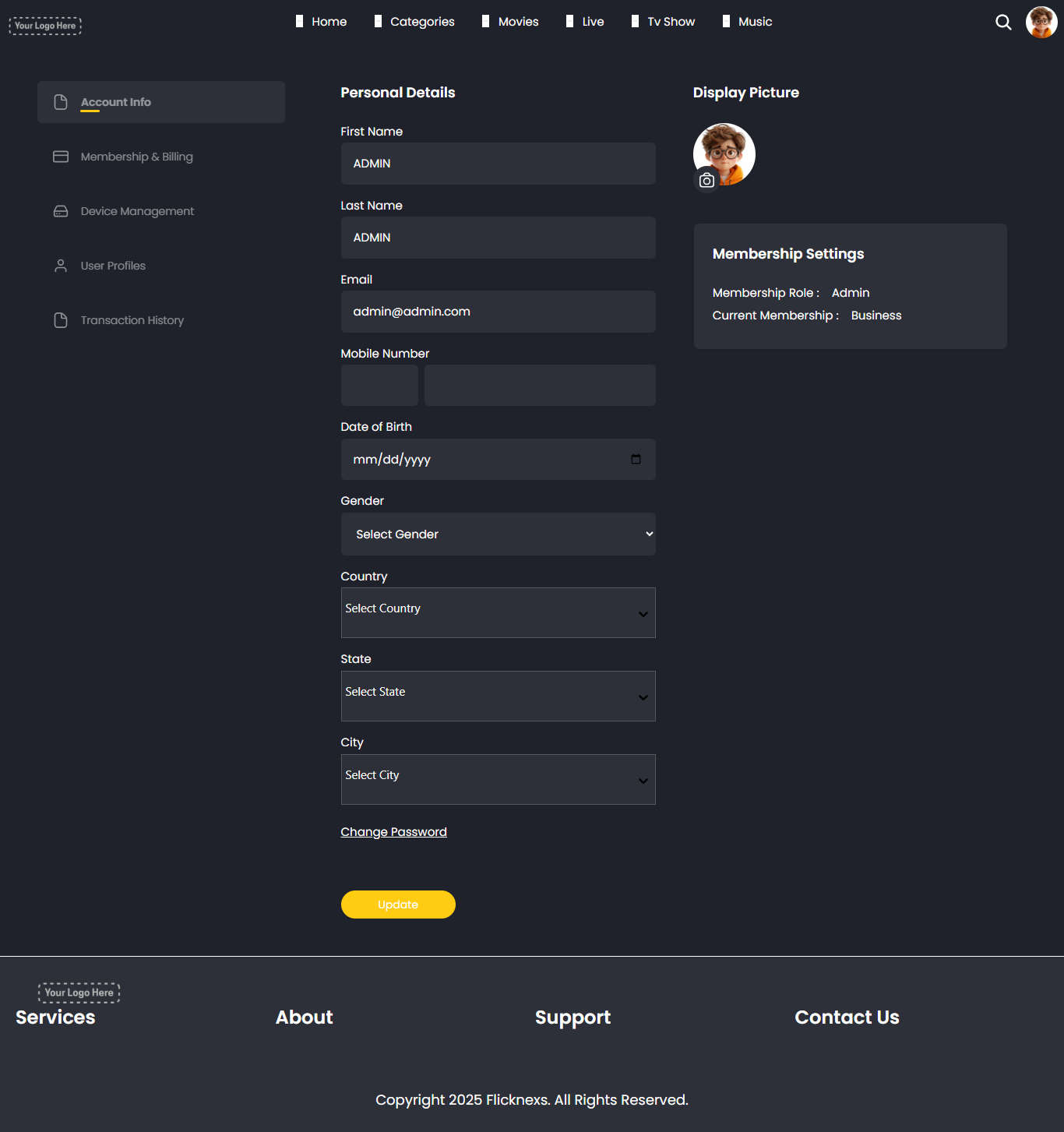
- Personal Details such as your first and last name, mobile number, email, and date of birth are displayed.
- You can update these details and click the “Update” button to save changes.
- You can also change your password by clicking the “Change Password” link.
- Your Display Picture is shown, which can be updated.
- Under Membership Settings, you can view your current membership type and access your Transaction History.
2. Membership & Billing
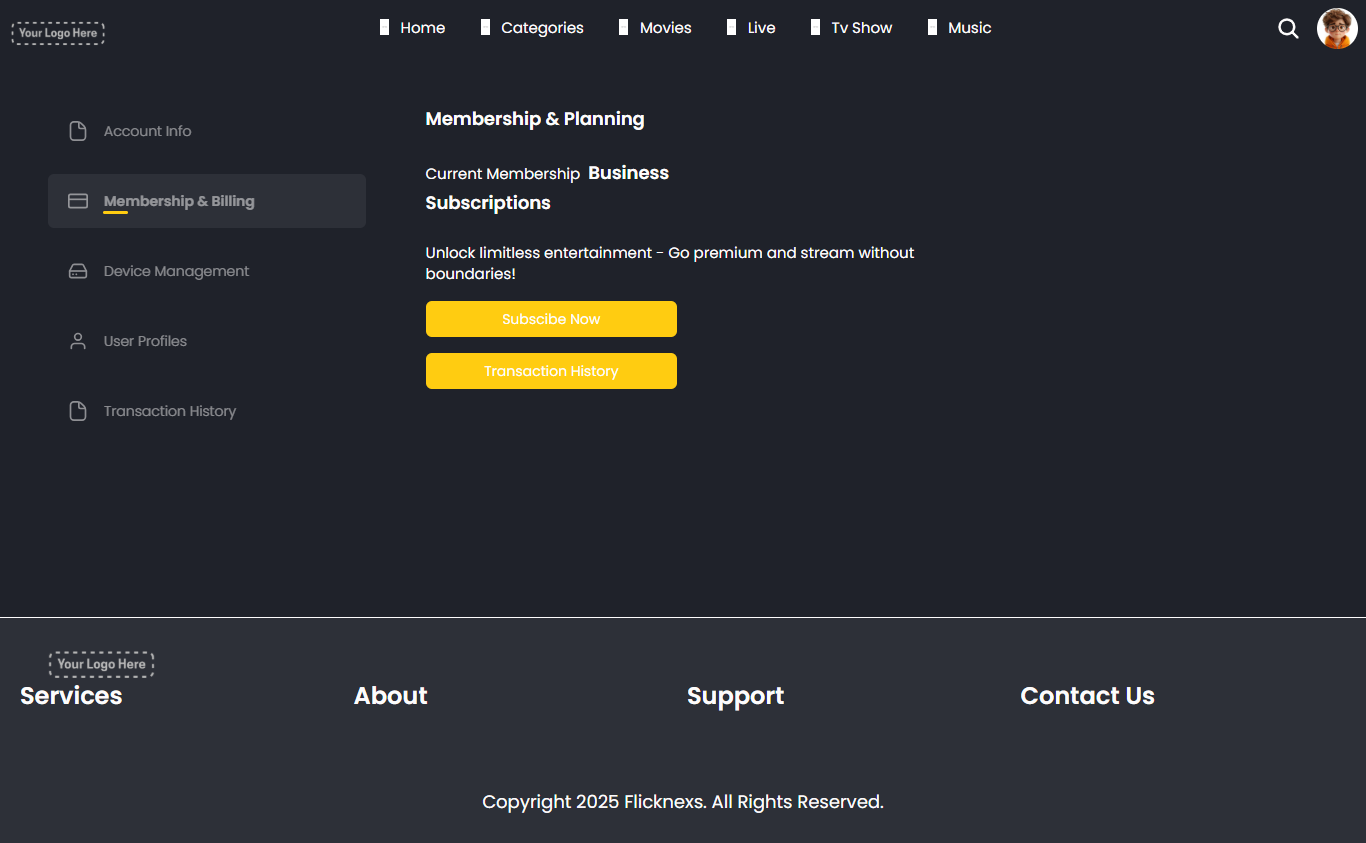
This section gives you an overview of your subscription and billing preferences.
- Current Plan – Describes your current subscription (e.g., Business).
- Plan Benefits – Outlines what your plan offers: ad-free viewing, HD streaming, downloads, etc.
- Change Plan – Click to switch to a different subscription plan.
- Billing Details – View past invoices, update billing info, and manage payments.
3. Device Management
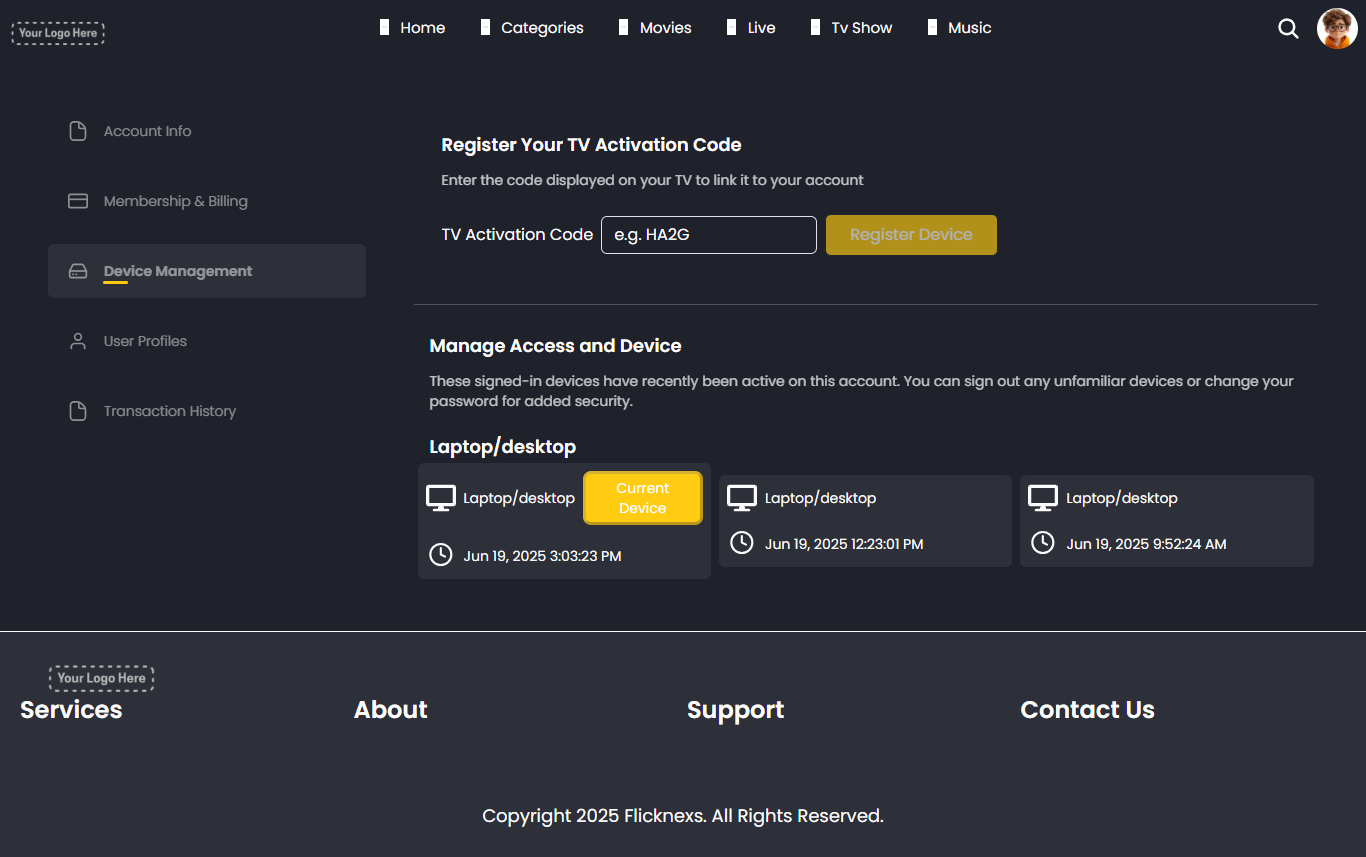
Manage and monitor devices linked to your account.
- At the top, you’ll see the TV Activation Code input box:
- When logging into a TV device (Android TV, Fire TV, Samsung, LG, Roku), a code is shown on-screen.
- Enter that code here and click “Register Device” to link your TV.
- When logging into a TV device (Android TV, Fire TV, Samsung, LG, Roku), a code is shown on-screen.
- Below is a list of all active devices that have recently accessed your account, grouped by:
- Laptop/Desktop
- Mobile
- TV
- Laptop/Desktop
- Each device entry shows:
- Device type
- Last access time
- Device label (if set)
- Device type
- This page is useful for identifying and removing unknown or outdated device logins for security.
4. User Profiles
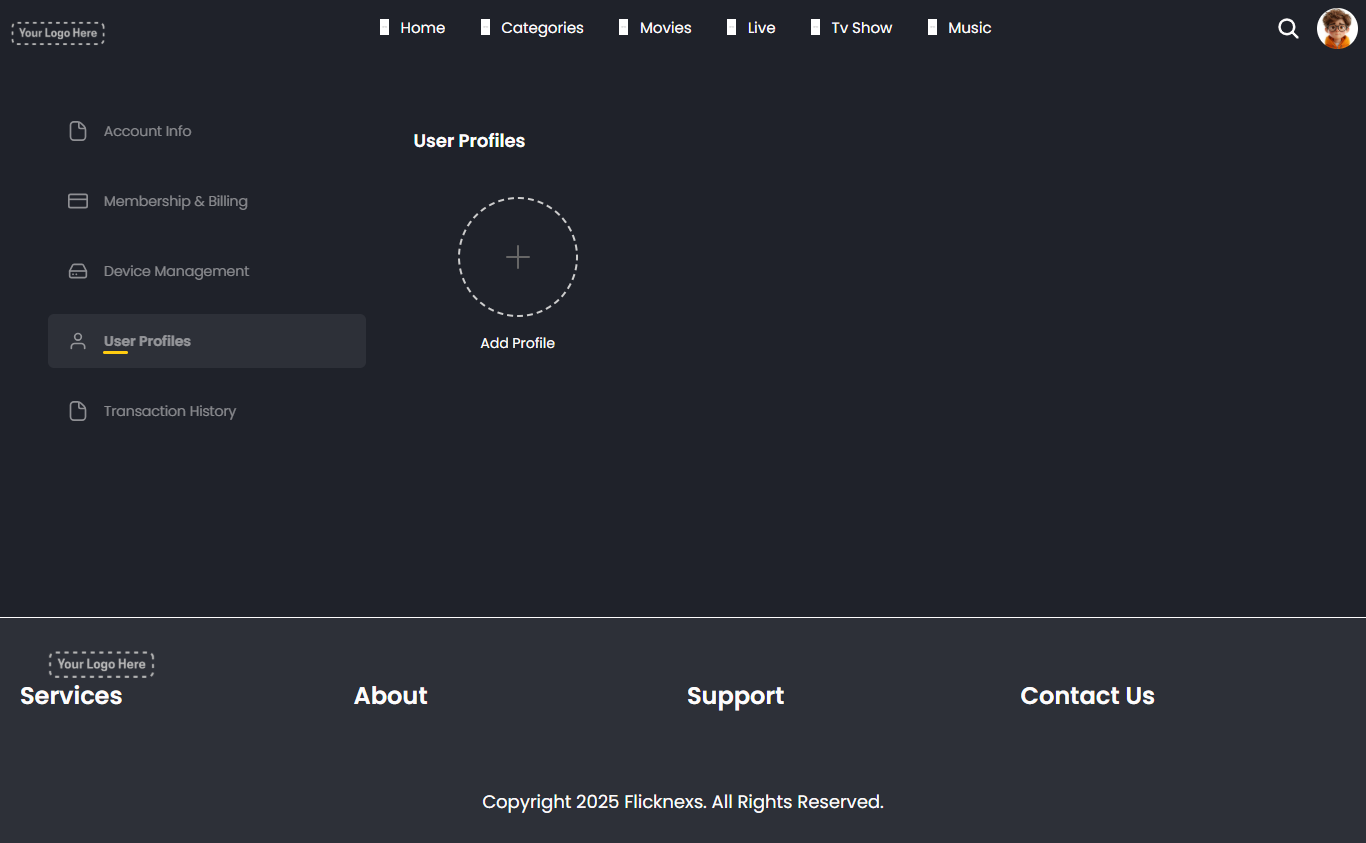
Manage multiple viewing profiles under one account — ideal for families or shared accounts.
- Add, edit, or delete individual user profiles.
- Each profile can have its own preferences, watch history, and recommendations.
- Helps personalize content suggestions for different users without overlapping histories.
2. Watch Later
- Allows users to save videos they want to view later.
- Useful for bookmarking content without needing to search again.
- Saved items appear in the “Watch Later” list for quick access.
- Content can be removed from the list at any time.
3. Wishlist
- Lets users mark favorite or must-watch content they love or plan to revisit.
- Acts like a personal collection of preferred movies, shows, or music.
- Helps the platform recommend similar content based on user’s interests.
- Items in the Wishlist can be managed (added/removed) as needed.
4. Admin
- Visible only to admin users with backend access.
- Redirects to the admin dashboard or control panel.
- From here, the admin can manage:
- Users
- Content uploads
- Subscriptions
- Reports, analytics, and more
- Users
- Not visible to regular users or viewers.
5. Logout
- Securely signs the user out of their current session.
- Helps protect account privacy—especially on shared or public devices.
- After logging out, the user is redirected to the login page.
- Recommended to use when leaving the platform or switching accounts.