
The Admin Panel Dashboard serves as the central control hub for managing your entire OTT platform. It provides a quick, real-time overview of key metrics, activity summaries, and shortcuts to core management functions.
From the dashboard, you can:
- Monitor user activity, subscription stats, and content performance
- View quick summaries of total users, videos, live streams, audio, and earnings
- Navigate directly to content management, monetization tools, analytics, and system settings
Designed for ease of use and efficiency, the dashboard ensures that administrators can make informed decisions and manage platform operations smoothly, all from a single, centralized interface.
- After logging in as an admin, you will be able to access the admin panel and navigate to the admin dashboard.
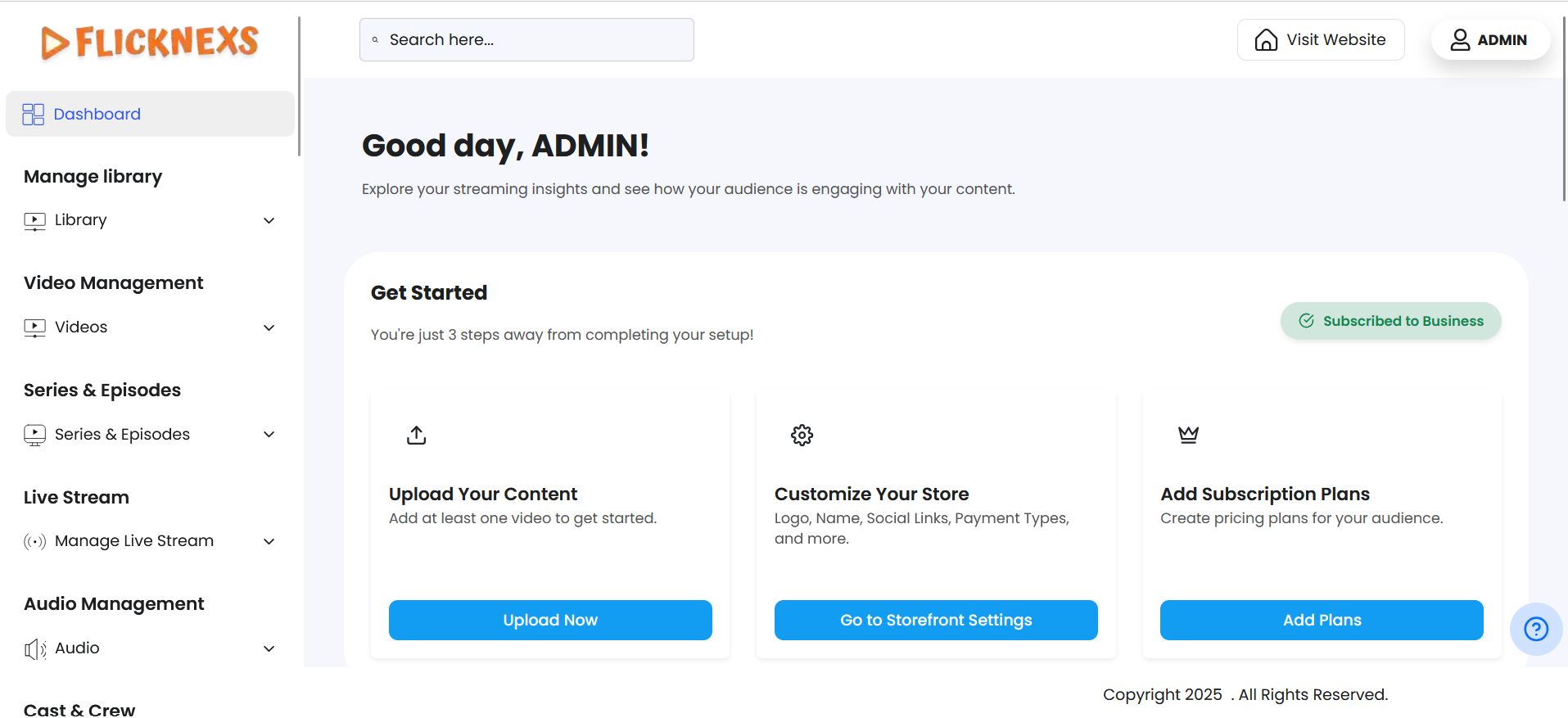
SEARCH
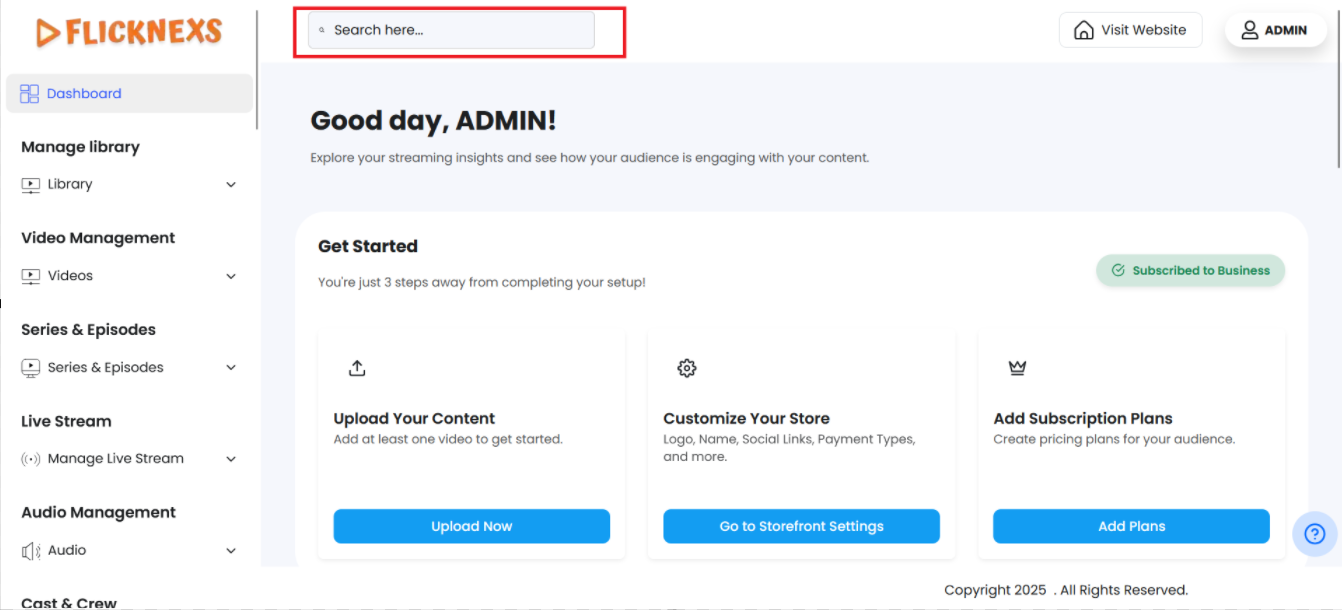
You will find this feature at the Header adjacent to the Sidebar. It allows you to quickly find and access all Form Fields and Controls within the admin panel, without browsing through multiple menus.
Functionality:
- All Menu Sections and Menu Items can be accessed using the Search option.
Platform’s storage and Subscription
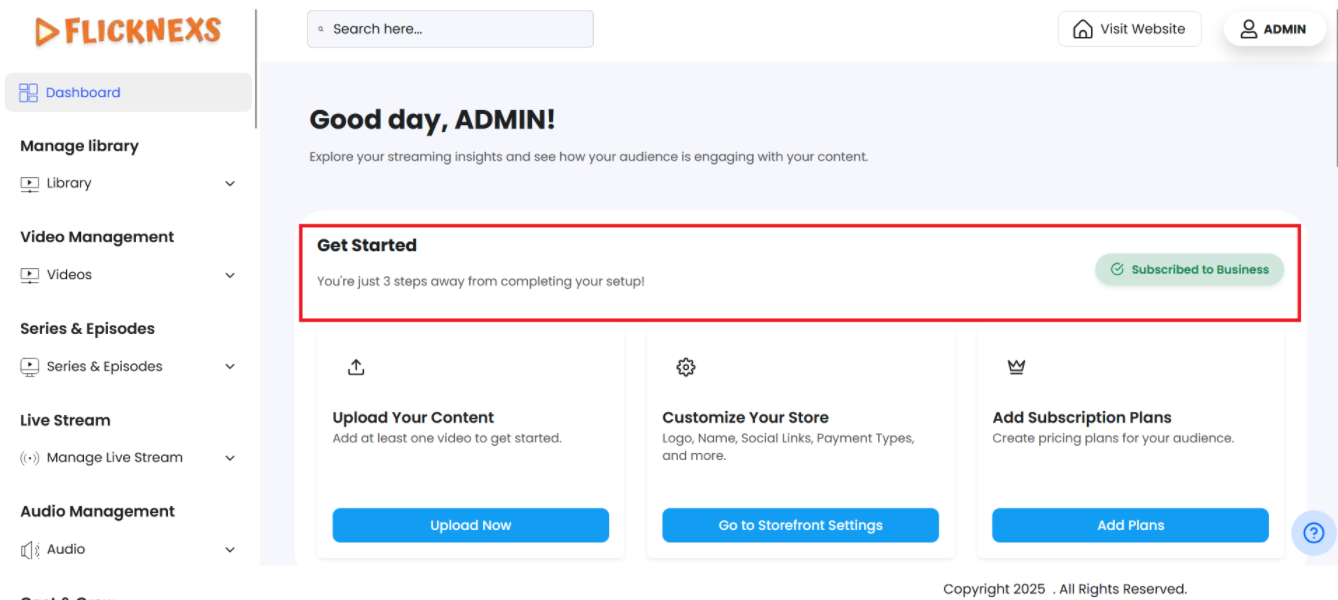
- In this section, you will find detailed information about your platform’s storage and subscription status. It displays the total disk space allocated for your platform, the remaining storage space available, and the total space usage.
- Additionally, this section provides information about your subscription period, including the package end date. This allows you to monitor storage usage and keep track of your subscription timeline effectively.
Upload your content
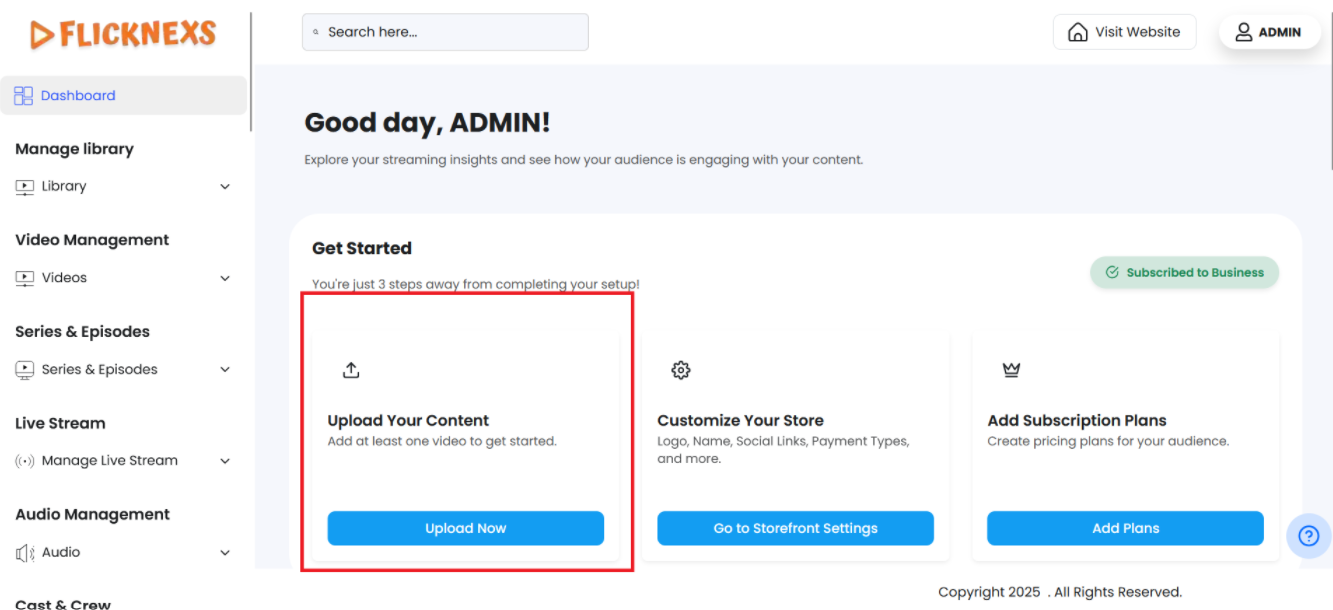
- In this section, the “Upload Your Content” tab provides an option to upload videos. By clicking on this tab, you will be redirected to the video upload page, where you can easily upload your videos.
- This feature streamlines the process, allowing you to add new content to your platform quickly and efficiently.
Set up website’s Logo
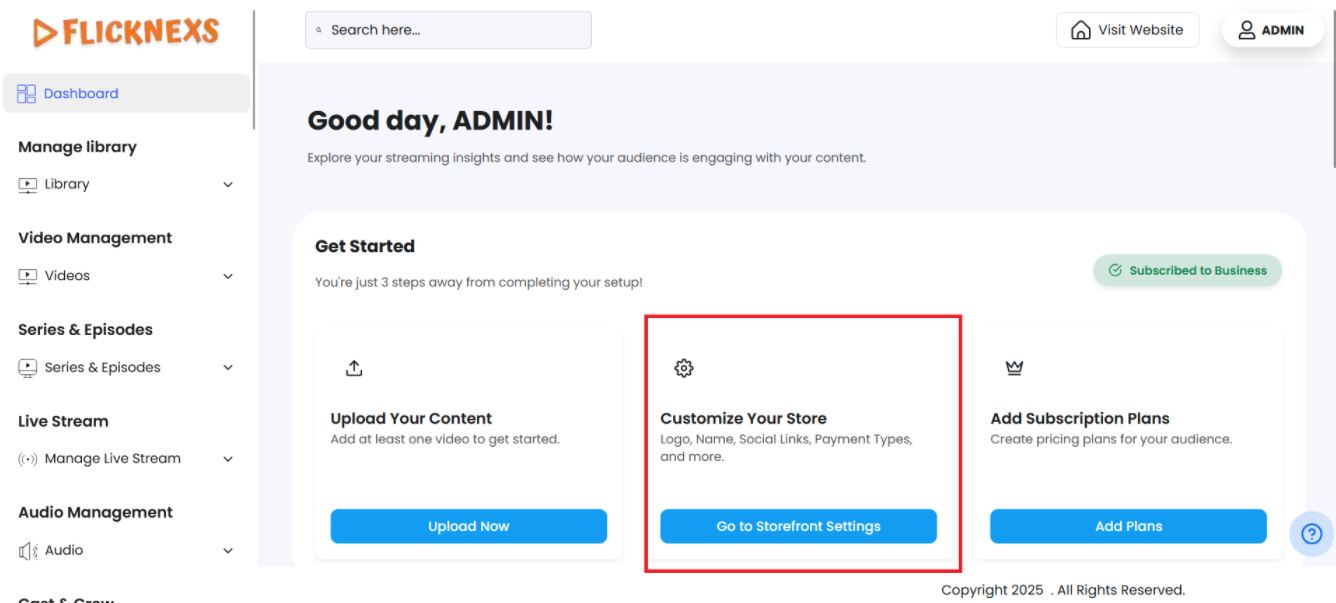
- In this section, the “Setup Website Logo, Name, Social Links, Payment Types, etc.” tab includes a “Go to Storefront Settings” option. By clicking this option, you will be redirected to the settings page where you can configure various aspects of your website.
- Here, you can upload the logo for your website, set the website name, and add social media links.
- Additionally, you can manage payment types and other essential settings, allowing you to customize and optimize your storefront according to your preferences.
Users of your platform
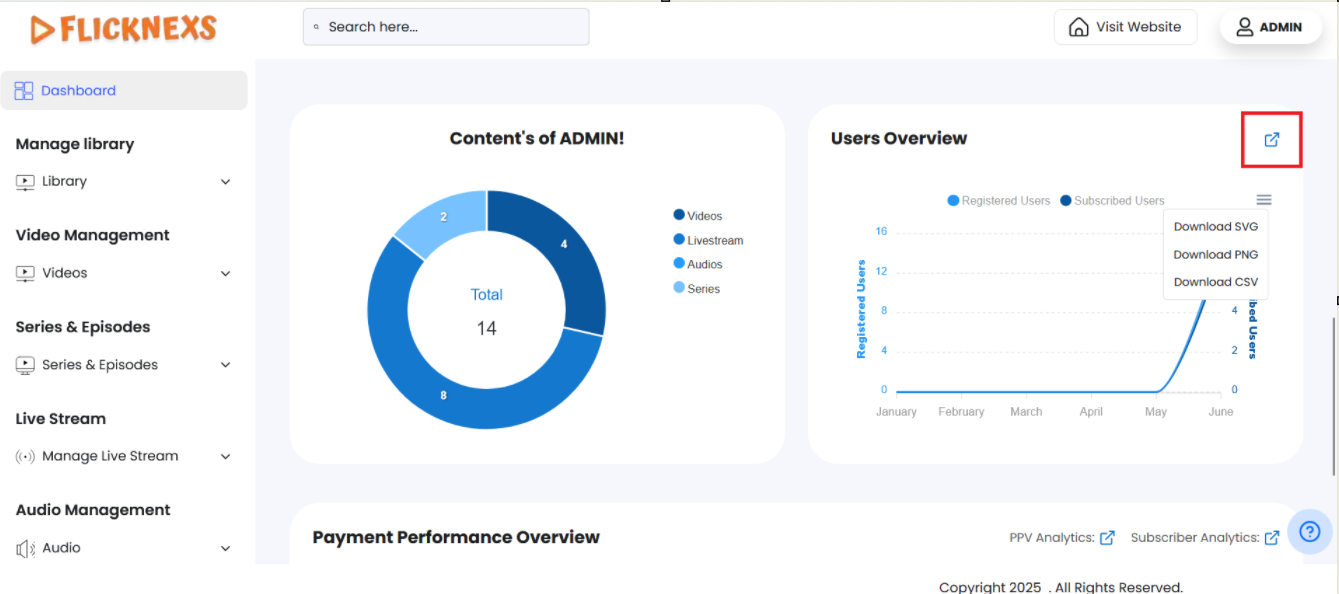
- In this section, you can access comprehensive statistics about your platform. You can view the total number of registered users and subscribers on your platform, segmented by month, directly from the dashboard. This data provides valuable insights into your platform’s growth and user engagement trends over time.
- To help with reporting and analysis, you also have the option to download this data in multiple formats:
- SVG – Ideal for scalable visual representations
- CSV – Useful for spreadsheet analysis and importing into analytics tools
- PNG – Perfect for quick sharing or presentations
- Additionally, if you want a deeper look into user behavior, demographics, and activity trends, you can click the provided link or button to navigate to the full User Analytics section. This gives you access to more comprehensive insights to better understand your audience and make data-driven decisions.
- Additionally, it displays the total number of Videos, live streams, Series, and audio files uploaded to the platform. This information provides a complete overview of your platform’s activity and growth.
Payment Performance Overview
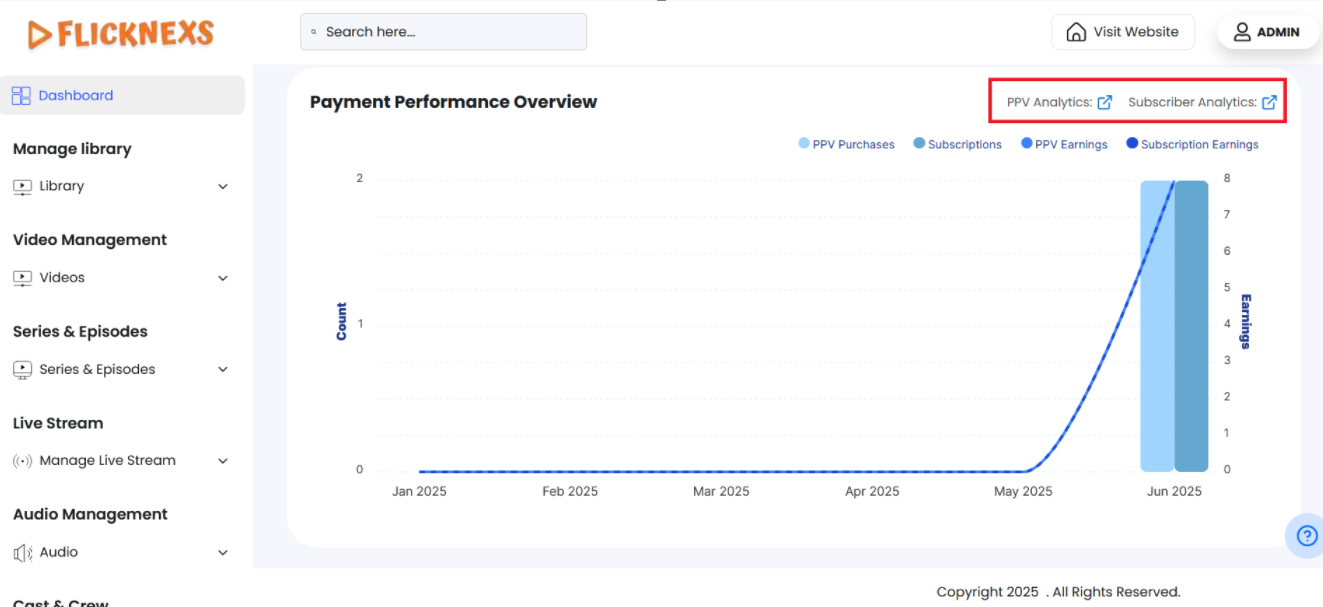
- In this section, you can view a comprehensive monthly performance overview of your OTT platform. This dashboard gives you clear visibility into key revenue and engagement metrics, helping you track business growth over time.
You’ll find the following insights displayed on a month-by-month basis:
- Total PPV Purchases – The number of pay-per-view transactions made by users
- Total Subscriptions – The count of active subscription sign-ups
- Total PPV Earnings – Revenue generated from all PPV purchases
- Subscription Earnings – Revenue earned from active subscription plans
- This breakdown allows you to understand which monetization model is performing better and where user engagement is highest.
- For deeper insights, you can directly navigate to the PPV Analytics or Subscription Analytics sections using the provided shortcuts. These sections offer more detailed graphs, filters, and breakdowns to help you analyze trends, user behavior, and financial performance in greater depth.