
The App Settings section allows you to configure various visual and functional elements of your mobile and TV apps. You can set up the welcome screen, splash screen, and screen images to enhance the user interface. Additionally, you have the option to enable or disable specific pages within the TV app, helping you control the layout and navigation experience across platforms.
Mobile App Settings
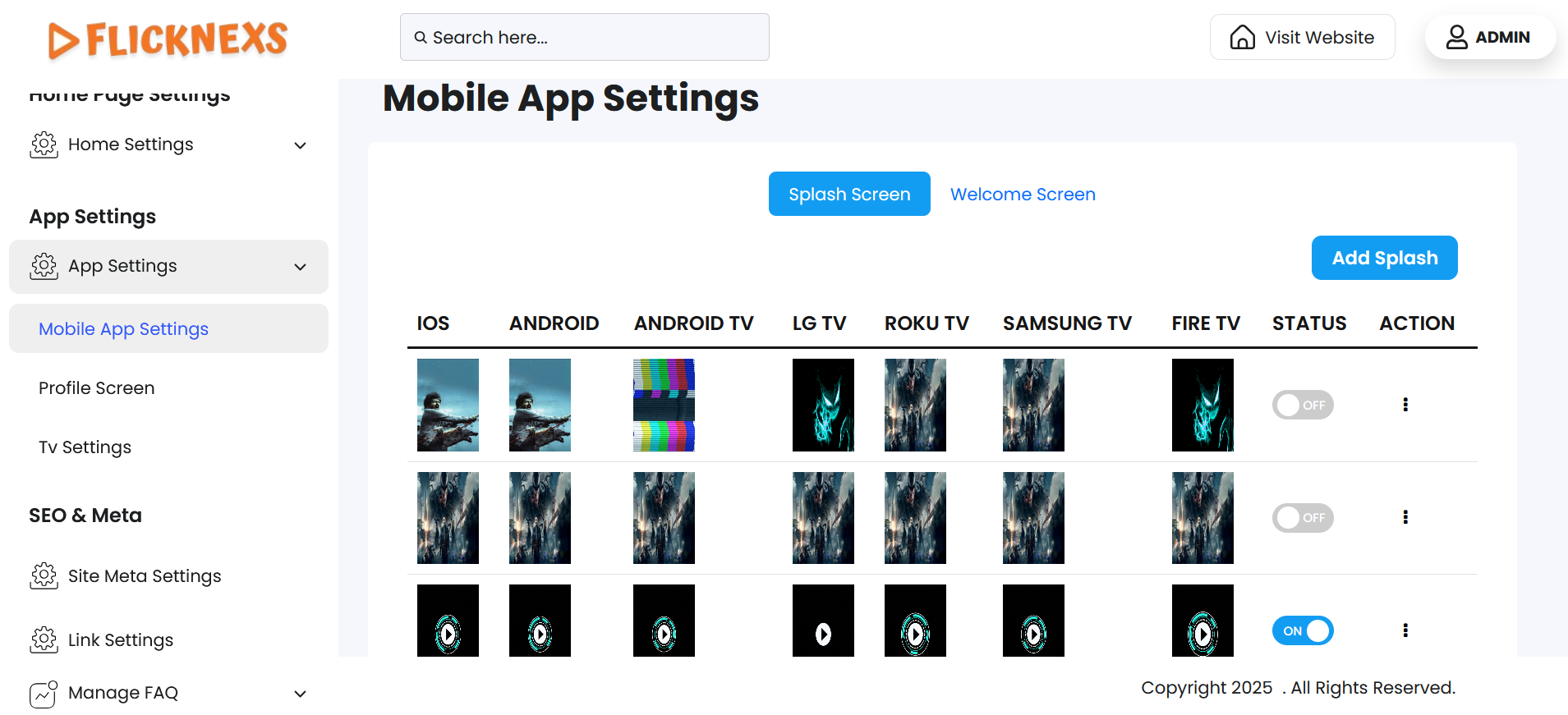
In the Mobile App Settings section, there are two separate divisions to manage the Splash Screen and Welcome Screen for different platform apps. These include:
- Android
- iOS
- Android TV
- LG Smart TV
- Samsung Smart TV
- Fire TV
- Roku TV
Screen Management List
Each division (Splash Screen and Welcome Screen) displays a list of existing screens configured for the above platforms. The list contains the following columns:
- App Type: Specifies the platform (e.g., Android, iOS, etc.).
- Status: Indicates whether the screen is enabled or disabled.
- Actions: Options to edit or delete the screen.
Status Control
- You can Enable or Disable each screen from the status column.
- When a screen is enabled, it will be displayed in the respective app during launch (for the splash screen) or after launch (for the welcome screen).
- When a screen is disabled, it will not be shown in the app.
Action Options
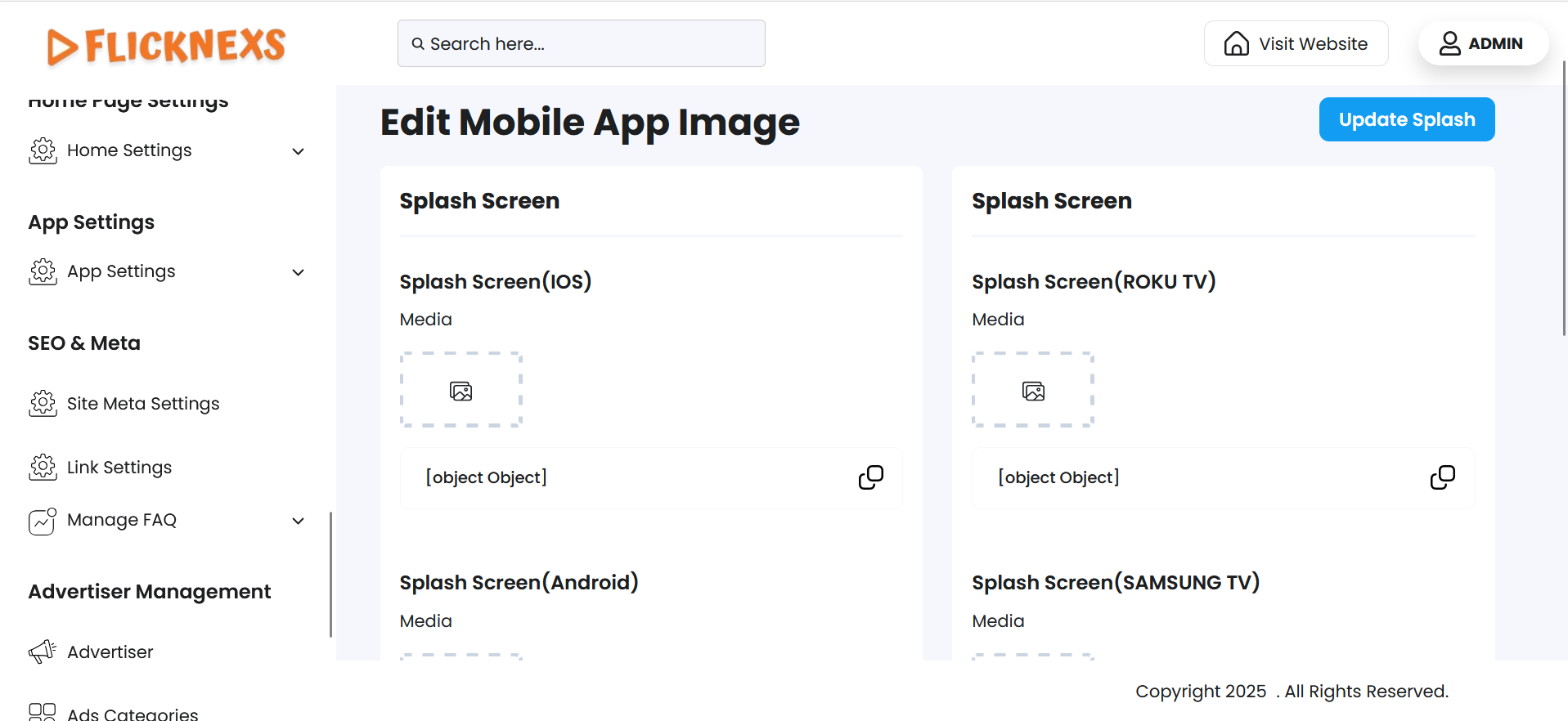
- Edit:
- Opens the screen editor.
- You can upload or update the splash screen or welcome screen image specific to that app.
- It also allows adjusting image resolution or platform-specific requirements.
- Delete:
- Removes the selected screen configuration from the list.
- Once deleted, the screen cannot be used again unless re-uploaded.
- Deleted screens will no longer appear in the app, regardless of their previous status.
The functionality and flow remain the same for both the Splash Screen and Welcome Screen sections. Each must be managed independently for all platforms based on design requirements and branding consistency.
Profile Screen
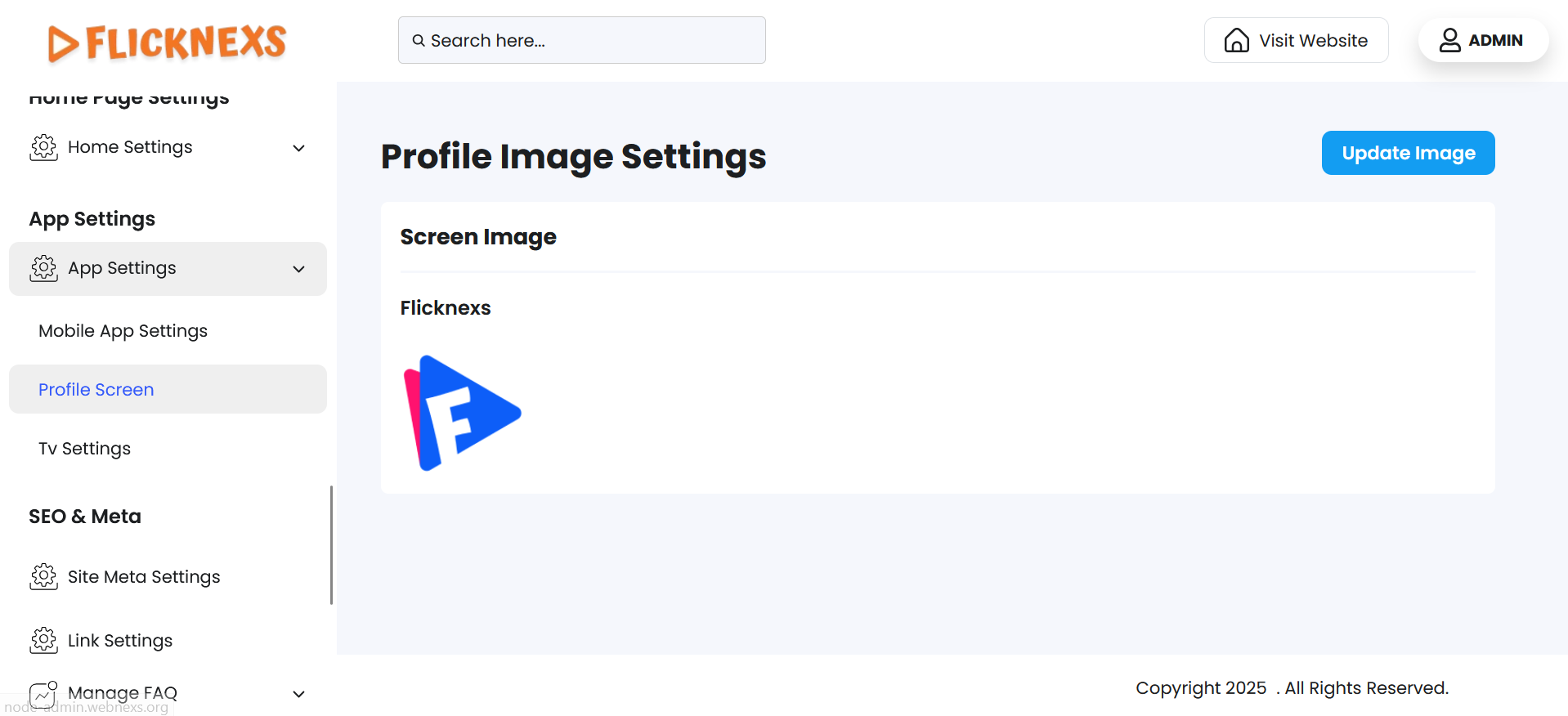
In the Profile Image Settings section, users can manage and update the profile name and screen image used across the platform.
Current Display
- The section displays the currently set screen image along with the profile name.
- This allows users to quickly view the active profile image and identify which image is associated with which profile.
Update Image Option
- To make changes, users can click the “Update Image” button.
- On clicking this button, the user is redirected to the “Edit Screen Image” page.
Edit Screen Image Page
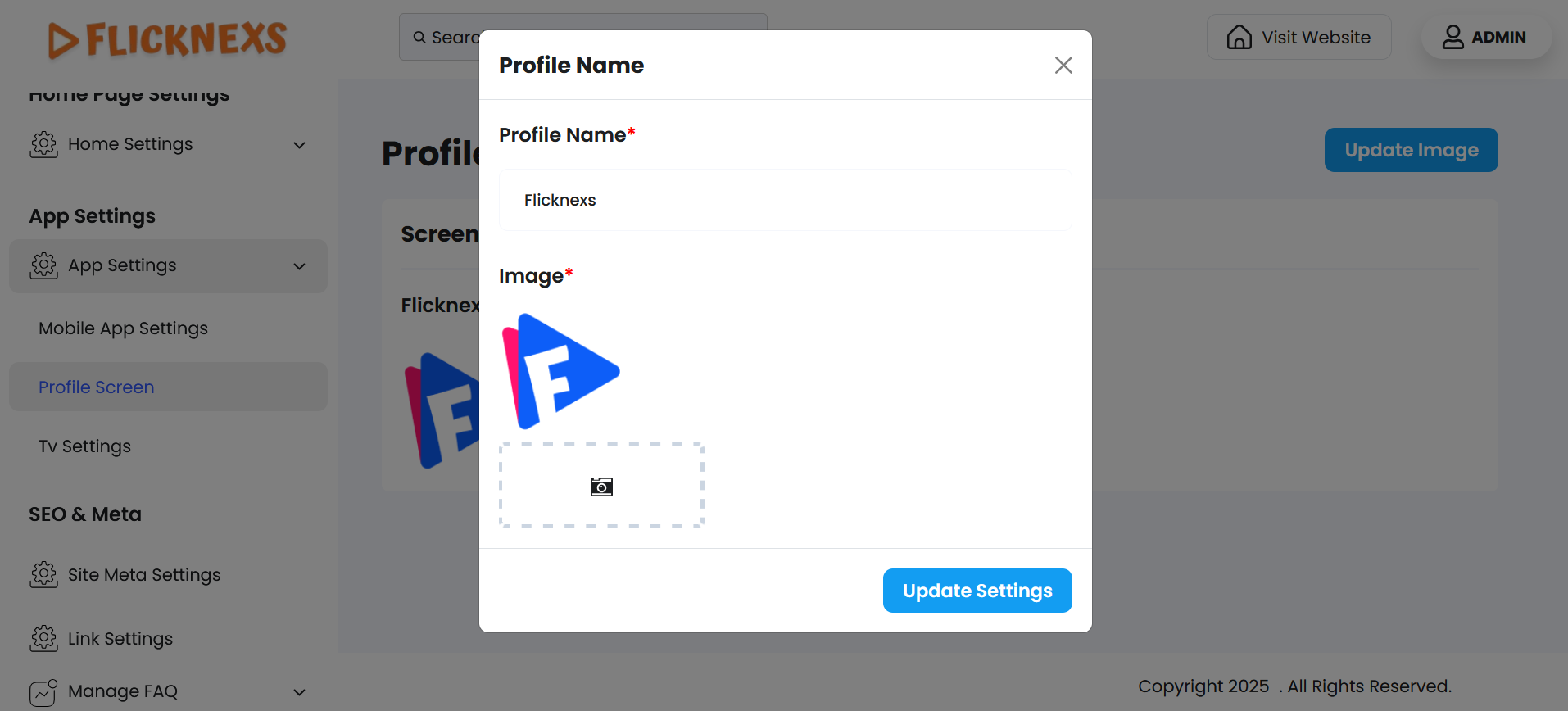
On this page, users are provided with the following options:
Change Profile Name:
- Allows the user to edit the display name associated with the profile.
- Useful for updating the profile title or correcting naming errors.
Change Screen Image:
- Users can upload a new profile screen image to replace the current one.
- The platform may support recommended dimensions or file formats for optimal display.
- Once the image is uploaded and saved, the new screen image will be applied to the profile and reflected across the relevant areas in the app or website.
This feature helps maintain a personalized and up-to-date user interface, ensuring each profile has a unique identity with a custom image and name.
TV Settings
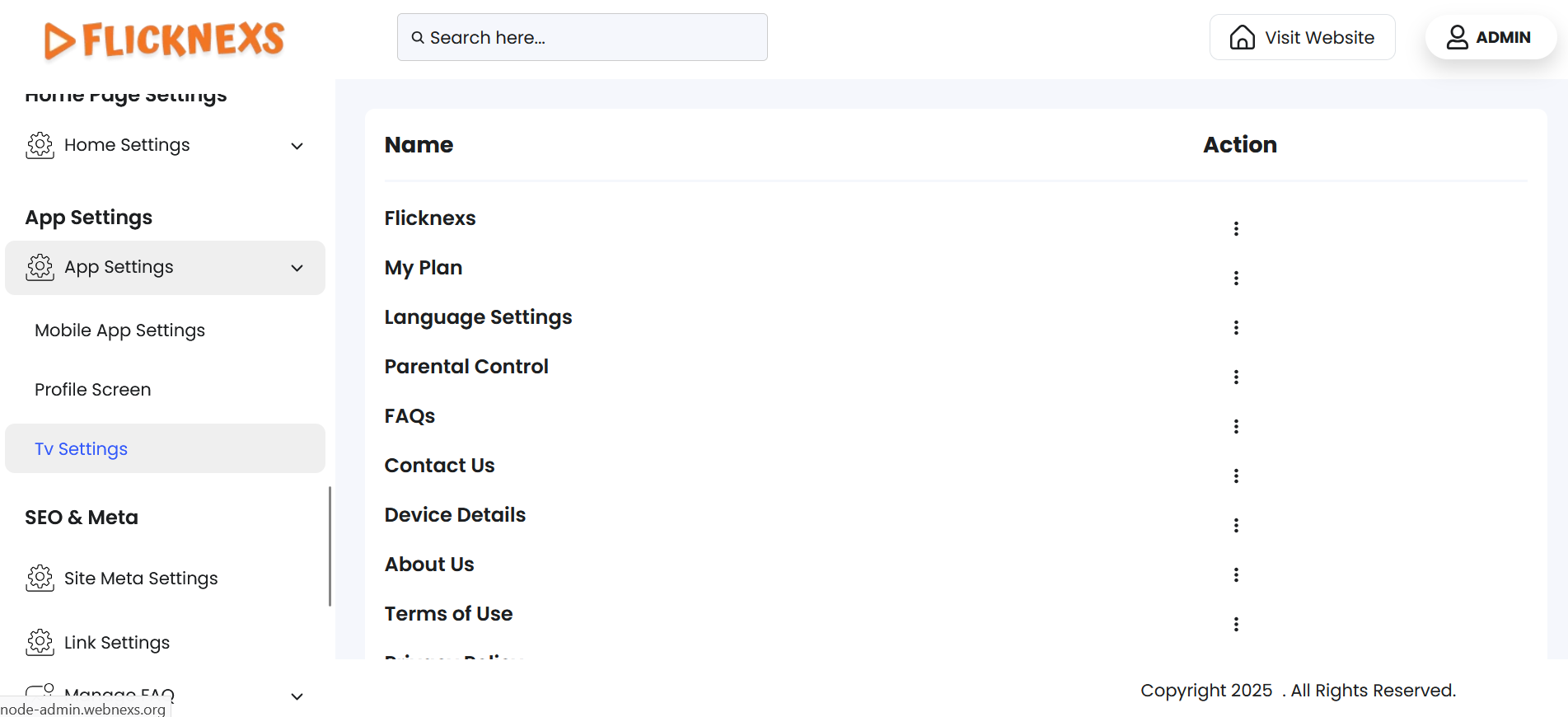
The TV Settings section allows you to manage and configure the pages that appear on your TV apps, including platforms like Android TV, LG, Samsung, Fire TV, and Roku TV.
Pages List View
You will see a list of all pages associated with the TV apps. This list includes the following key columns:
- Name:
- Displays the name/title of each page that is currently set up for the TV apps.
- Helps identify different sections of the app (e.g., Home, Movies, Live TV, Settings).
- Action:
- Provides an Edit button for each page.
- Clicking the Edit option allows you to modify various settings related to that page.
Edit Page Settings
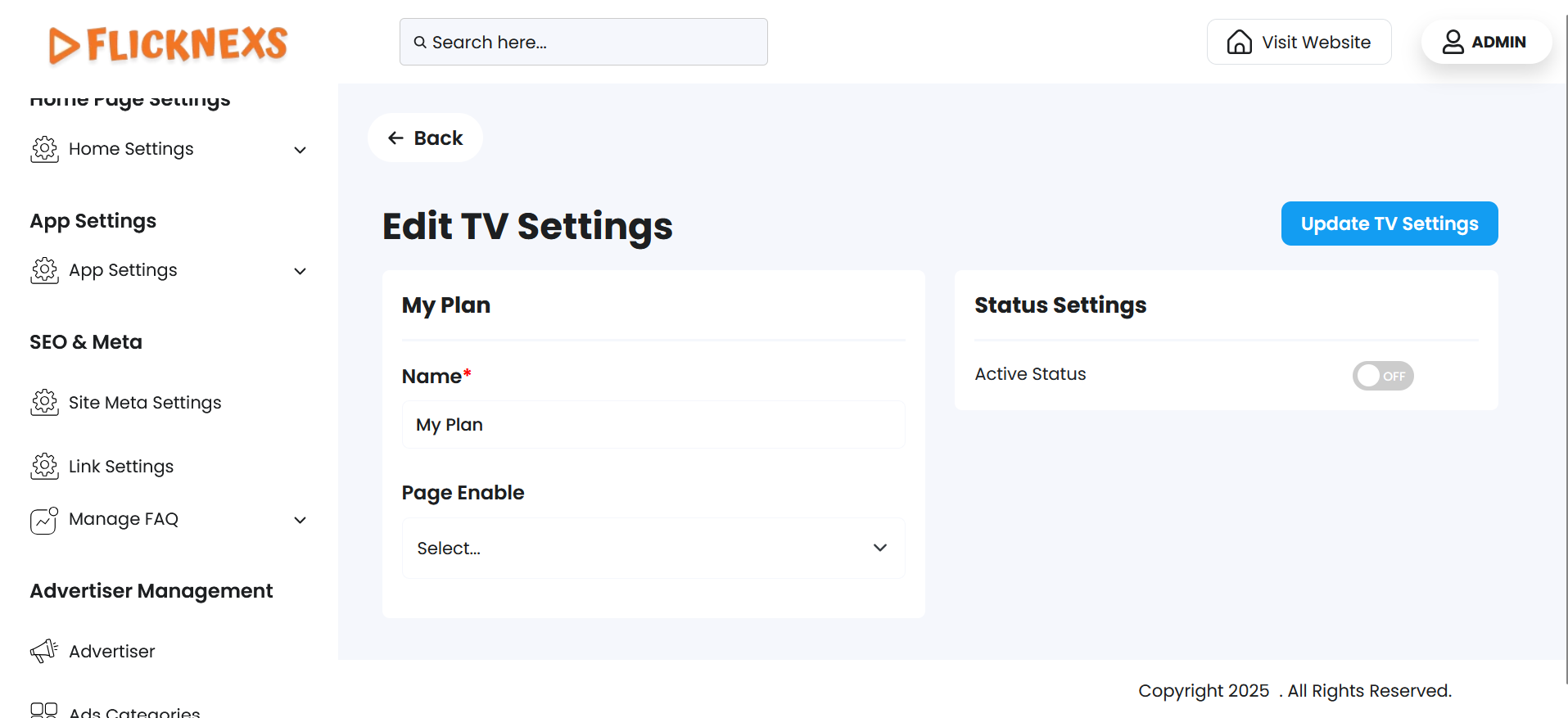
When you choose to edit a page, the following configuration options are available:
Page Name:
- You can update or rename the page title.
- This is useful for rebranding, localization, or correcting naming issues.
Page Enable:
- This option allows you to select which pages you want to include in the app’s navigation or layout.
- Only the selected (enabled) pages will appear in the actual TV app interface.
Status:
- Allows you to Enable or Disable the page.
- If the Status is enabled, the page will be visible and accessible on the TV app.
- If the Status is disabled, the page will be hidden from the TV app but still available for future editing in the admin panel.
These settings give you complete control over what content and sections are visible to users on the TV platforms, allowing for flexibility and customization of the app experience across devices.