
Artist Management
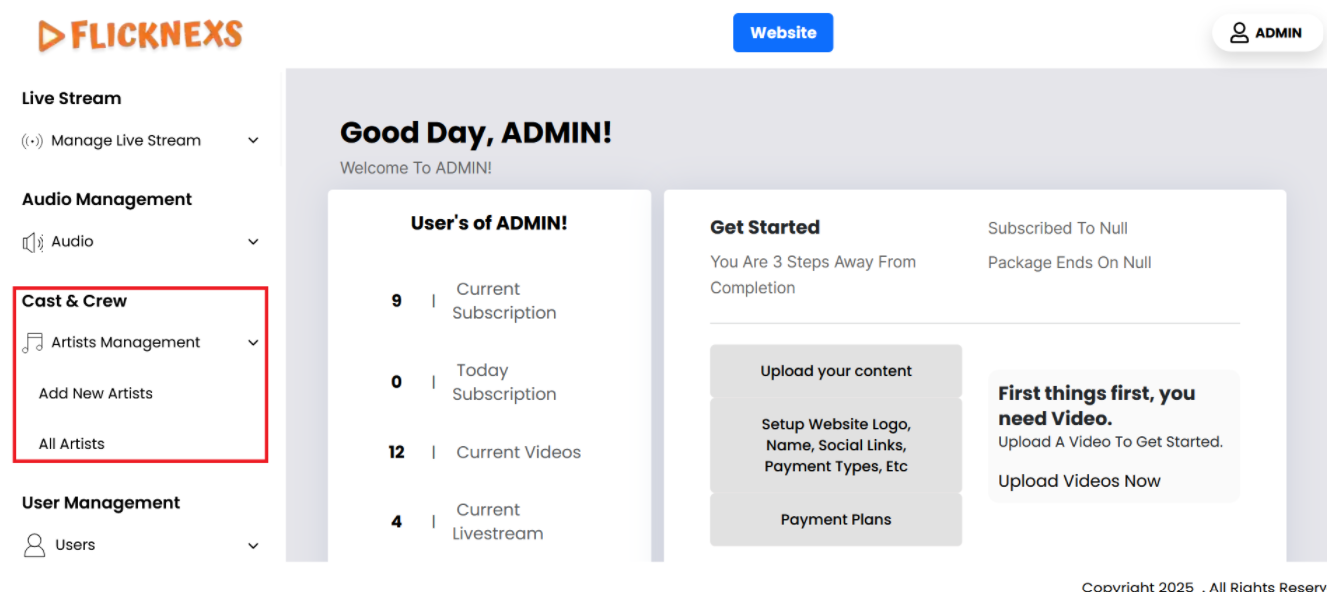
In the Admin panel, you will find various options listed on the left side of the page. To manage Artists, please follow these steps:
1. Access the Admin Panel: Log in to the Admin panel from your platform.
2. Locate the Sidebar: On the left side of the page, you will see a sidebar containing multiple options.
3. Select ‘Cast & Crew’: From the sidebar, click on the ‘Cast & Crew‘ option.
4. Navigate to the Artist Management Section: After selecting ‘Artist Management’, you will be directed to the Artist Management section where you can add, edit, delete, and organize artists.
By following these steps, you can efficiently manage the Cast & Crew through the Admin panel.
All Artist
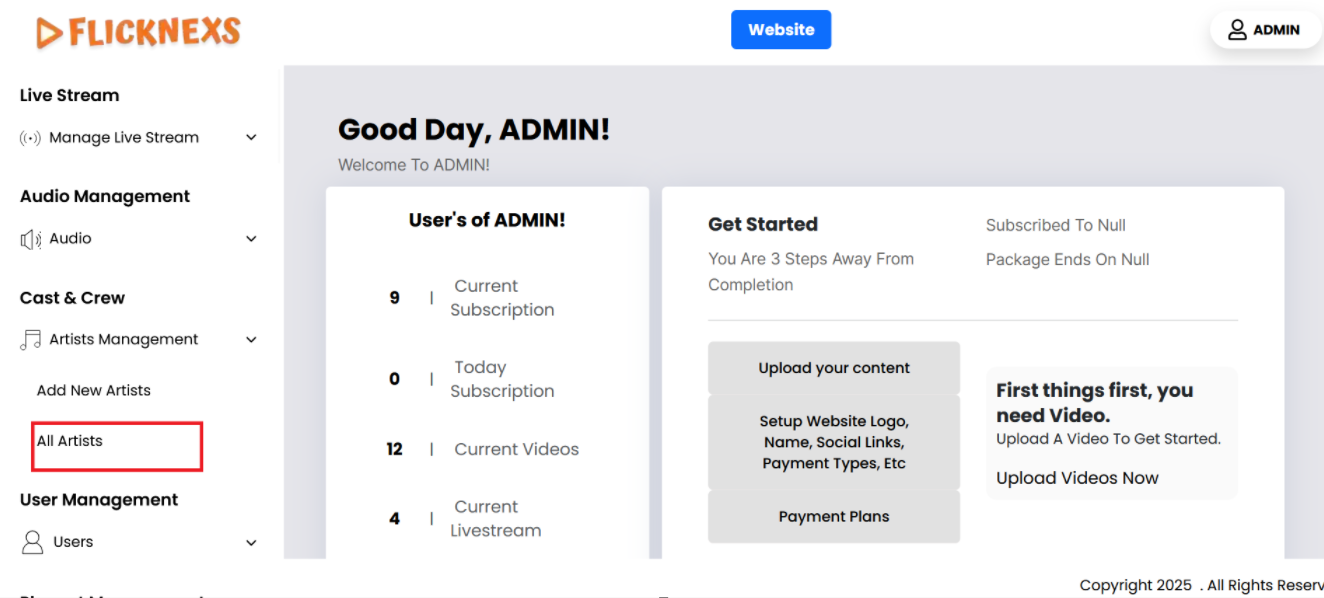
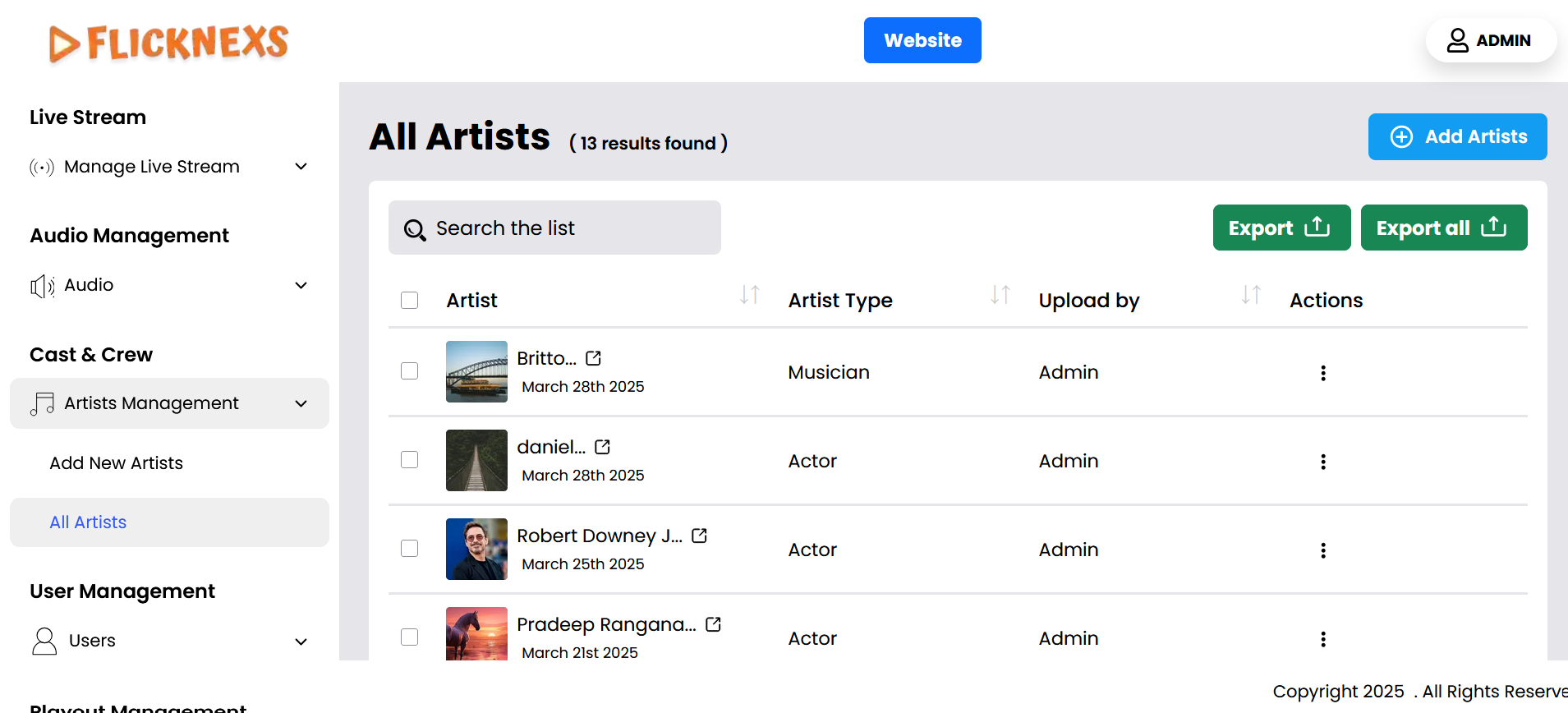
It will display a list of all artists with the following details:
- Image of the Artist: A visual representation of each artist, which helps users easily recognize them.
- Name of the Artist: The artist’s full name, allows for easy identification and searching within the list.
- Artist Type: Specifies the artist’s role or profession, such as Actor, Musician, Costume Designer, etc., providing context about their contribution to the content.
- Uploaded By: This field shows the name of the person who uploaded the artist.
- Actions (Edit/Delete):
- Edit: Allows you to modify the artist’s details, such as name, image, or type.
- Delete: This enables you to remove the artist from the platform entirely.
This structure will help with efficient management and quick access to artist information.
Add New Artist
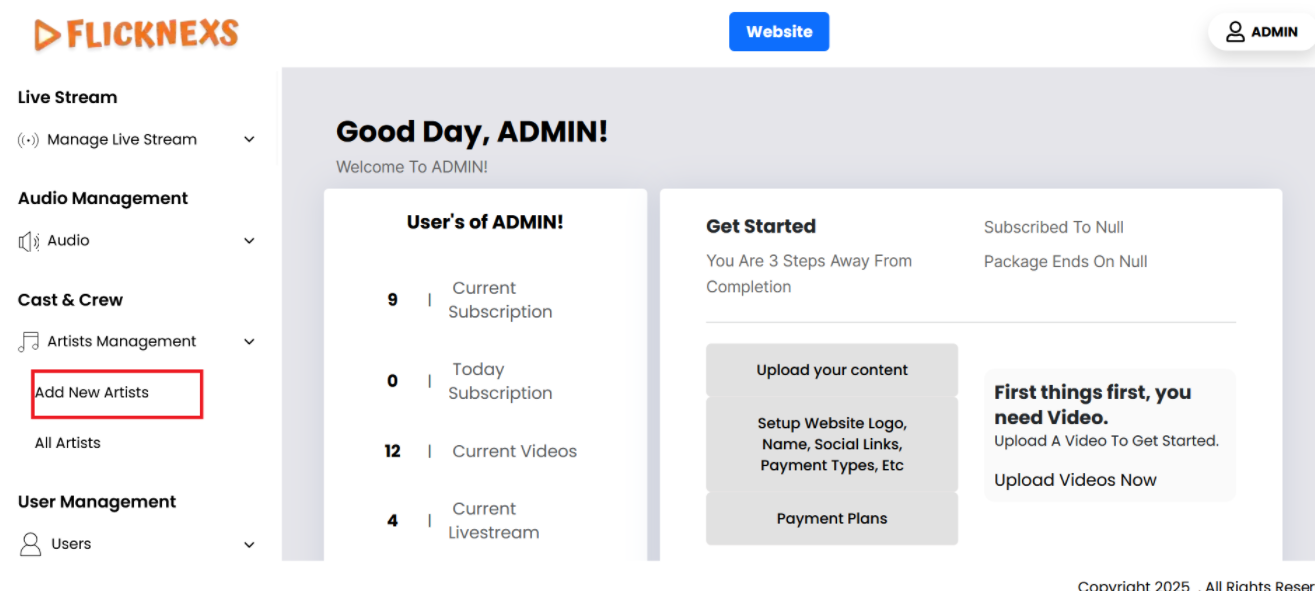
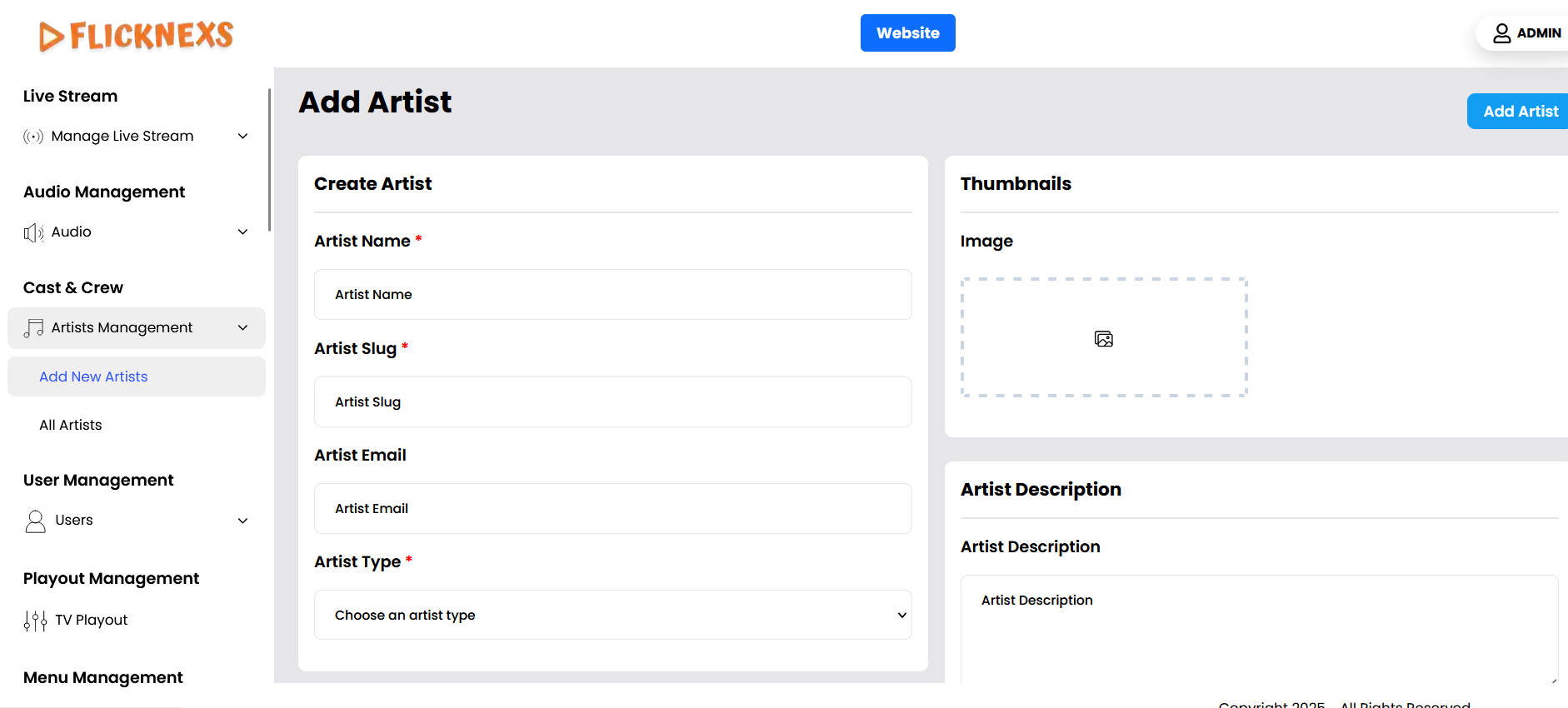
To create a new artist on your platform, follow these steps:
- Artist Name: Enter the full name of the artist, which will serve as their primary identifier on the platform.
- Artist Slug: Create a unique, URL-friendly identifier for the artist. This slug will be used in the web address (e.g., /artist/artist-name).
- Artist Description: Provide a brief bio or description of the artist, including relevant details about their background and career highlights.
- Artist Email: Enter the artist’s email address. This field is optional and not mandatory.
- Artist Type: Choose the artist’s role from a predefined list of options such as Actor, Musician, Costume Designer, etc. This helps categorize the artist based on their profession.
- Image: Upload an image of the artist. Ensure the image is 300 x 300 px or maintains a 2:2 ratio to fit correctly in the platform’s layout.
These steps will help organize and present artist information effectively.