
The Contact Request section allows you to manage and respond to messages submitted by users through the Contact Us form on your platform. This feature is essential for handling user queries, feedback, support requests, or partnership inquiries in an organized manner.
Contact Us
To access this module, navigate to the sidebar menu and click ‘Contact Requests’. Find the submenu item named ‘Contact Request’ and click to open.
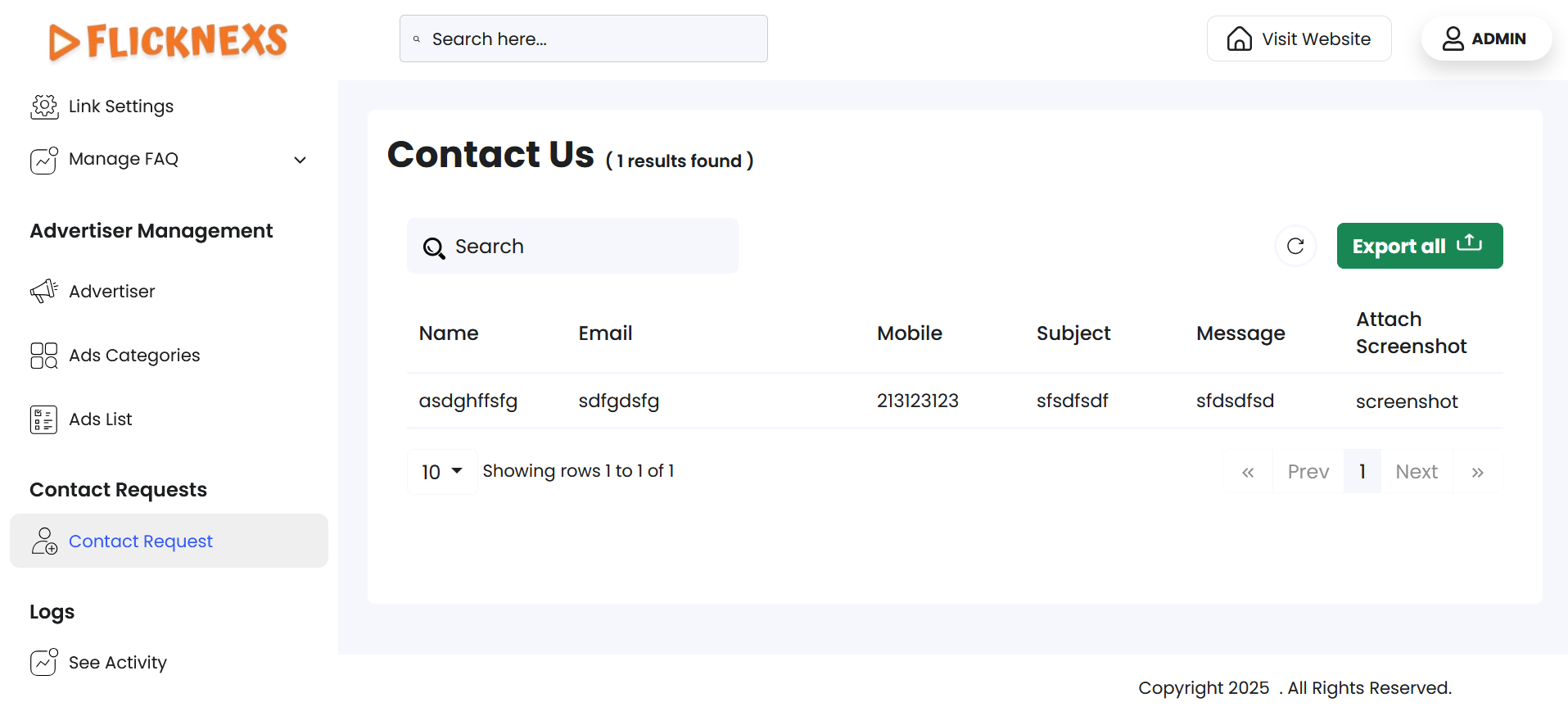
You will find a table with the following column headers to view all user-submitted contact form entries. They are detailed below:
Contact Us
- Name: Displays the user’s name entered in the contact form.
- Email: Displays the email address provided by the user.
- Mobile: Displays the mobile number entered during the form submission.
- Subject: Displays the purpose of the message sent by the user.
- Message: Contains the main content or query shared by the user.
- Attach Screenshot: Shows an uploaded image (if any), shared by the user to visually explain the issue or feedback.
Table Controls
- To simplify your workflow, there is a ‘Search’ bar at the top left corner of the table. You can enter specific keywords to filter the contact requests, and the matching records will appear accordingly.
- In the top-right corner, you will find a ‘Reload’ button. Just in case you need the table to reflect the real-time data, you can use this button to refresh and display the information.
- For record-keeping, reporting, backups, or sharing data outside the system, you can export all contact request data directly by clicking on ‘Export All’, located at the top-right corner of the table. You will find the following format options:
- CSV
- XLSX
Download in your preferred format.
Pagination Controls
Navigate to the bottom section of the page to find these controls:
- Rows Per Page Dropdown
- Use the dropdown menu (showing options – 5, 10, All) to set the number of contact requests displayed per page.
- Selecting ‘All’ will display all available rows on a single page.
- Showing Rows Information
- This displays the range of contact requests currently being viewed out of the total number of results.
- Pagination Buttons
- Use the ‘Prev’ and ‘Next’ buttons to navigate backward or forward through pages of results, if there are multiple pages.
Benefits of Accessing Contact Requests
- Improves Communication Handling: Allows support teams to respond to user queries with full visibility into the submitted information.
- Boosts Transparency: Enables administrative oversight on user-submitted issues, suggestions, or support needs.
- Supports Faster Resolutions: Screenshot attachments and clear message fields allow for quick understanding and handling of inquiries.
- Data Accessibility: Export options support external reporting, backup, or auditing of user engagement history.