
The Device Management section allows you to monitor, control, and manage the devices used by users to access your platform. It ensures secure content delivery, prevents account sharing abuse, and gives users and administrators visibility and control over active sessions.
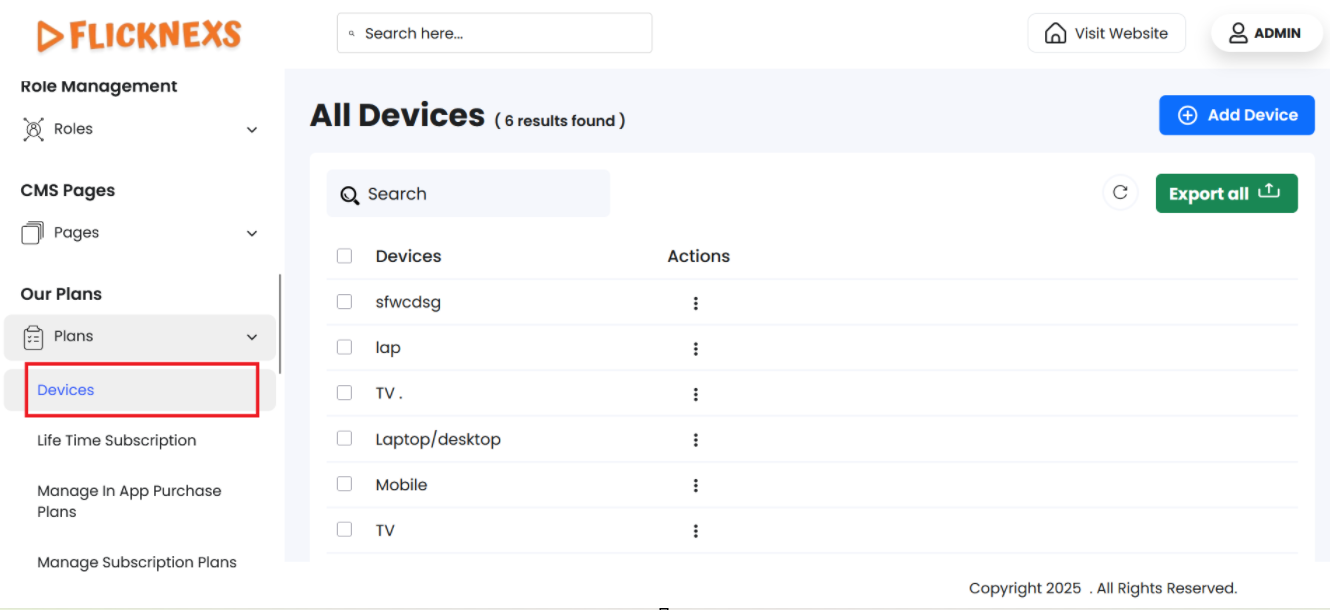
The Device Management section allows platform administrators to manage which device types are available for use within subscription payment plans. This ensures that users can only access content on approved devices, helping align your platform’s offerings with business goals, user expectations, and device compatibility trends.
Purpose of Device Management
- Tailor subscription plans to specific device types (e.g., mobile-only, TV-only).
- Offer greater flexibility by expanding device compatibility.
- Maintain clear branding and naming consistency across the platform.
- Prevent access from unsupported or outdated devices.
Available Management Options
Device List
This is a centralized list displaying all configured devices that can be linked to subscription plans.
Each device entry typically includes:
- Device Name (e.g., “iOS”, “Android TV”, “Smart TV”)
- Action Options: Edit or Delete
Edit Device
Clicking the Edit button beside a device allows you to rename the device. This is helpful for:
- Clarifying usage (e.g., renaming “Tablet” to “Tablet / Mac” for better understanding)
- Brand alignment (e.g., naming it “Apple TV” instead of just “TV”)
- Platform updates when compatibility changes
Once updated, the new device name is reflected across all subscription plans where the device is enabled. This ensures consistency across the user experience.
Delete Device
The Delete option removes a device from the list permanently, making it unavailable in all current and future subscription plans.
Warning: Deleting a device will:
- Remove it from every plan where it’s assigned
- Prevent users from selecting or accessing content using this device type
Use this option only when a device is no longer supported or strategically discontinued.
Add New Option:
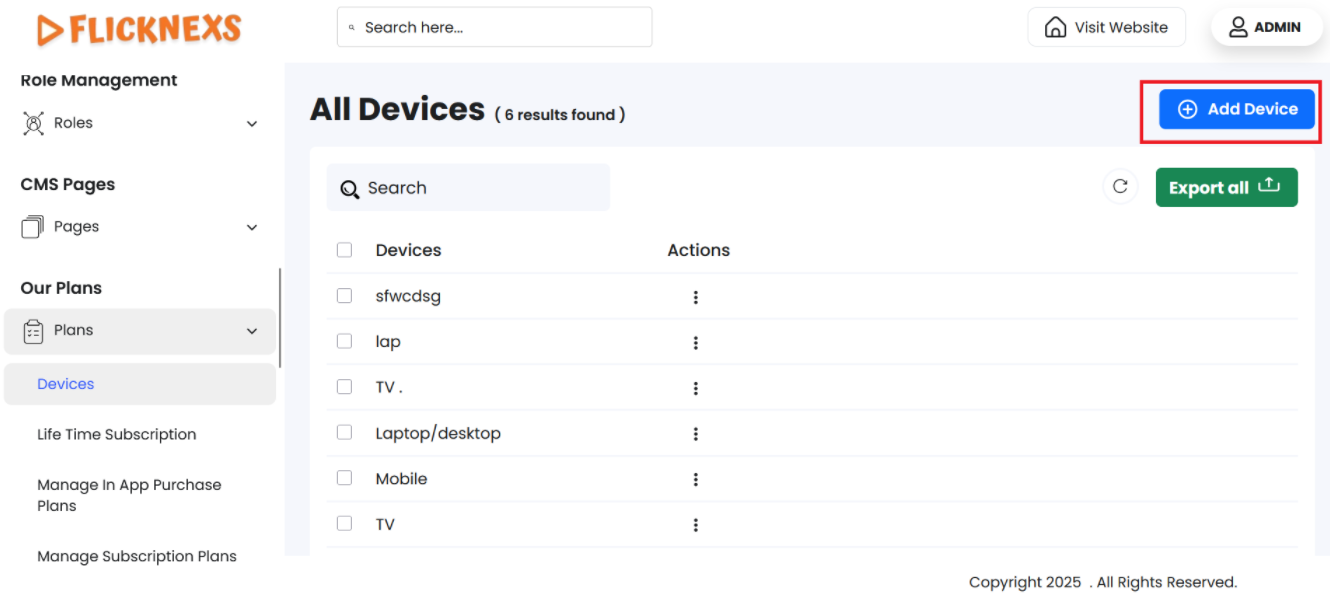
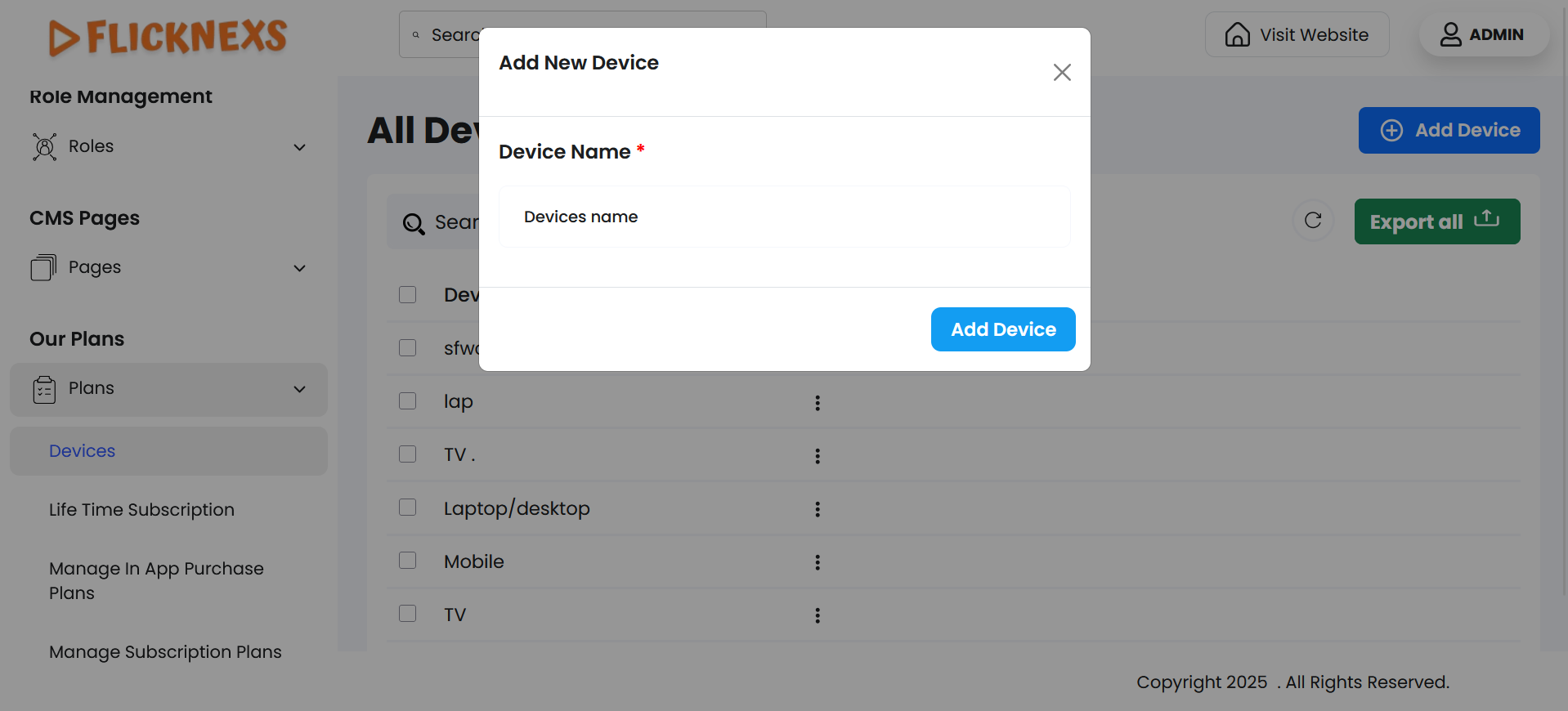
Clicking Add New lets you create a fresh device entry. Simply enter a:
- Device Name (e.g., “Google TV”, “Xbox”, “Samsung Smart TV”)
Once added, this new device:
- Appears as a selectable option when creating or editing subscription plans
- Expands the platform’s device compatibility offering
- Enables targeted access for users based on hardware
Why This Matters
This flexible device management system allows you to:
- Keep up with emerging technology and platforms
- Offer device-specific plans (e.g., mobile-only plans)
- Maintain a clean and intuitive subscription setup
- Deliver a customized user experience