
The Email Settings section allows you to configure the email delivery system used by the platform to send automated system notifications to users. This feature helps ensure reliable communication between the platform and its users, supporting key user interactions and system processes.
Email Templates
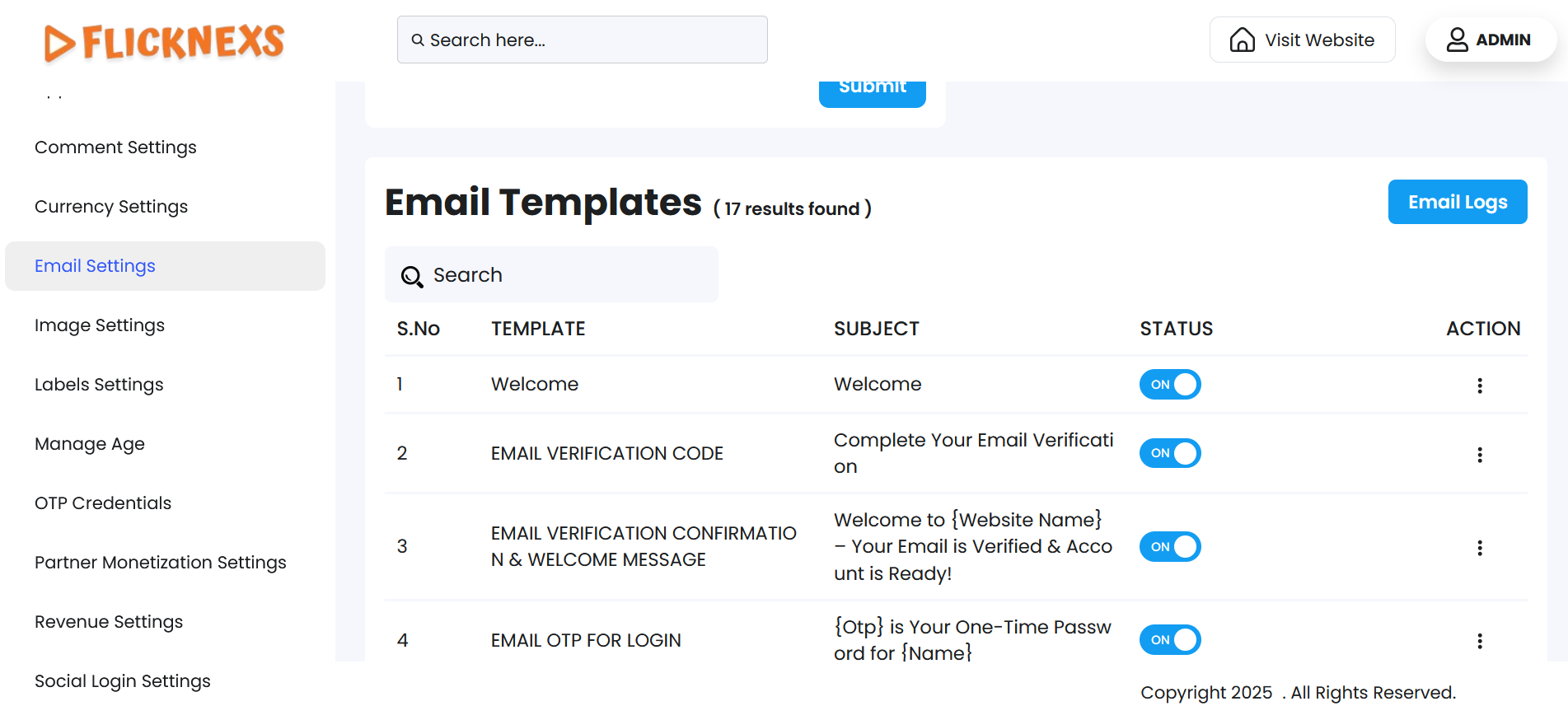
To access this module, navigate to the sidebar menu and click ‘Settings’. Find the submenu item named ‘Email Settings’ and click to open. Scroll down to locate the ‘Email Templates’ section.
You will find a table with the below-mentioned column headers to view all email templates used for system-generated emails. They are detailed below:
Email Templates
- S.No: Displays the serial number for each email template entry.
- Template: Displays the name or purpose of the email template.
- Subject: Displays the subject line that users will see in their inbox.
- Status: Displays the toggle button to enable or disable the specific email template, which, if enabled, sends the email automatically to users, and if disabled, the email will not be sent. A toast notification ‘Email Template Updated Successfully’ will appear to confirm the update.
- Action: ‘Edit’ is the only option available to modify the selected email template’s content. The following form fields will be displayed for input:
- Template Type: Defines the classification or purpose of the email template.
- Subject: Specifies the subject line of the email.
- Page Content: Draft the main copy of the email.
Form Control Buttons
- Click on the ‘Update’ option found at the top-right corner or the bottom-right corner to save the changes. A toast notification ‘Email Settings Updated Successfully’ will appear to confirm the update.
- Click the ‘Back’ button located at the top-left corner to return to the email template listing table
Upon clicking the ‘Back’ button, the page navigates to the email template listing table.
Table Control
- To simplify your workflow, there is a ‘Search’ bar at the top left corner of the table. You can enter specific keywords to filter the email templates, and the matching records will appear accordingly.
Pagination Controls
Navigate to the bottom section of the page to find these controls:
- Rows Per Page Dropdown
- Use the dropdown menu (showing options – 5, 10, All) to set the number of email templates displayed per page.
- Selecting ‘All’ will display all available rows on a single page.
- Showing Rows Information
- This displays the range of email templates currently being viewed out of the total number of results.
- Pagination Buttons
- Use the ‘Prev’ and ‘Next’ buttons to navigate backward or forward through pages of results, if there are multiple pages.