
FAQ Management allows you to define and control the Frequently Asked Questions displayed to end-users on your platform. You can create FAQs with a question, an answer, and associate them with a genre for better categorization and searchability.
This feature ensures:
- Quick access to common answers improves user support efficiency.
- Organized knowledge delivery by grouping FAQs under relevant genres.
- Smooth update workflows, allowing content revisions without technical complexity.
It helps maintain transparency, user satisfaction, and clarity across your platform’s help and support system.
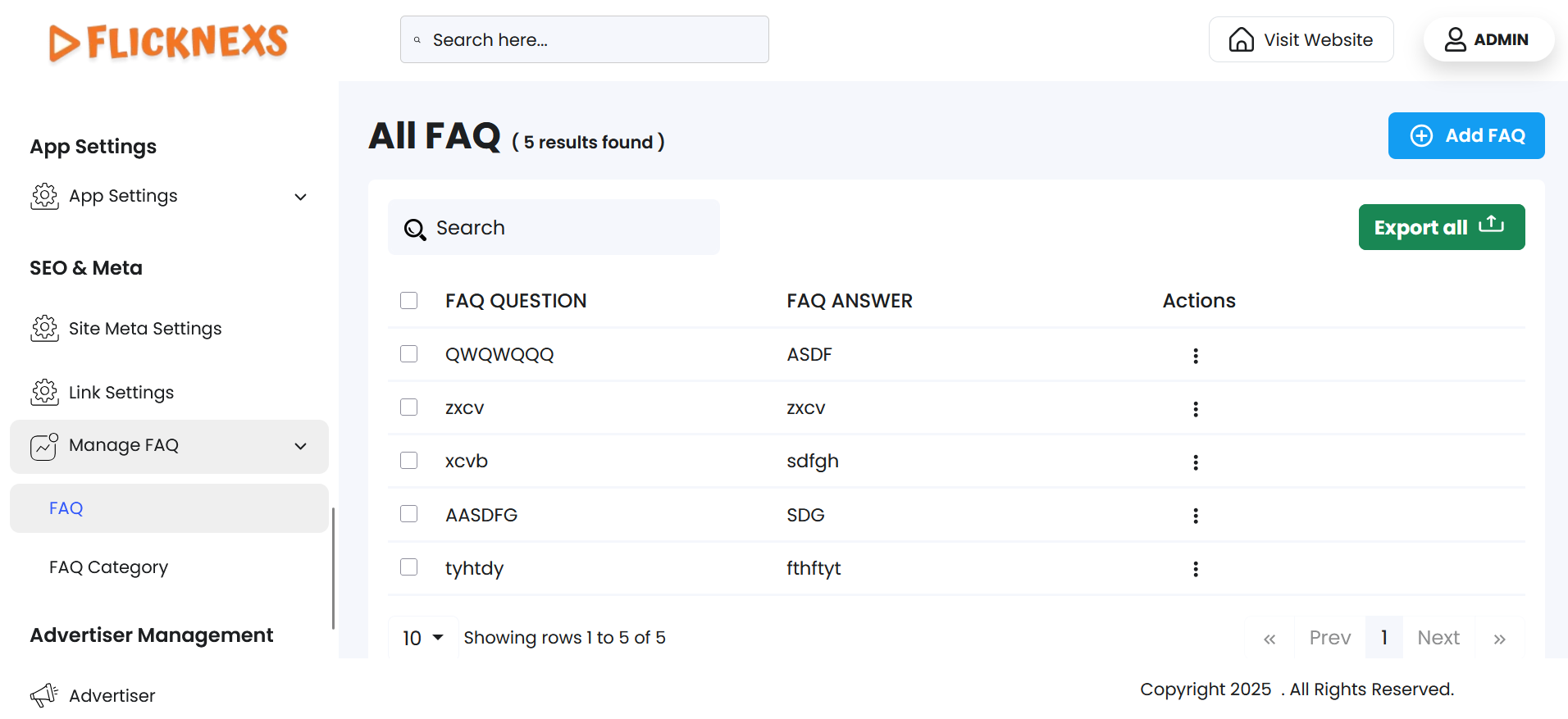
To access this module, navigate to the sidebar menu and click ‘Manage FAQ’. You will find two submenu items, namely, ‘FAQ’ and ‘FAQ Category’. Click ‘FAQ’ to access the form section to create, view, and manage FAQ entries.
FAQ
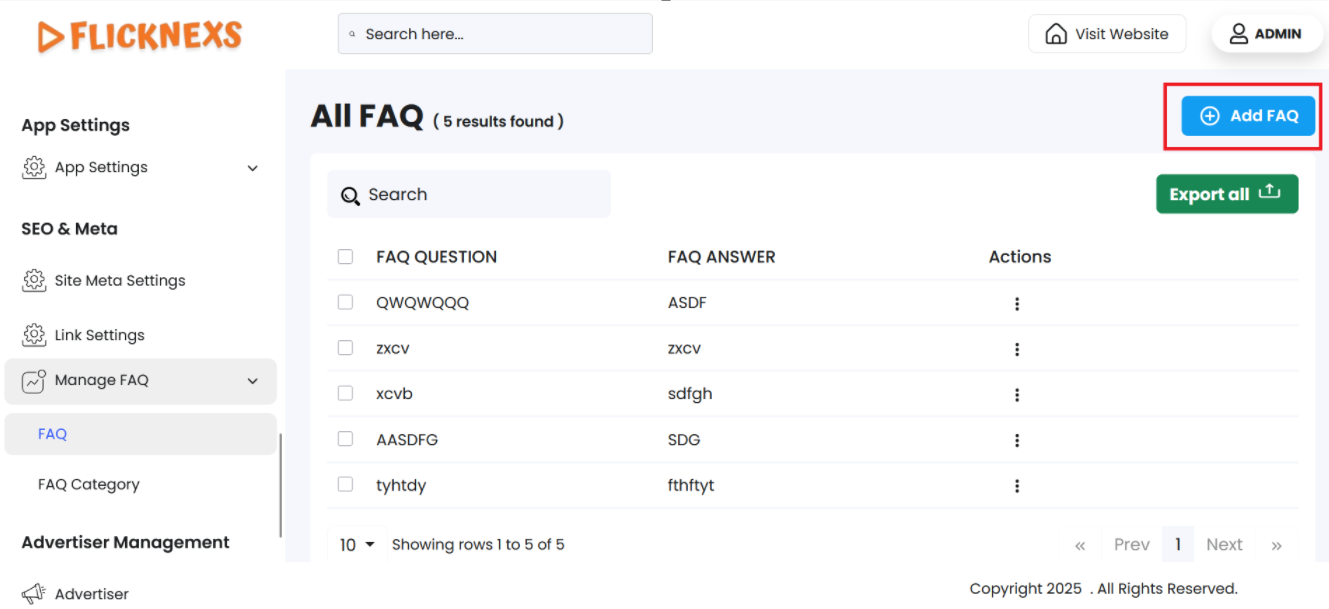
Navigate to the top-right corner and click ‘Add FAQ’ to add a new FAQ. The form fields mentioned below will appear for input:
- FAQ Question: Enter the commonly asked question you want to address.
NOTE: This is a mandatory field. If left empty, an error message saying ‘Question cannot be empty’ will be shown.
- FAQ Answer: Enter the appropriate answer for the question above.
NOTE: This is a required field. If omitted, a message ‘Answer cannot be empty’ will be displayed.
- FAQ Genre: Select a genre from the dropdown to categorize the FAQ.
NOTE: This is a required field. If not selected, an error stating ‘Choose one of the genres’ will appear.
- Add FAQ: Click the ‘Add FAQ’ button at the bottom to save the FAQ. A toast notification, ‘FAQ Created Successfully’, will appear to confirm the addition. The modal dialog box will close, and the ‘All FAQ’ form section will be visible to view the newly added FAQ.
You will find a table with the following fields to display the details of all FAQ records created. They are mentioned below:
- FAQ Question: Displays the FAQ question entered, along with its creation date.
- FAQ Answer: Shows the corresponding answer for the question.
- Action: ‘Edit’ and ‘Delete’ are the options available under this field.
- Under ‘Edit’, you will find the same fields available in ‘Add FAQ’. While ‘Add FAQ’ is used to create new FAQs, the ‘Edit’ section allows you to update existing FAQs.
- Under ‘Delete’, you can either confirm deletion or choose to retain the FAQ.
- A pop-up named ‘Confirm Deletion’ will appear.
- It will ask: ‘Are you sure you want to delete this item(s)?’
- You can choose to click ‘Cancel’ or ‘Delete’ based on your preference.
- A toast notification, ‘FAQ Deleted Successfully,’ will appear to confirm the deletion.
- To simplify your workflow, there is a ‘Search’ bar at the top left corner of the table. You can enter specific keywords to filter the FAQ list, and the matching records will appear accordingly.
- For record-keeping, reporting, backups, or sharing data outside the system, you can export all FAQ data directly by clicking on ‘Export all’, located at the top right corner of the table. You will find the following format options:
- CSV
- XLSX
Download in your preferred format.
Pagination Controls
Navigate to the bottom section of the page to find these controls:
- Rows Per Page Dropdown
- Use the dropdown menu (showing options – 5, 10, All) to set the number of FAQ records displayed per page.
- Selecting ‘All’ will display all available rows on a single page.
- Showing Rows Information
- This displays the range of FAQ records currently being viewed out of the total number of results.
- Pagination Buttons
- Use the ‘Prev’ and ‘Next’ buttons to navigate backward or forward through pages of results, if there are multiple pages.
FAQ Category
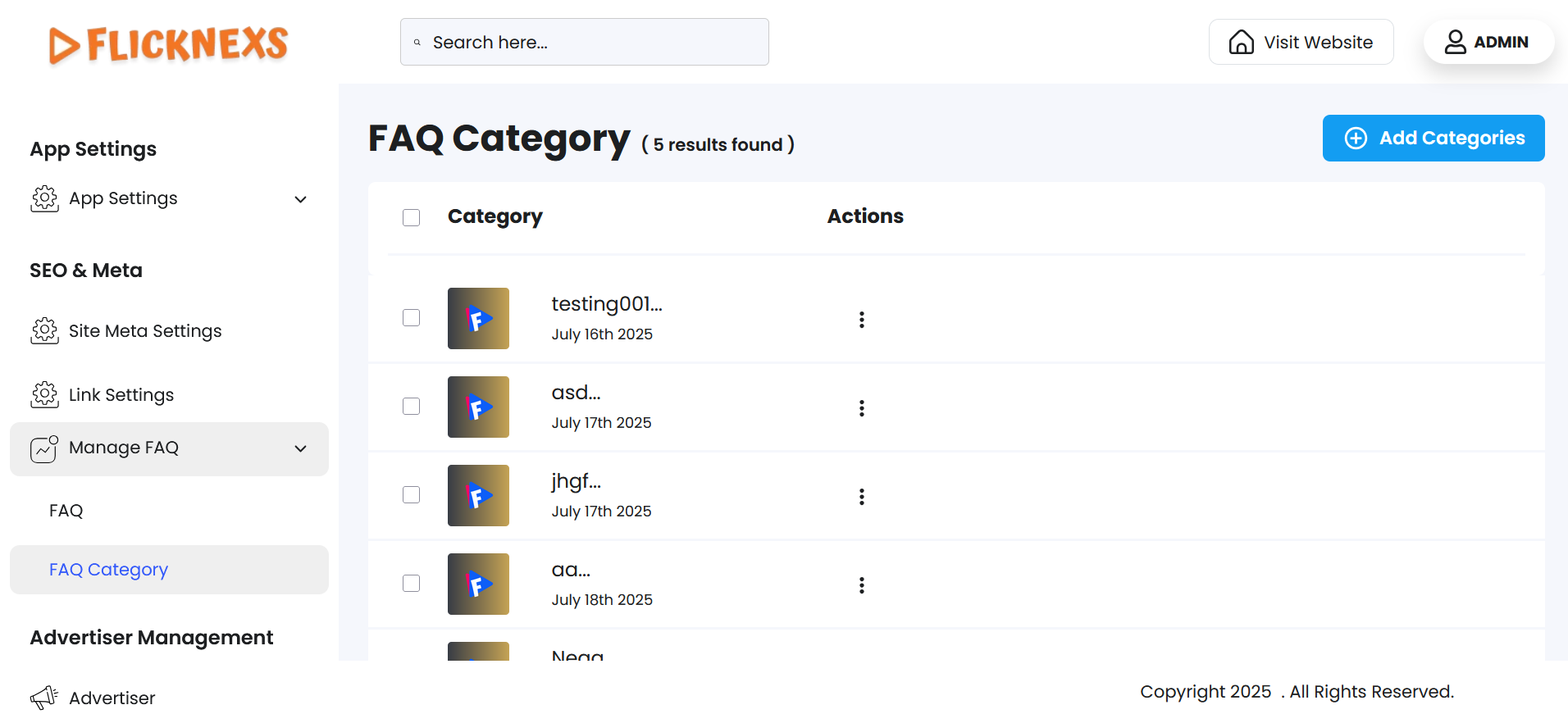
Clicking on the ‘FAQ Category’ section will open a list view labeled ‘FAQ Category’ to allow you to create, view, and manage all the categories added to the platform.
Click ‘Add Categories’ to add new FAQ categories to organize the FAQs on the platform. This allows users to easily browse topics under specific sections. The below-mentioned form fields under the ‘Create Category’ and ‘Thumbnail’ form sections can be found to input:
- Name: Mention the name of the FAQ category to be created.
NOTE: If you omit entering this field, an error message ‘Name cannot be empty’ will appear.
- Slug: Mention the readable part of a URL that identifies this specific category.
NOTE: If you omit entering this field, an error message ‘Slug cannot be empty’ will appear.
- Genre: Select an appropriate genre from the dropdown to classify the category.
- Image:
- Upload an image that will act as the visual icon for the FAQ category.
- Click on the upload box under the ‘Thumbnail’ section to browse and select an image from your system.
Add Categories: There are two buttons available, one at the top-right corner and the other at the bottom-right corner of the page, to add a newly created category. A toast notification, ‘FAQ Category Added Successfully’, will appear to confirm the addition upon clicking the button.
Back: Navigate to the top-left corner of the screen and click the button to go back to the previous screen.
You will find a table with the following fields to display the details of all FAQ category records created. They are mentioned below:
- Category: Displays the category name entered, along with its thumbnail and creation date.
- Actions: ‘Edit’ and ‘Delete’ are the options available under this field.
- Under ‘Edit’, you will find the same fields available in ‘Add Categories’. While ‘Add Categories’ is used to create new categories, the ‘Edit’ section allows you to update existing ones.
- Under ‘Delete’, you can either confirm deletion or choose to retain the category.
- A pop-up named ‘Confirm Deletion’ will appear.
- It will ask: ‘Are you sure you want to delete this item(s)?’
- You can choose to click ‘Cancel’ or ‘Delete’ based on your preference.
- A toast notification, ‘FAQ Category Deleted Successfully’, will appear to confirm the deletion.
NOTE: Additionally, you can also delete each category record in the data table by clicking on the individual checkboxes for each record. A button ‘Delete’ will appear next to ‘Add Categories’ to initiate deletion. The same pop-up mentioned earlier will appear to complete the action.
Benefits of FAQ Management
- Improved User Experience: Empowers users to quickly find answers to common questions, reducing frustration and making the platform more intuitive.
- Reduced Support Load: Minimizes repetitive support requests by addressing frequent issues through self-service, allowing your team to focus on complex cases.
- Faster Onboarding: Helps new users get started smoothly by providing guidance on various modules without waiting for support.
- 24/7 Instant Help: Offers round-the-clock assistance, ensuring global users can access information anytime, even outside of support hours.