
The Footer CMS Pages section allows you to manage the static content pages that appear in the footer of your platform or website. These pages typically include legal, informational, and support-related content such as Terms of Service, Privacy Policy, About Us, Contact Us, etc.
This feature ensures that your platform remains compliant, user-friendly, and informative by giving you full control over the content shown in your site’s footer area.
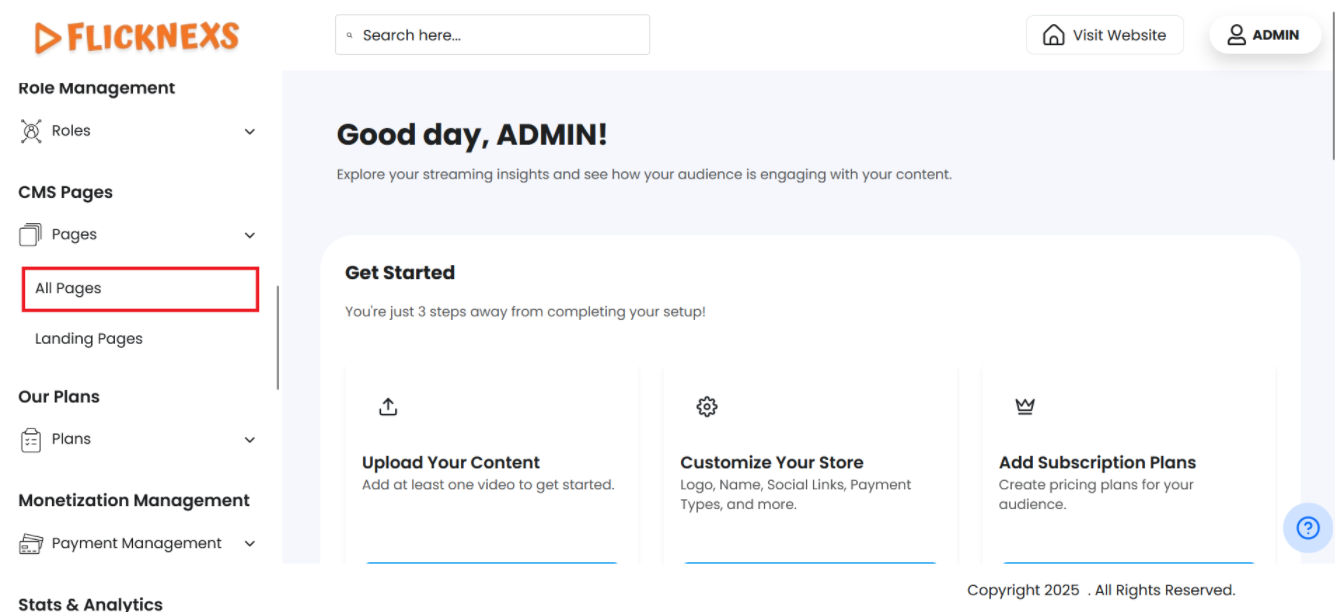
To Access the Pages Section:
- Log in to the Admin Panel: Begin by logging into your platform’s admin panel with your credentials. This panel is your central hub for managing and customizing the platform.
- Locate the Menu: Once you’re logged in, you’ll see a vertical menu on the left side of the screen. This menu provides access to various sections, allowing you to manage and update different aspects of your platform, including content, settings, and user management.
- Navigate to the CMS Pages Section: Scroll down through the menu options until you locate the “CMS Pages” section. This is where you’ll be able to view, create, and edit the content pages on your platform.
- Access Page Options: Click on “All Pages” to enter the section. Here, you’ll find options to manage your pages, including adding new pages, updating existing content, or organizing the structure of the pages to enhance user navigation.
These steps will help you manage your platform’s pages effectively, ensuring a seamless user experience as needed.
All pages
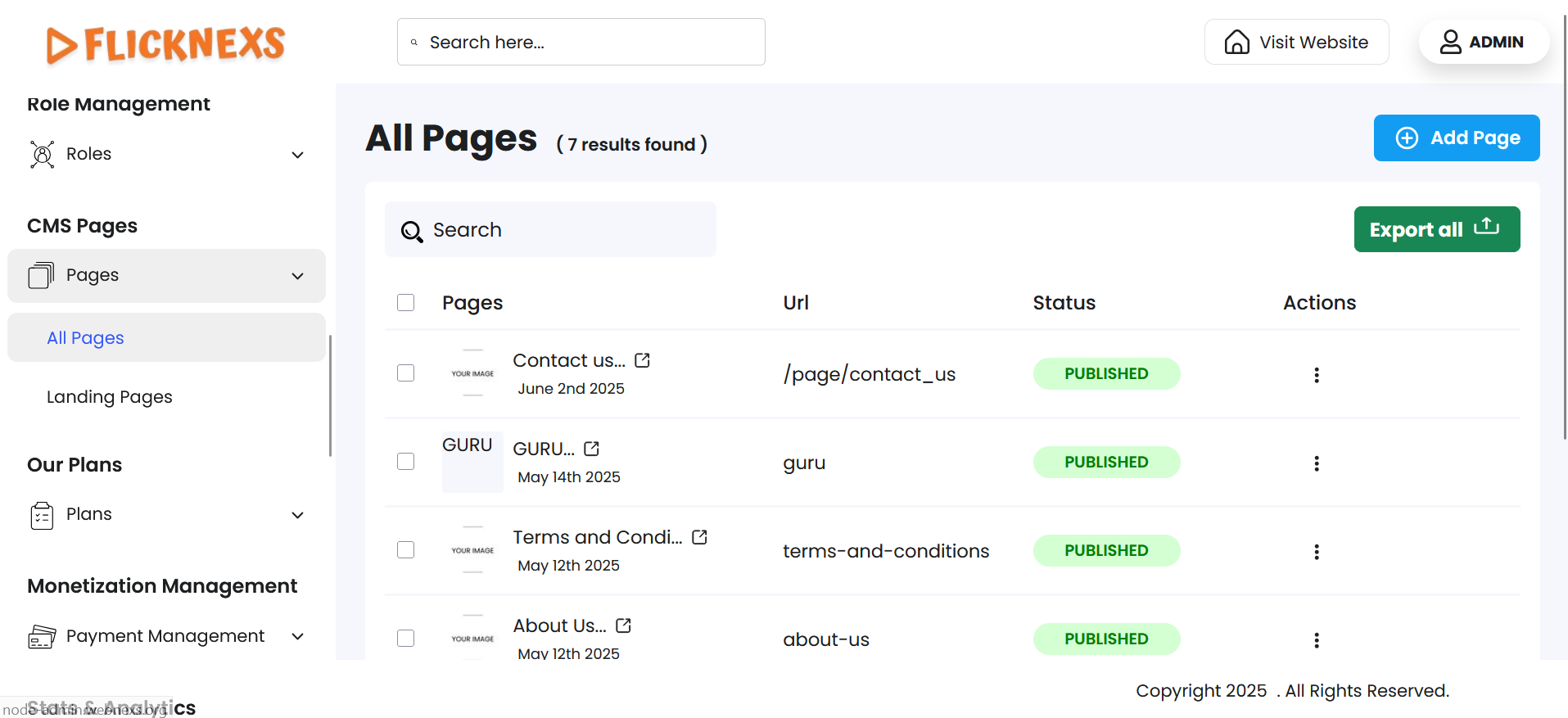
In the Pages section, you can view and manage a list of all pages associated with your platform. Each page entry provides essential details and actions:
- Page List Overview:
- Pages: The title of each page as it appears on the platform.
- URL: The unique URL assigned to each page determines where users can access the content.
- Status: This option shows whether the page is published or not. If it is published, the page will be displayed on the platform’s homepage; otherwise, it will not be shown on the homepage.
- Actions:
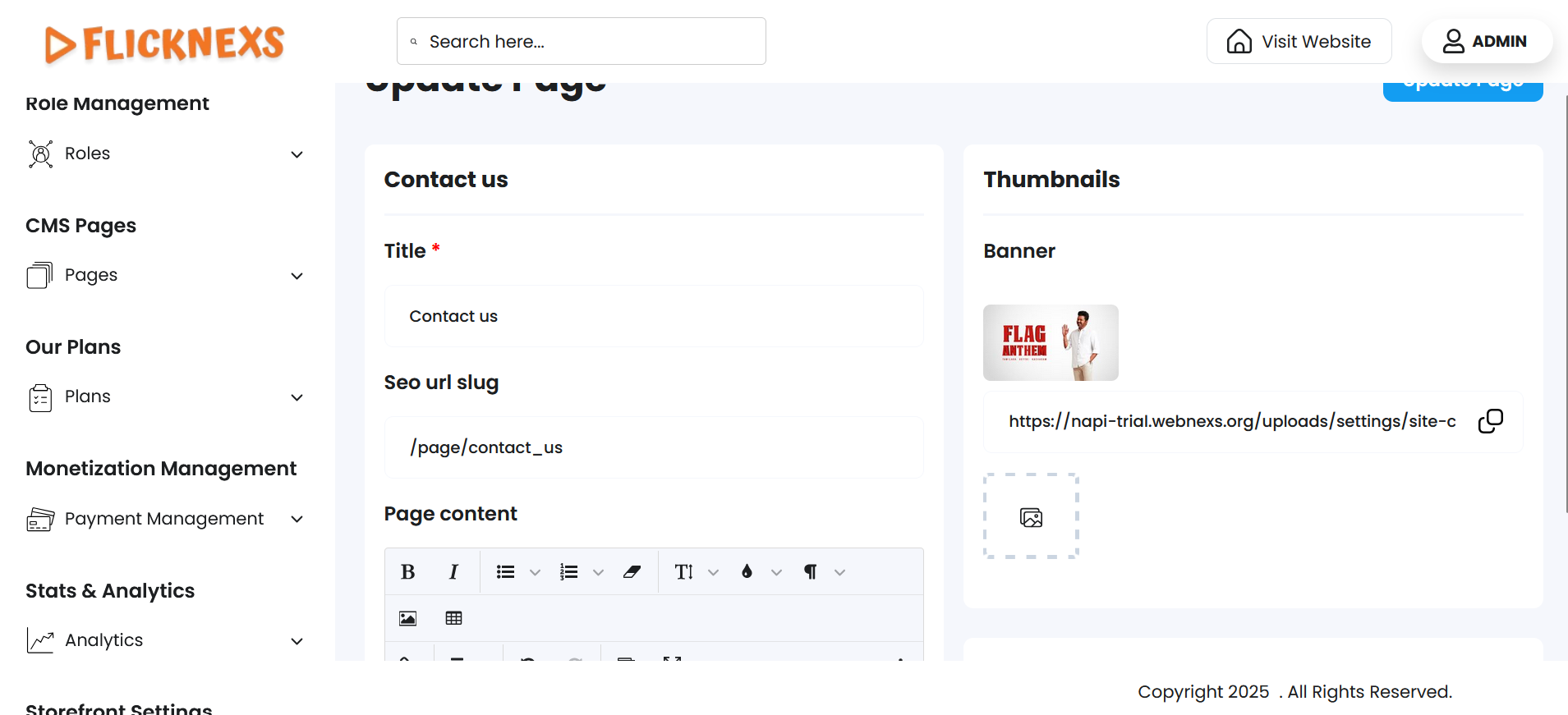
- Edit: Selecting “Edit” opens a detailed editing interface, where you can adjust:
- Title: Change the title of the page to reflect updated or new content.
- URL: Modify the page URL if needed, ensuring it’s aligned with the page content or SEO needs.
- Banner: Upload a banner image for visual appeal or branding.
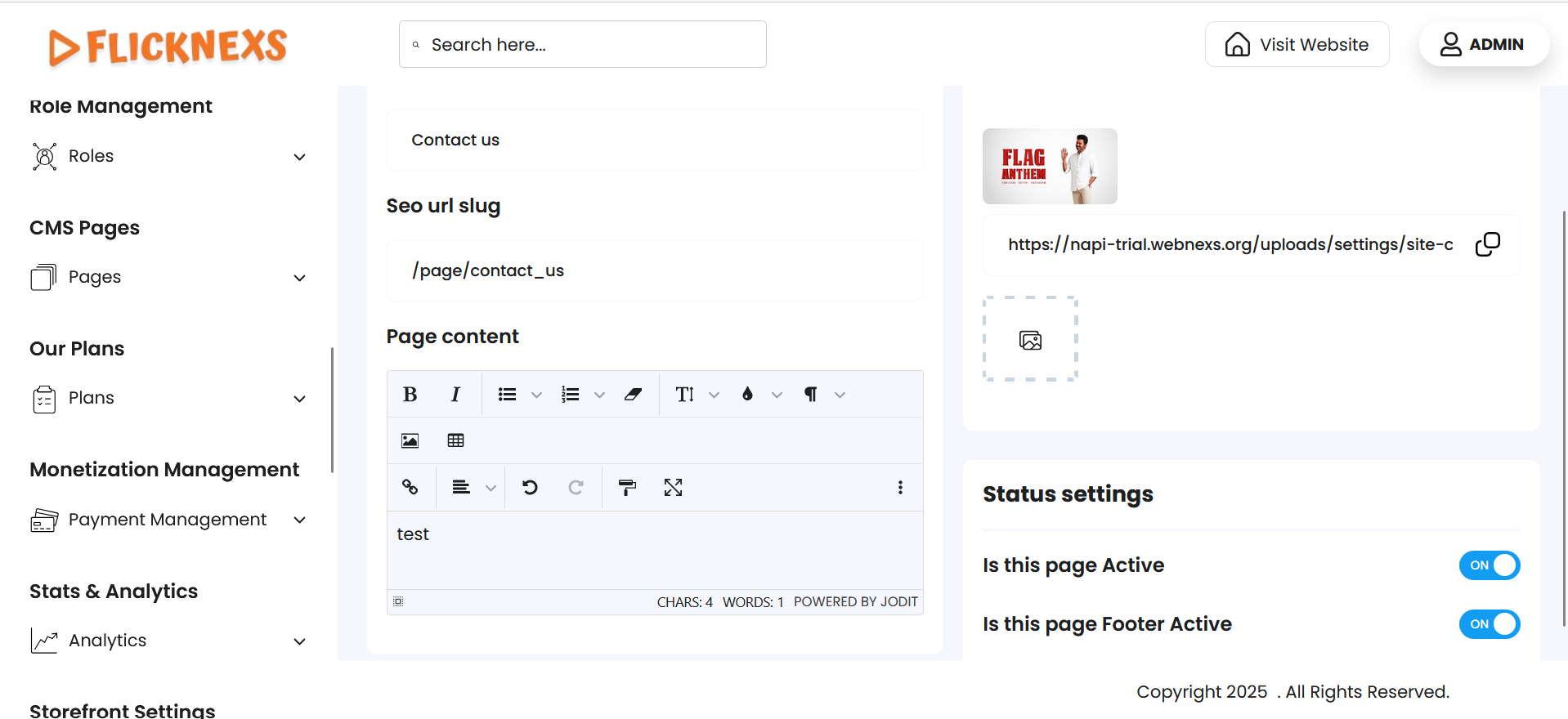
- Content: Add or update the main content of the page to provide users with accurate information.
- Status Settings:
- Is This Page Active: Enabling this option will make the page visible on the platform; disabling it will hide it from view.
- Is This Page Footer Active: This option allows you to display the page link in the footer of the homepage. Enabling it will show the page in the footer while disabling it will remove the link from the footer.
These settings allow you to control the visibility, content, and placement of each page on your platform, providing flexibility to keep your content updated and relevant for users.