
The Image Settings section allows you to manage and configure image-related preferences across your OTT platform. These settings ensure that images are optimized for performance, compatibility, and visual consistency on both web and mobile platforms.
From this section, you can:
- Define recommended dimensions for images
- Control compression and optimization settings to improve loading speed without sacrificing quality
- Specify supported formats (e.g., JPG, PNG, WebP) to maintain consistency and avoid upload errors
By configuring image settings, you ensure a smooth content upload experience for admins and creators while also maintaining a professional and cohesive look across your platform.
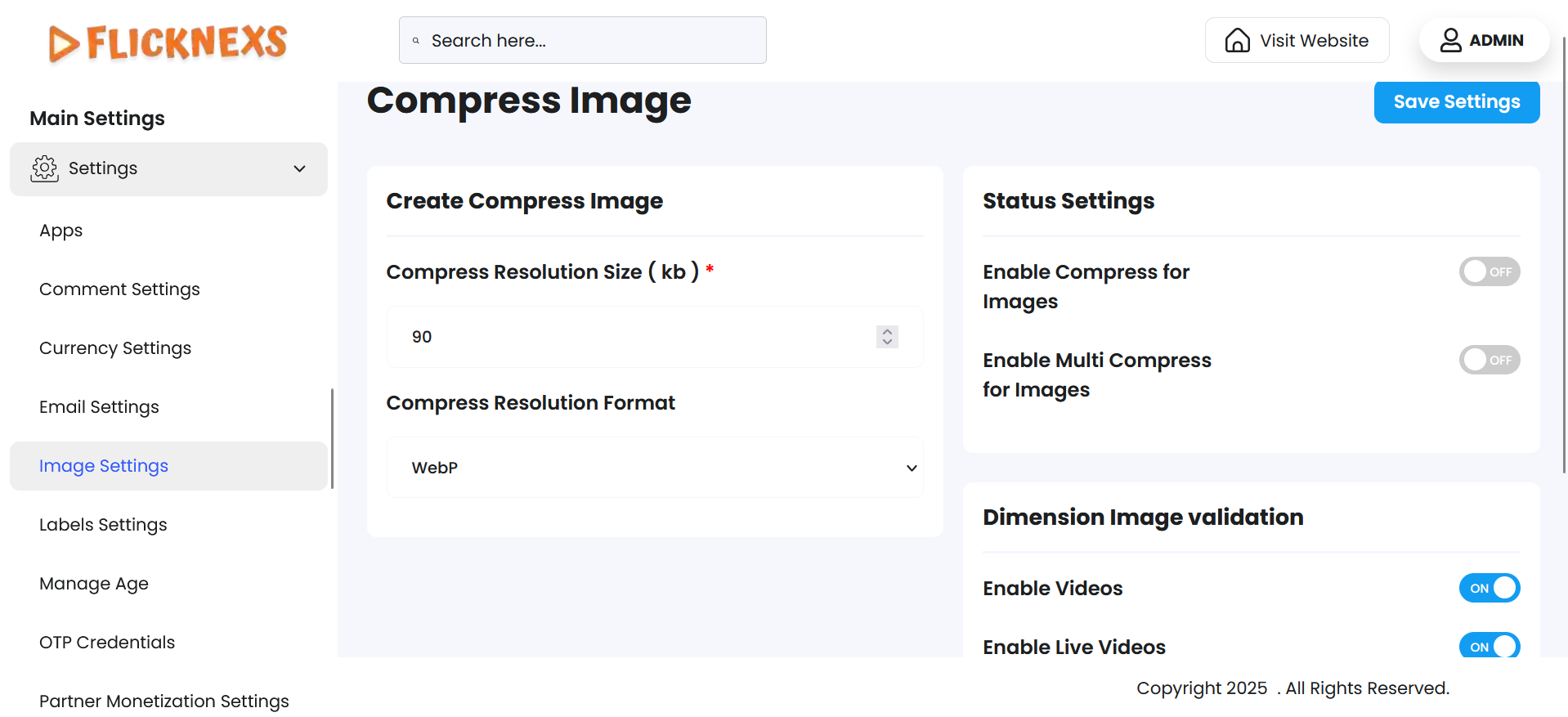
In these settings, you can optimize the display and performance of images on your platform by enabling image compression and customizing dimensions for various thumbnails. These options are designed to enhance user experience by improving image loading times without compromising visual quality.
Features and Options Available:
Enable Compress for Images
- This option allows you to enable image compression specifically for:
- Player Thumbnails: The thumbnail image displayed on the video player.
- Video Thumbnails: The preview image representing the video content.
- Compression reduces the file size of images, improving page load speeds and overall platform performance.
Enable Multi-Compress for Images
The “Enable Multi-Compress for Images” option allows the system to apply multiple layers of compression to images uploaded on the platform. This feature is designed to strike the perfect balance between image quality and loading speed, especially across different devices and internet conditions.
- This option ensures that images are compressed and optimized for responsive views, such as:
- Mobile View: For users accessing the platform on smartphones.
- Tab View: For users on tablets or other medium-sized screens.
This feature dynamically adjusts the compression based on the user’s device, delivering an optimized viewing experience across all screen sizes.
Customize Thumbnail Dimensions
- Once image compression is enabled, you can further refine how thumbnails appear by specifying custom dimensions:
- Player Thumbnail Dimensions: Define the width and height for the video player’s thumbnail image to ensure it fits seamlessly into the design of the player.
- Video Thumbnail Dimensions: Specify the width and height for video thumbnails to maintain uniformity and aesthetic appeal across the platform.
- This customization helps maintain visual consistency while ensuring thumbnails are appropriately scaled for various devices.
By enabling these settings and defining dimensions, you can provide a seamless and professional experience for users while maximizing platform efficiency.