
The iOS Purchase Plans section allows you to configure and manage subscription or one-time purchase options that are made available to users via your iOS app through Apple’s In-App Purchase (IAP) system.
This setup is essential for monetizing your content on iPhones, iPads, and Apple TVs in compliance with Apple’s App Store guidelines.
In-app purchases (IAPs) refer to additional content, features, or subscriptions that users can buy from within an app after it has been downloaded or installed. These purchases enhance the user experience or unlock access to premium services and content.
Not all apps include in-app purchases. Some apps are entirely free with no purchasable extras, while others may rely heavily on in-app purchases for full functionality or advanced features.

iOS In-App Subscriptions & PPV Plans – Overview
With a subscription, users pay to access premium content or features within an app for a specific period of time. A common example is a monthly Apple Music subscription, where users gain unlimited access to music as long as the subscription is active.
Subscriptions often include access to services like video streaming, music libraries, premium tools, or exclusive content. These are managed directly through the app using Apple’s In-App Purchase (IAP) system.
Subscription Renewal Options
Most in-app subscriptions renew automatically unless the user manually cancels them via their Apple ID settings. Developers can offer various renewal frequencies to suit user needs, including:
- Weekly
- Monthly
- Quarterly
- Yearly
This flexibility helps cater to different user preferences and pricing tiers.
Steps to Create Your Product in App Store Connect
- Log in to App Store Connect.
- Go to My Apps → Select your app.
- Navigate to Features → In-App Purchases.
- Click “+” and choose:
Auto-Renewable Subscription(for subscriptions)Non-Consumable(for one-time PPV)
- Fill in:
- Reference Name
- Product ID (e.g.,
com.myapp.standardplan) - Pricing (choose a price tier)
- Add localizations and review information
- Save & Submit for Review
Note the Product ID – you’ll use this in your admin panel.
Setting Up Subscription and PPV Plans (Admin Panel Guide)
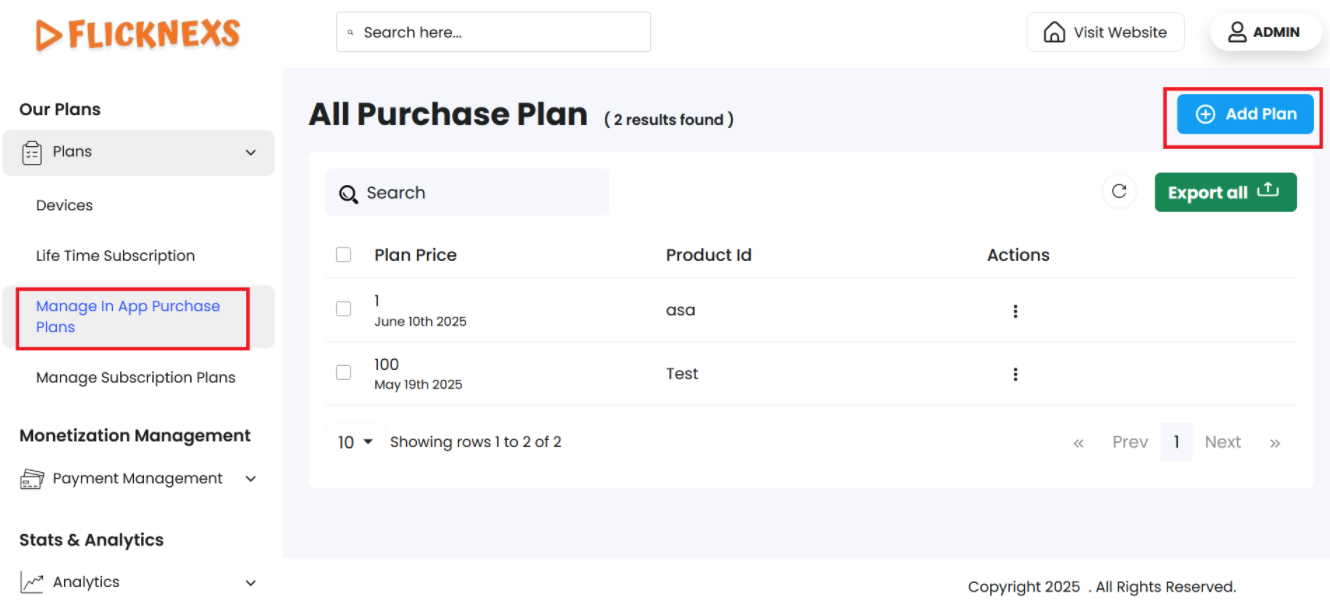
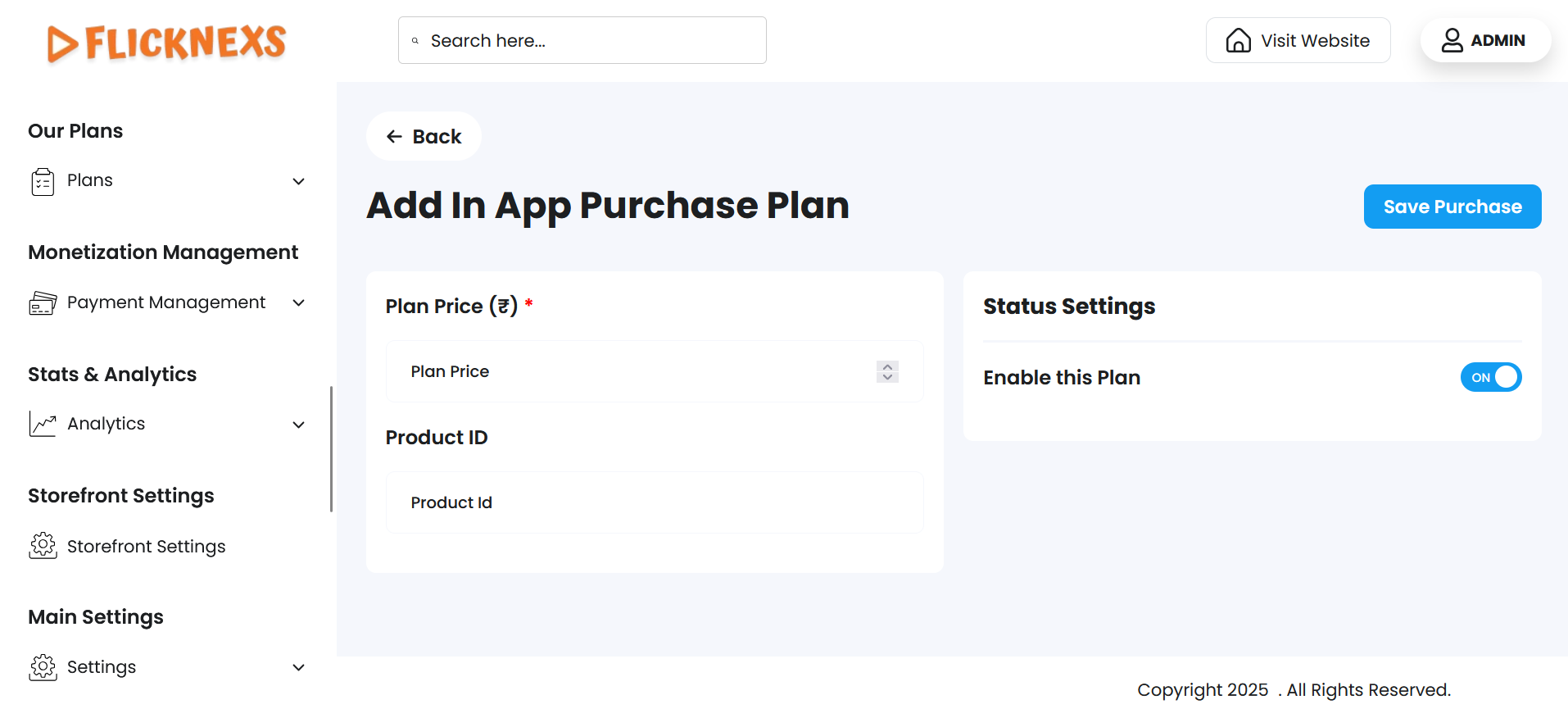
To configure iOS-based subscription or pay-per-view (PPV) access for your mobile app:
Step 1: Create the Subscription or PPV Plans
- Navigate to the Manage In-App Purchase Plans section of your admin panel.
- Create a new plan by entering the details listed below.
Step 2: Enter Plan Details
- Plan Price:
Enter the cost of the plan (e.g., ₹99/month or $4.99 per view). - Product ID:
Set a unique Product ID (e.g.,com.yourapp.standardplan).
This ID should match exactly with the Product ID created in App Store Connect.
Examples:
com.yourapp.standardcom.yourapp.premiumcom.yourapp.family
Important Notes:
- The Product ID and Plan Price must match exactly between your platform and the Apple Store.
- If there is a mismatch, the In-App Purchase plan will not be activated.
- After saving, send the configured Product ID and Price to Apple via App Store Connect for validation.
Enabling In-App Purchase (IAP) on iOS Mobile Apps
To activate in-app purchases for your iOS app:
- Configure the Product IDs and Prices in both your platform and App Store Connect.
- Ensure identical values for Product ID and Price.
- Submit these items for review via Apple Developer Console.
- Once approved, the plans will become available inside your iOS app for purchase.
For More Information
Refer to Apple’s official documentation for a complete guide to setting up and managing In-App Purchases:
Apple Developer – In-App Purchase Guide