
Label settings allow management and customization of text labels across the OTT platform, both for the Admin Dashboard and the Frontend Website. This ensures the platform aligns with the desired terminology, localization, and user experience requirements.
You will find a tabbed navigation containing two tabs: ‘Admin Labels’ and ‘Frontend Labels’ to manage the labels individually for their respective categories.
Admin Labels
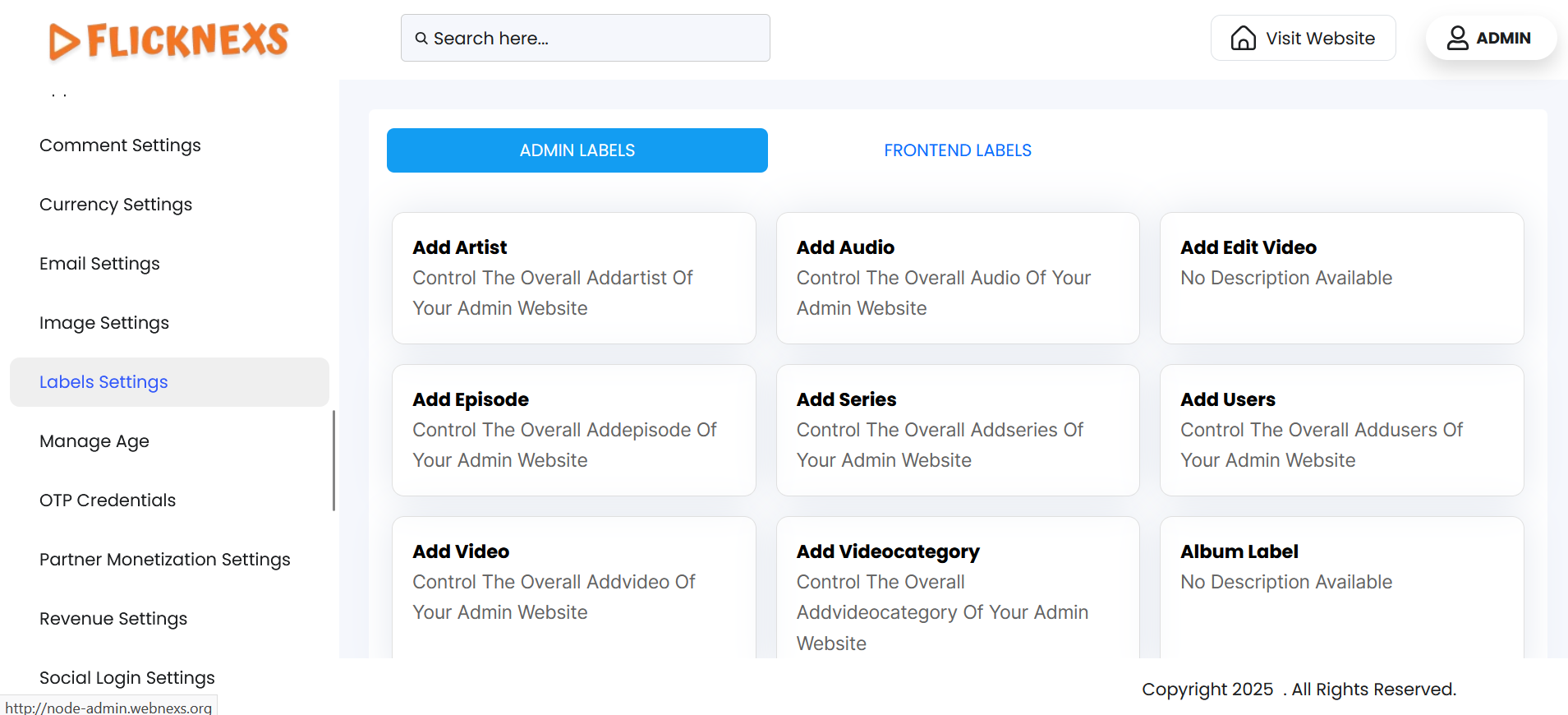
This section displays a set of interactive cards, each representing a specific module within the Admin Dashboard for which label texts can be configured. There are 36 cards in total, organized under specific category titles as listed below:
- Content Management
- Add Artist: Update the label used for adding artists.
- Add Audio: Update the label referring to audio uploads.
- Add Episode: Adjust the label associated with episode management.
- Add Series: Update the label used for adding series.
- Add Video: Customize the label related to video upload and management.
- Add Video Category: Define the label used for video category classification.
- Add Edit Video: Update the label for adding or editing videos.
- User & Role Management
- Add Users: Customize the label for user management.
- Roles and Permissions: Define the labels used for roles and permissions.
- Language & Translation
- All Languages: Adjust text for multi-language support.
- Subtitle Language: Customize the labels related to subtitle language options.
- Manage Translation: Set labels for translation management.
- Category Management
- Audio Category: Label for audio classification.
- Series Category: Define the naming convention for series categories.
- Livestream Category: Manage the labeling for live stream categories.
- Platform Configuration
- Devices Setting: Change the display format of device settings.
- Compress Image Settings: Label for image optimization settings.
- Playout Settings: Adjust labels related to playout settings.
- TV Playout Edit: Customize text used for editing TV playout settings and schedules.
- TV Playout Index: Define the label used for managing the TV playout index.
- Interface & UI
- Page Setting: Customize the label for web page settings.
- Landing Page: Adjust the name for landing page setup.
- Sidebar Management: Set the reference label for the sidebar menu.
- Site Settings: Label for general site configuration.
- Live & Streaming
- Live Stream: Modify the live stream menu label.
- Live Settings Home Page: Adjust the appearance of the live stream homepage settings.
- Monetization
- In App Purchase: Customize text related to in-app purchases.
- Subscription Plan: Label the subscription package area.
- Life Time Subscription: Set label for one-time subscription option.
- Miscellaneous
- FAQ Page: Customize the label for the FAQ page section.
- FAQ Category: Set the label used for categorizing FAQ entries.
- Storage Settings: Label for content storage configuration.
- Storefront Settings: Define RTMP URL and storefront-related text.
- Check: Modify the label used for a general check or validation function.
- Album Label: Update the label associated with album or playlist identification.
- Recordholder Artist: Label to manage artist info under recordholding.
To configure the labels for a specific module, click on the corresponding card to open a detailed table for customization.
NOTE: Each label configuration card opens a table with a consistent structure that includes the column headers: Text, Sub Text, Path, and Actions.
The table contains the following column headers:
- Text: Editable field for inputting the main text string displayed for the fields within the selected module card.
- Sub Text: Editable field for inputting a secondary or descriptive label that provides additional context.
- Path: Non-editable field containing the backend key or internal reference used by the system to identify and retrieve each label.
- Actions: Click the ‘Update’ button to save the update. A toast notification, ‘Artist Label Updated Successfully’, will appear to confirm the update.
Pagination control
- Navigate between multiple pages of label entries within a module card.
Form Control Button
- Click the ‘Back’ button located at the top-left corner to return to the Label Settings Panel.
Benefits of Label Settings
- Enhances Localization Capabilities: Allows interface text to be adapted to multiple languages and cultural contexts for a globally inclusive experience.
- Boosts Admin Efficiency: Custom backend labels improve clarity and align with internal processes, simplifying daily admin tasks.
- Reinforces Brand Identity: Ensures consistent use of brand-specific language across all user-facing and admin-facing interfaces.
- Enables Granular Label Control: Facilitates targeted label updates by module without impacting unrelated areas of the platform.