
Live Stream Management
1. Main Banner (Slider)
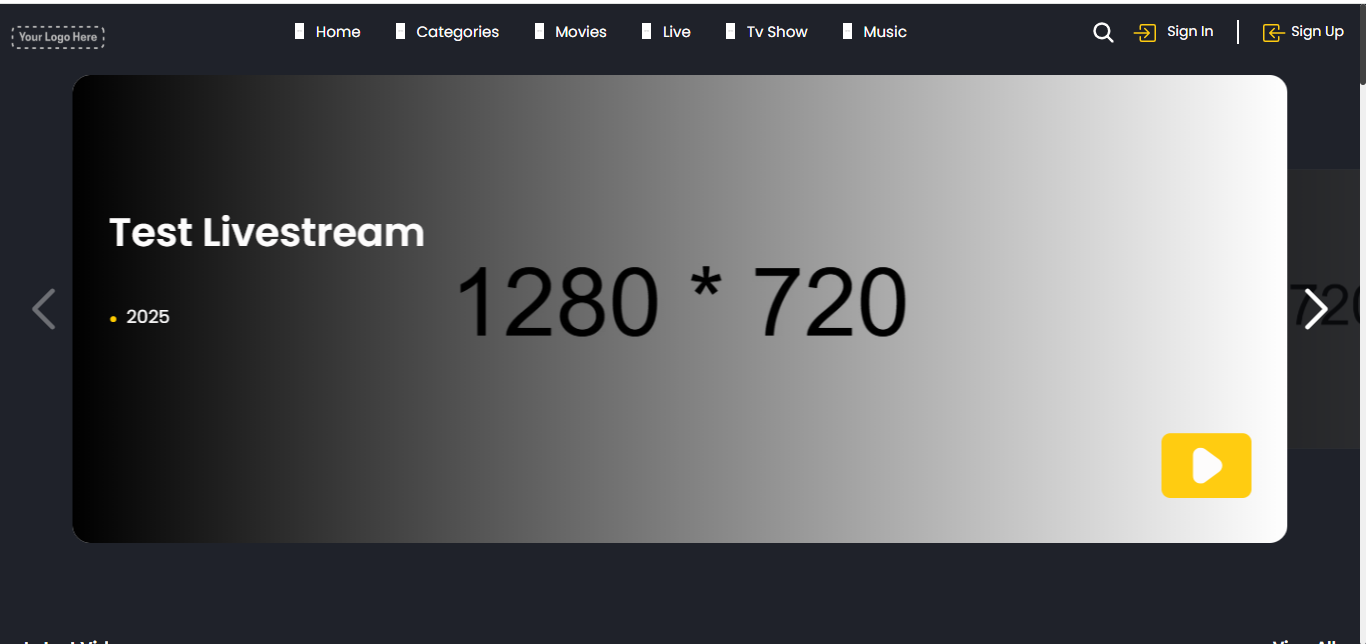
This is the main area that features the highlighted or currently running live stream. It’s designed to grab the user’s attention and offer quick access to live content.
Elements in This Section:
- Title (e.g., “Test LiveStream”)
This is the name of the live event. It usually changes based on the content that’s currently being streamed or promoted. - Stream Details
Just below the title, you’ll find:
- Year: The production or airing year of the content.
- Duration: Shows the total time elapsed (or expected) for the live stream.
- Language Selector: A dropdown menu where users can choose their preferred language (e.g., Hindi, English). This helps in streaming multi-language content based on user preference.
- Year: The production or airing year of the content.
- Short Description
This area gives a brief summary of what the live event is about—who’s involved, what the topic is, or any important notes. On this sample screen, it’s placeholder text (“Add the live stream description in the textbox below…”), but in live use, it should give viewers helpful context. - Video Preview Carousel (on the Right Side)
A slider that allows users to see what’s coming up next or view featured livestreams. Arrows let users scroll through the slider.
2. Livestream Videos (Section Below Main Banner)
This section presents a grid or carousel of multiple livestream-related videos—either previous broadcasts or smaller live sessions.
What Each Tile Contains:
- Free Tag
A small badge that indicates the video can be accessed without a subscription. - Thumbnail Image
This is the visual preview of the video. It helps users recognize or identify the video by theme or topic. - Title
Name of the stream (e.g., “Live Sport”, “ODI”). It gives an idea of the content before watching. - Metadata
- Year: When the video or stream was created or aired.
- Duration: How long the stream lasts.
- Star Rating or View Count: Shows popularity or feedback—can be a numerical rating or number of views.
- Year: When the video or stream was created or aired.
- Short Description (if available)
Gives a one-liner or two-line summary of the content’s purpose.
3. Live Categories
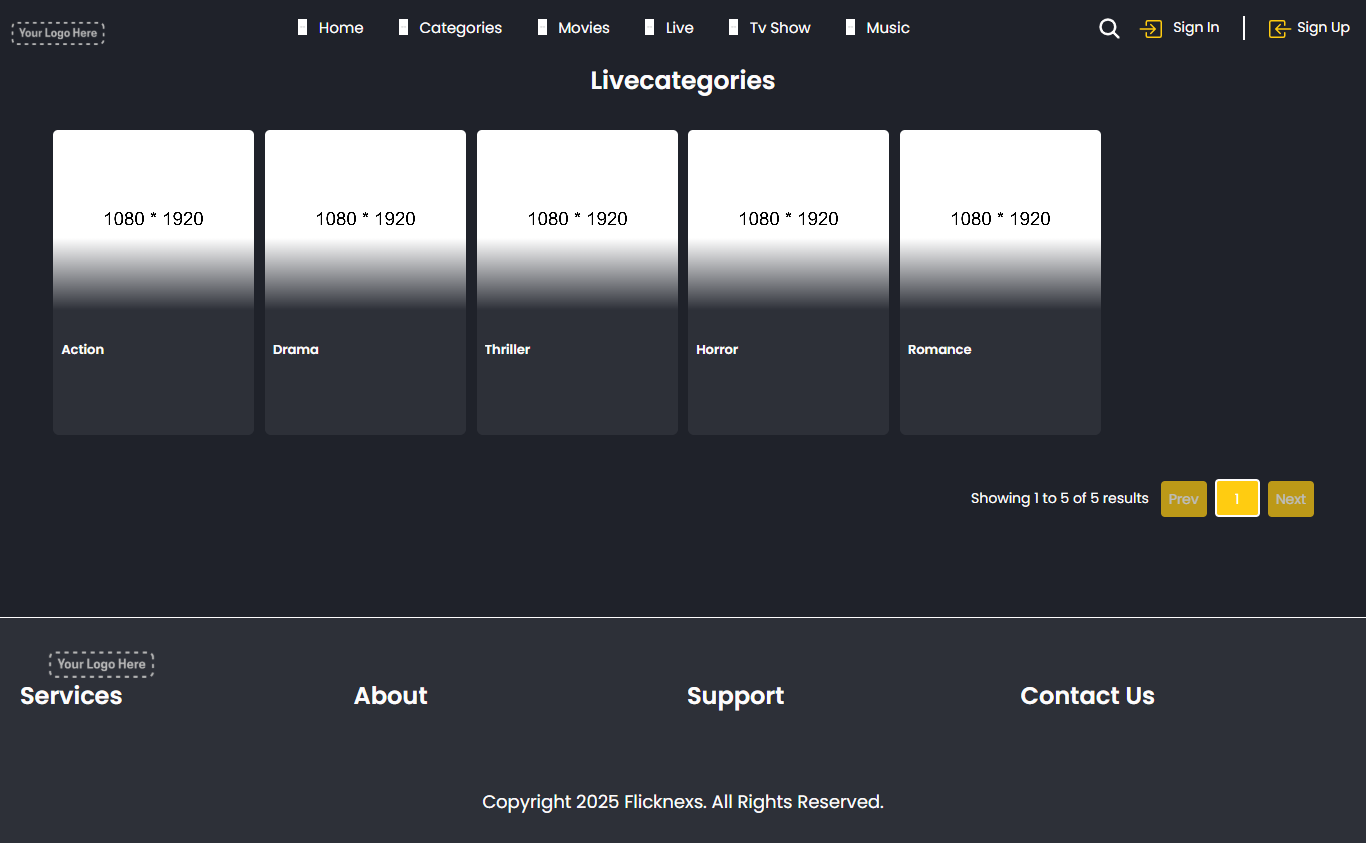
This section helps organize the livestreams into categories so users can find what they’re interested in more easily.
What You See Here:
- Category Tiles (e.g., Sports, Shows, etc.)
Each card represents a genre or category of livestream content. Clicking a category filters and shows only the videos related to that genre.
Useful for quick filtering and discovering content in your favorite genres without browsing through everything.
4. Scheduled Publish Livestream
This section displays the upcoming livestreams that are already scheduled, giving users a preview of what’s going to be aired soon.
What Each Tile Shows:
- Thumbnail Image
A placeholder or preview visual that helps users recognize the stream. - Free Tag
Indicates whether the content is available for free. - Title and Description
Provides basic details about the upcoming stream. - Scheduled Time & Date
Shows how many hours or days remain until the livestream starts.
User Interaction
Users can view details about future events and prepare in advance. Some platforms may also let users set reminders or notifications for upcoming content.
5. Top Navigation Menu
The top section of the platform includes essential navigation options:
- Home
Brings the user back to the main landing page of the platform. - Movies / TV Shows
Directs users to the respective content libraries. - Live
Takes users directly to this live stream section. - Audio
For music, podcasts, or audio-based content. - Search Bar
Allows users to quickly search for a specific video, stream, or keyword. - Sign In / Sign Up
Login options for users to access their profiles, continue watching, or manage subscriptions.
6. Footer Section (Bottom of Page)
The footer provides additional navigation and platform information:
Common Footer Elements:
- Service Links
Quick access to major content categories like Audio and Live. - About Links
Sections like Latest Videos or TV Shows to explore new content. - Legal & Information
Includes links to important pages like:
- Terms and Conditions
- Privacy Policy
- About Us
- Terms and Conditions
- Social Media Icons
Clickable icons that connect users to the platform’s social media pages—such as Instagram, Facebook, LinkedIn, YouTube, TikTok, etc.
Summary for Users
- The Live Stream Page is the hub for all live and scheduled content on the platform.
- Use the category filters to discover streams by interest.
- Check the Scheduled Livestream section to stay informed on upcoming events.
- Use the language selector to switch audio preferences during live broadcasts.
- Always ensure a stable internet connection for smooth playback, especially with live content.
LIVE STREAM DETAIL PAGE
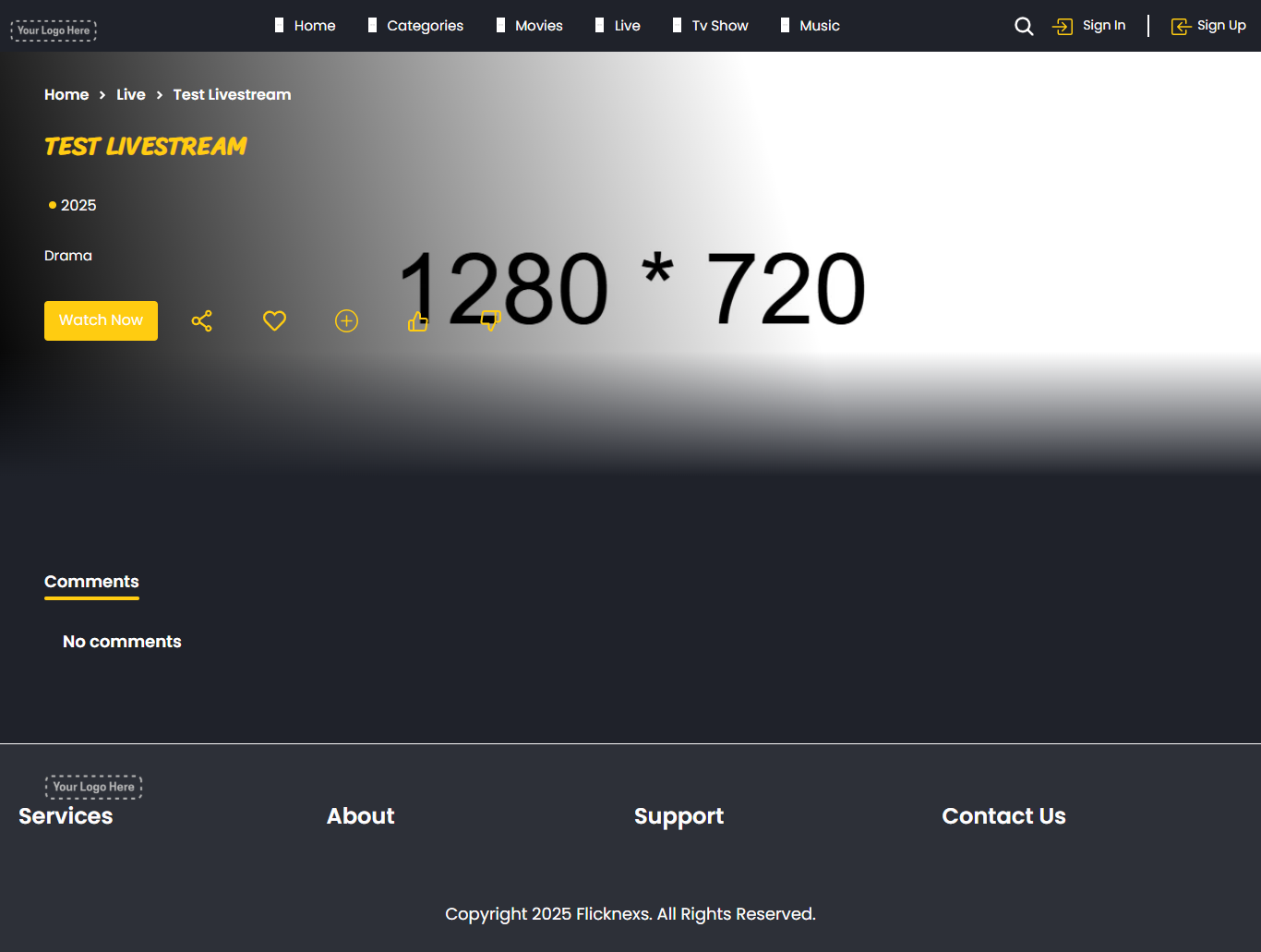
This page displays when a user selects a specific livestream from the platform. It gives complete details and interactive options for that particular stream.
1. Breadcrumb Navigation
Path: Home > Live > Test LiveStream
This helps users know where they are within the platform.
Each section is clickable, allowing users to navigate back.
2. Stream Header & Banner Section
Stream Title
- Appears in bold and highlighted: “TEST LIVESTREAM”
- This is the name of the current or upcoming livestream.
Stream Info Row
Right under the title, you’ll find:
- Year — e.g., 1904 (could be a placeholder)
- Timer/Duration — 0H 14M 48S: The time since or until the livestream.
- Language Dropdown — e.g., Hindi: Click this to select the language for audio/subtitles.
Short Description
- Text area where the livestream’s summary appears.
- Purpose: Give a quick idea of the content (topic, guests, focus).
- Example placeholder: “Add the Live stream description in the textbox below”.
Stream Preview Image
- Large section saying “YOUR IMAGE” — this is where the live preview thumbnail or stream video will appear.
3. User Interaction Buttons
Action Row Below the Description
Watch Now: Instantly start watching the live stream.
Add to Favorites: Bookmark the stream to your personal watchlist for quick access later.
Add to Playlist: Include this stream in one of your custom playlists.
Like: Show appreciation or give a positive rating to the stream.
Dislike: Indicate that you’re not interested in this stream.
4. Tab Navigation Section
Located just beneath the video/image preview. Three clickable tabs:
- Details (Highlighted by default): Shows stream overview.
- Cast And Crew: Info about presenters, guests, or production team.
- Comments: User reviews, reactions, or live chat feedback.
5. Top Navigation Bar (Global Menu)
Sticky menu at the very top, accessible from every page.
Home: Return to the platform’s main landing page.
Movies: Browse the movie collection.
TV Shows: Explore TV content.
Live: Direct access to all livestreams.
Audio: Go to the audio section: music, podcasts, etc.
Search: Search bar to find specific content.
Profile: Sign In/Sign Up button for account access.