
Log Activities allows you to monitor, track, and manage all the system-level actions performed across your platform. This includes updates made to system entities to provide complete visibility into the nature of each change, the responsible user, and the associated timestamp.
This feature ensures:
- Centralized action tracking for administrative transparency and audit readiness.
- Organized content monitoring by displaying activity across all content types in a single view.
- Enhanced accountability by logging each update with time and user details.
It helps maintain a secure and organized environment by allowing platform owners and administrators to stay informed of every backend action performed.
See Activity
To access this module, navigate to the sidebar menu and click ‘Logs’. Find the submenu item named ‘See Activity’ and click to open.
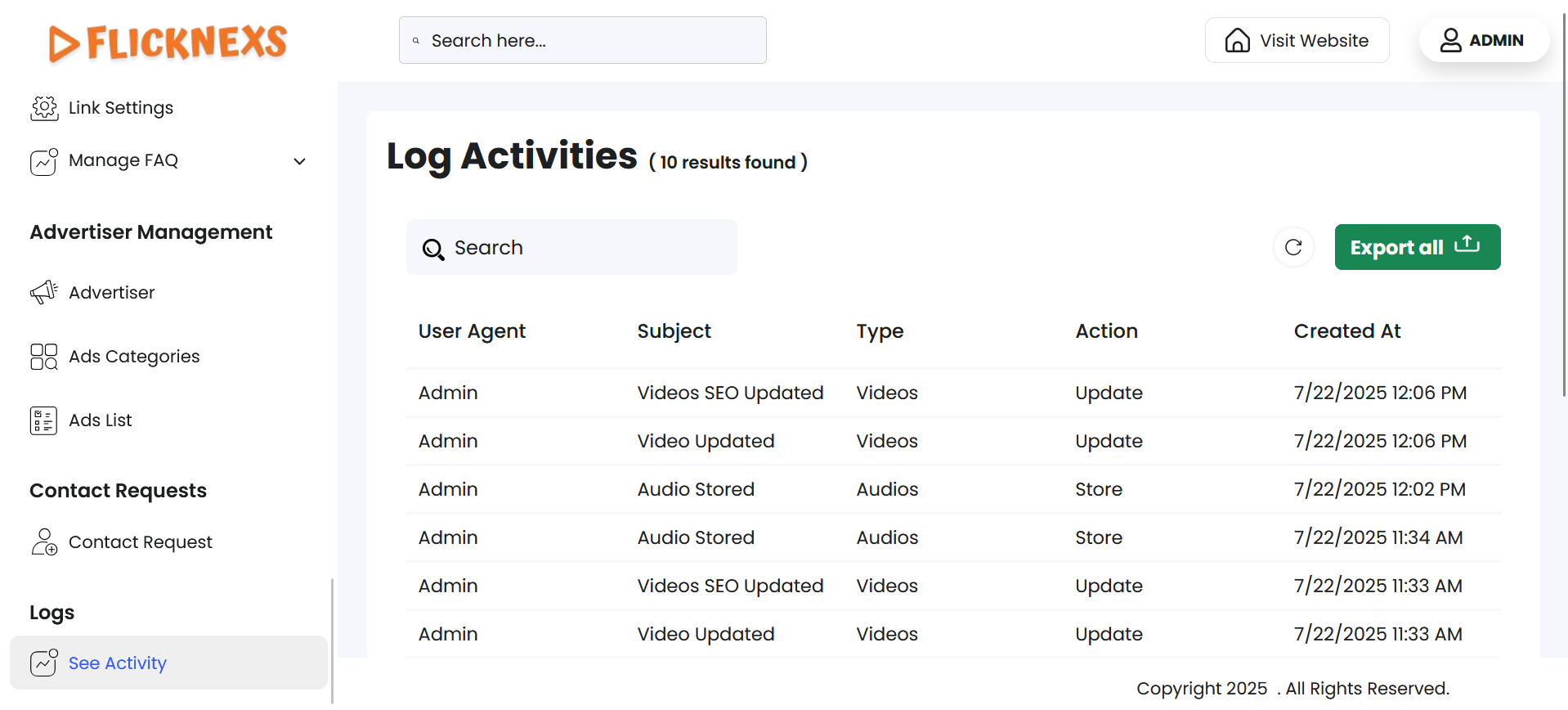
You will find a table with the following column headers to view system log entries recorded across the platform. They are mentioned below:
Log Activities
- User Agent: Identifies the user or system account that initiated the recorded activity.
- Module: Top-level section in the sidebar that organizes features by functional domain.
- Submenu Item: Navigation links are listed under a module in the sidebar.
- Action: Specifies the task the user performed based on a fixed set of actions allowed throughout the platform.
- Timestamp: Records the date and time of the logged activity.
Options
- To simplify your workflow, there is a ‘Search’ bar at the top left corner of the table. You can enter specific keywords to filter the log list, and the matching records will appear accordingly.
- In the top-right corner, you will find a ‘Reload’ button. Just in case you need the table to reflect the real-time data, you can use this button to refresh and display the information.
- For record-keeping, reporting, backups, or sharing data outside the system, you can export all log data directly by clicking on ‘Export All’, located at the top right corner of the table. You will find the following format options:
- CSV
- XLSX
Download in your preferred format.
Pagination Controls
Navigate to the bottom section of the page to find these controls:
- Rows Per Page Dropdown
- Use the dropdown menu (showing options – 5, 10, All) to set the number of log entries displayed per page.
- Selecting ‘All’ will display all available rows on a single page.
- Showing Rows Information
- This displays the range of log entries currently being viewed out of the total number of results.
- Pagination Buttons
- Use the ‘Prev’ and ‘Next’ buttons to navigate backward or forward through pages of results, if there are multiple pages.
Benefits of Activity Logging
- Tracks User Activity: Provides a detailed history of actions taken by admins or system users for better accountability.
- Improves Security Monitoring: Helps detect unauthorized access or suspicious operations by showing what actions were performed and by whom.
- Supports Issue Resolution: Makes it easier to debug problems by showing a timeline of system changes or failed operations.
- Enables Audit Readiness: Maintains a verifiable record of all key activities for compliance or audit purposes.