
The Audio Player Settings section allows you to configure and customize the behavior, appearance, and playback experience of the music player across your platform. These settings ensure a consistent and user-friendly interface tailored to your audience’s preferences.
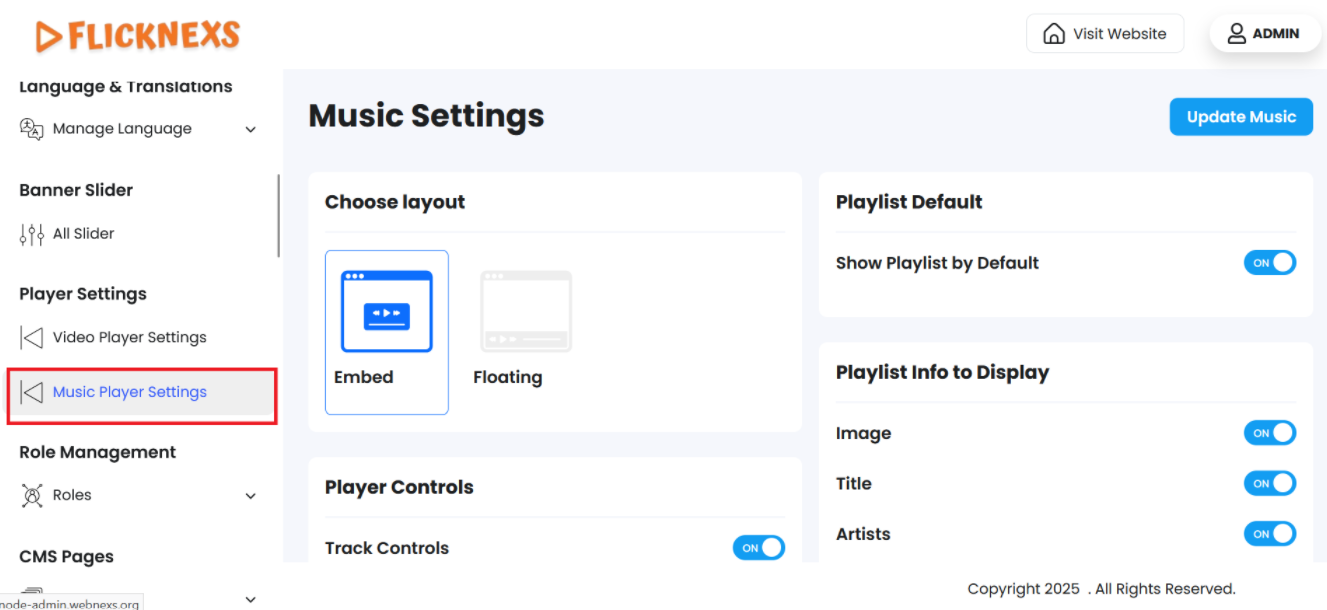
Choose Layout
You can customize the layout style of your music player by choosing between the Embed or Floating options:
- Embed Player:
The player remains fixed in a designated section of the page. Ideal for platforms that want a consistent in-page player experience. - Floating Player:
The player floats on top of your content and remains visible while users navigate the platform.- Minimize Button: You have the option to enable or disable the minimize button, allowing users to reduce the player size while browsing.
Playlist Display Options
- Playlist by Default:
Choose whether the playlist panel should be visible by default when the player loads.- Enable: The playlist opens automatically with the player.
- Disable: The playlist remains hidden unless the user manually opens it.
- Playlist Info to Display:
Select the metadata you’d like to show for each item in the playlist. You can enable or disable the following fields:- Image – Displays album artwork or track thumbnail.
- Title – Shows the name of the track.
- Artists – Lists the artist(s) associated with the track.
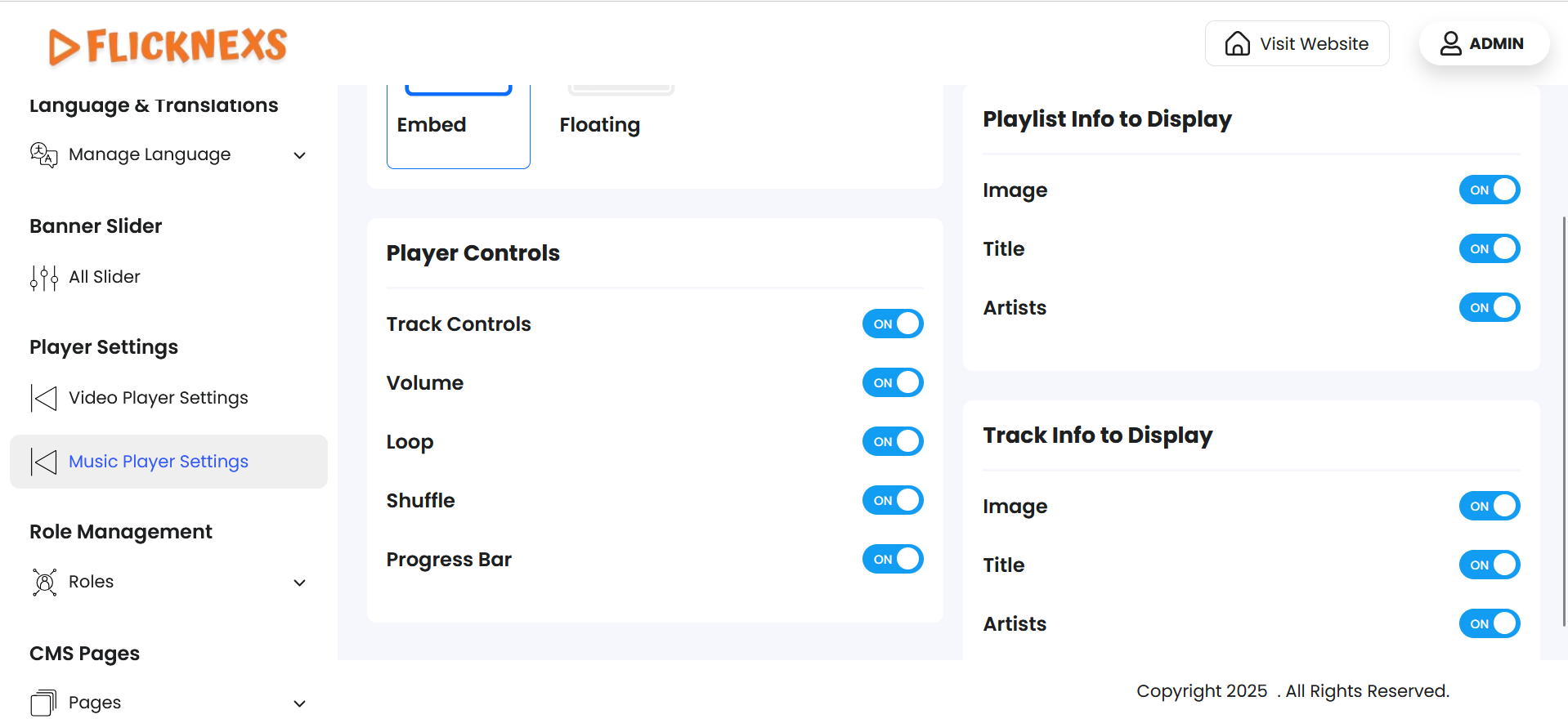
Player Controls
These are the interactive controls that allow users to manage playback. You can enable or disable the following individual controls based on your platform’s needs:
- Track Controls – Includes play, pause, next, and previous buttons.
- Volume Control – Allows users to adjust audio volume.
- Loop – Enables looping of the current track or playlist.
- Shuffle – Randomizes the order of tracks in the playlist.
- Progress Bar – Shows playback progress and allows seeking.
Track Info to Display
Control which information is displayed while a track is playing. You can choose to enable or disable the following details:
- Image – Displays the album or track artwork.
- Title – Shows the name of the currently playing track.
- Artists – Displays the performing artist(s) of the current track.