
The Payment Settings section allows you to configure and manage how payments are handled on your platform. These settings play a crucial role in enabling smooth transactions for subscriptions, purchases, rentals, and other monetized features.
Payment Gateway Configuration
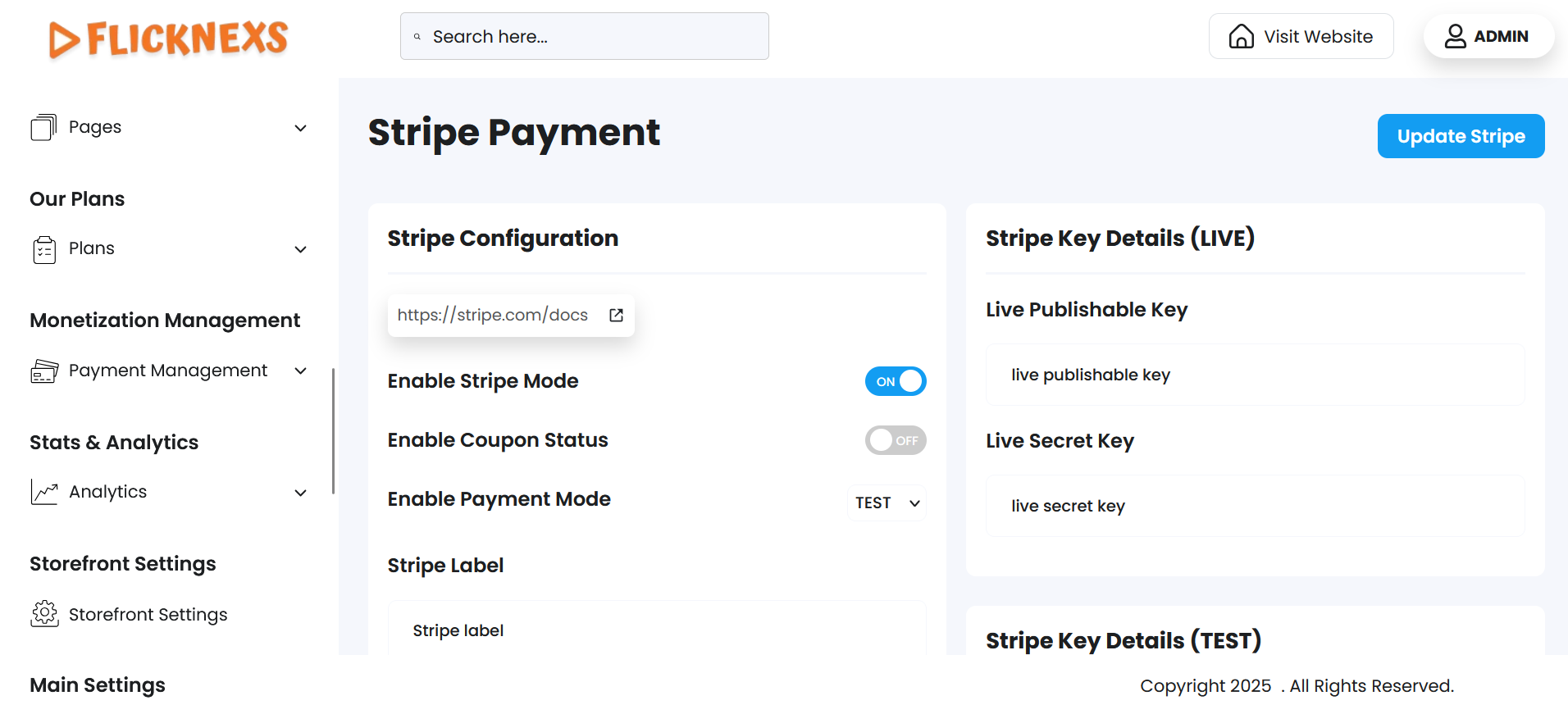
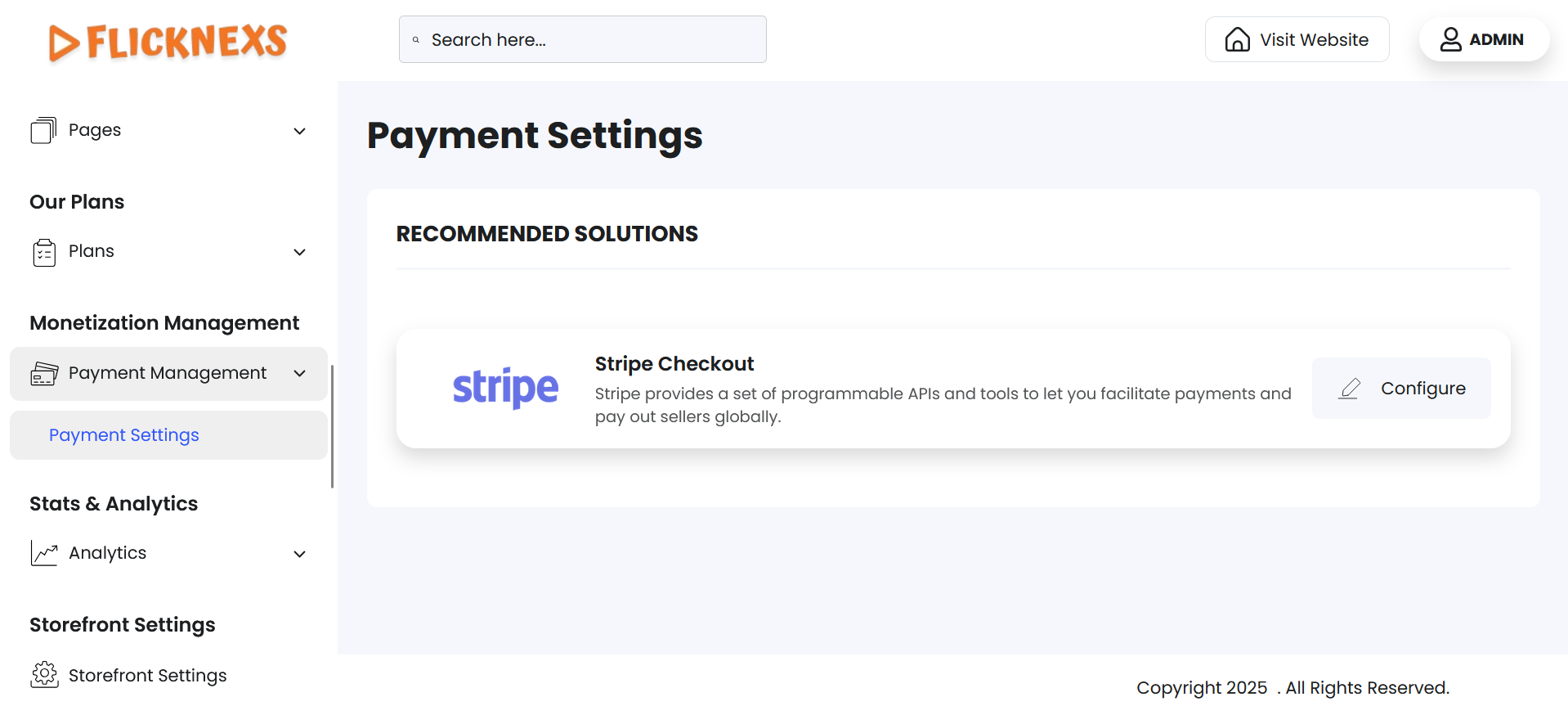
After navigating to the Payment Settings section in your admin panel, you’ll see various supported payment gateways. To configure Stripe, locate the “Stripe” option and click on the Configure button next to it. This will take you to the dedicated Stripe Configuration Page, where you can fine-tune all the necessary settings to integrate Stripe with your platform.
Stripe Configuration Option
Enable Stripe Mode
- Purpose: This toggle activates or deactivates Stripe as a payment method on your platform.
- How It Works:
- If enabled, users can pay via Stripe during checkout.
- If disabled, Stripe will not be available as a payment option to end users.
- Use Case: Keep it disabled if you are using another payment method or not yet ready to launch Stripe.
Enable Coupon Status
- Purpose: Allows Stripe to recognize and apply any coupon codes you’ve created directly within your Stripe dashboard.
- When to Enable:
- Enable this only if you’ve configured promotional or discount coupons in your Stripe account for your subscription plans or other payment flows.
- Disable it if you do not plan to use coupons.
Enable Payment Mode
- Purpose: Sets the operational mode of Stripe integration – either Live or Test.
- Options:
- Live: Enables real transactions with actual money.
- Test: Uses Stripe’s sandbox environment to simulate transactions without real funds.
- Use Case:
- Choose Test mode during initial setup and testing.
- Switch to Live only when you’re ready to go live with actual customers.
Stripe Label
- Purpose: This is the name or label you want to display for the Stripe payment method during checkout.
- Example: You can enter something like “Pay with Card (Stripe)” or “Secure Credit Card Payment”.
Stripe Key Configuration
To enable communication between your platform and Stripe, you need to enter your API keys from your Stripe dashboard.
Stripe Live Keys
Used when you’re running the site in Live Mode to accept real payments.
- Live Publishable Key
- Found in your Stripe Dashboard under Developers > API Keys.
- Used on the frontend to tokenize and secure payment data.
- Live Secret Key
- Also found under Developers > API Keys.
- Used on the backend to authenticate API requests and process payments securely.
Stripe Test Keys
Used in Test Mode to simulate payments while you’re still setting up or testing the system.
- Test Publishable Key
- Similar to the live key, but only used for testing purposes.
- Test Secret Key
- Connects your platform to Stripe’s sandbox API for testing functionality before launching.
Benefits
Global Reach
Accept payments from users worldwide with support for multiple currencies and payment methods.
Subscription Management
Easily handle recurring billing, free trials, and plan upgrades for subscription-based content.
Secure Transactions
Stripe ensures PCI-compliant, encrypted, and secure payment processing.
Easy Integration
Quick and seamless integration with your OTT platform, including web and mobile apps.
Real-Time Analytics
Access detailed reports and insights to track payments, revenue, and user behavior.