
Profile Settings
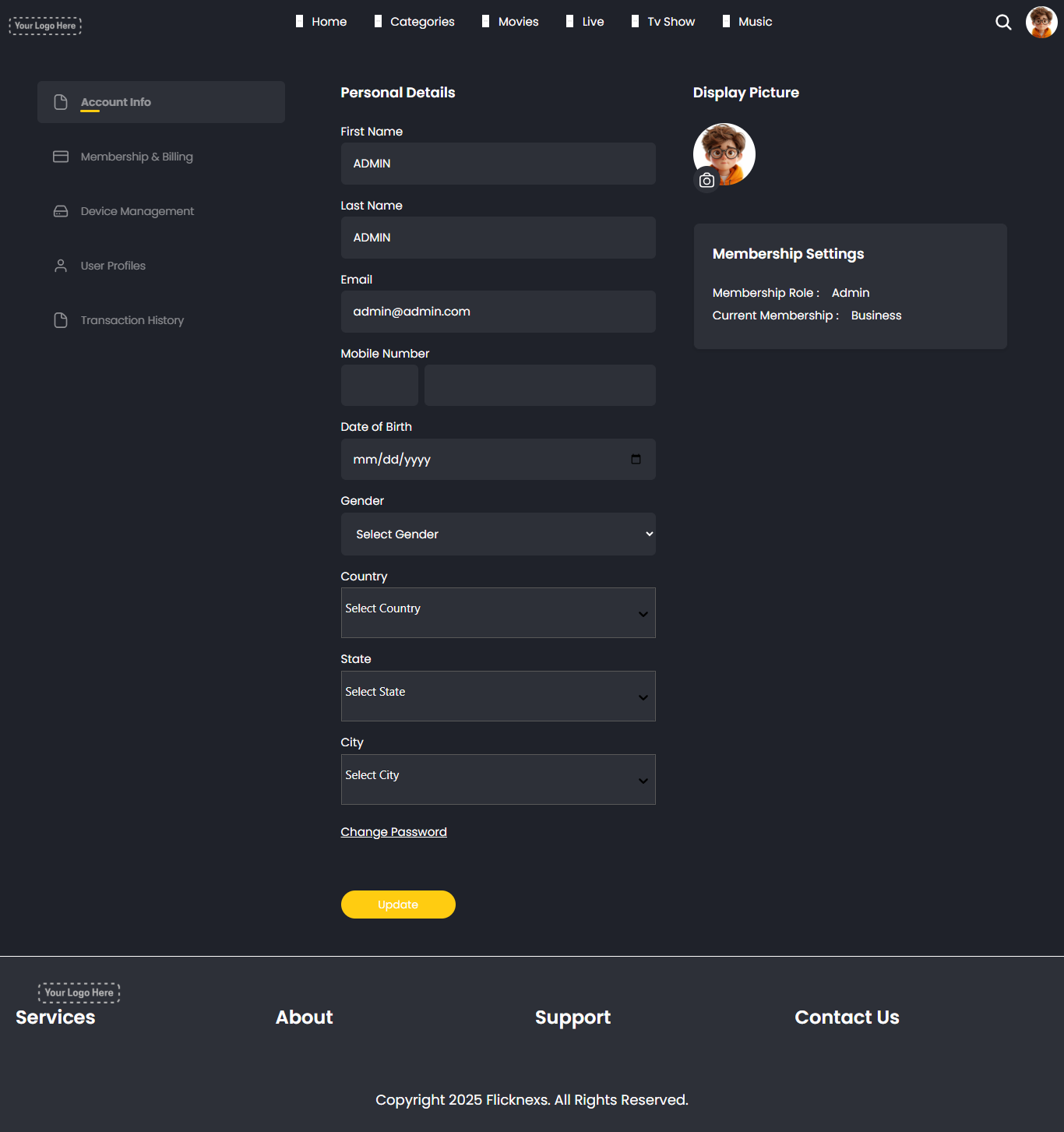
1. How to Access Profile Settings
To manage or update your profile on the platform:
- Step 1: Click on your profile picture icon at the top right corner of the screen.
- Step 2: A dropdown menu will appear.
- Step 3: From this menu, select “My Profile” to view or edit your account details.
Once clicked, you will be taken to the Profile Settings page.
2. Explanation of Each Section on the Profile Page
Here’s a breakdown of what each field and section on the Profile Page means and how you can use it:
Account Info Sidebar (Left Panel)
- Account Info: The section you’re currently in, used for viewing and updating personal details.
- Membership & Billing: View your current plan, billing history, and manage payment options.
- Device Management: Manage devices that are linked to your account.
- User Profiles: Create and switch between different profiles under the same account (ideal for families).
- Profile & Parental Control: Set restrictions, control content access, and customize viewing preferences.
Personal Details
- First Name / Last Name – Displays your registered name. You can update it at any time.
- Mobile Number – Shows your contact number, which may be used for verification or communication.
- Email – Your registered email address, used as your primary login ID.
- Date of Birth – Used for age verification and to apply content restrictions when necessary.
- Change Password – Allows you to update your current password. Make sure to use a strong and secure one.
To update any of the above, click the “Update” button on the top right after editing.
Display Picture
- Shows your current profile picture.
- Click the image icon to upload or change your photo.
Membership Settings
- Current Membership: Displays your active subscription type.
- Transaction History: Button to view your past payments and billing details.