
TV Shows
TV shows on the platform are structured as episodic content, grouped under series. Each series can contain one or more episodes. This format allows viewers to watch shows sequentially or pick specific episodes of interest.
Accessing TV Shows
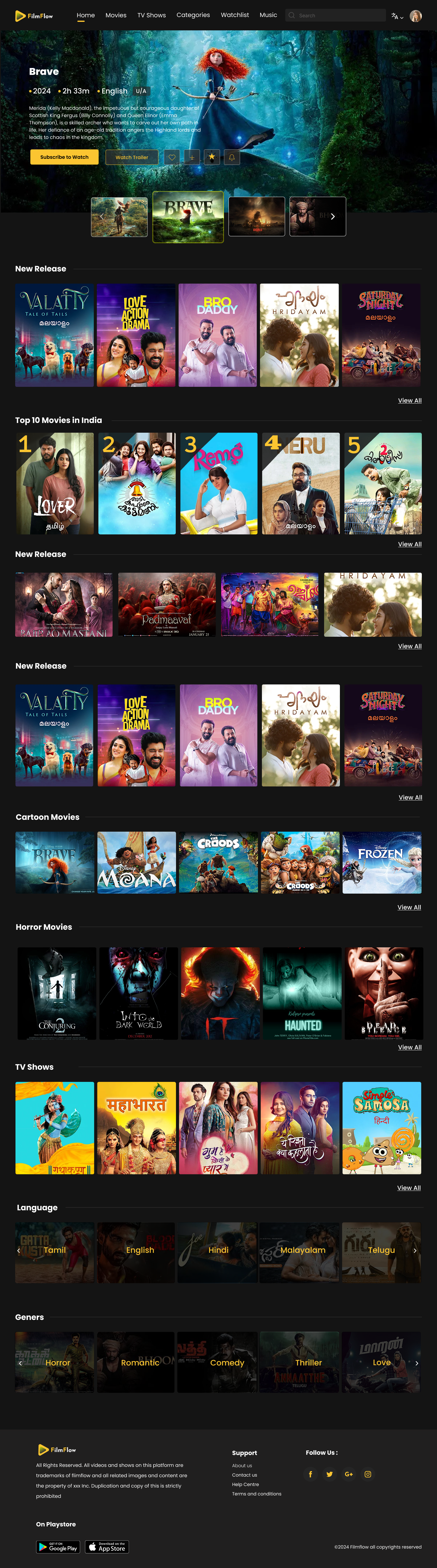
1. From the Homepage
- A section titled “TV Shows” displays a preview list of available series and episodes.
- Clicking any thumbnail in this section takes users to the respective Series Page.
2. From the Top Menu Navigation
- The main menu includes a “TV Show” option.
- Clicking this opens a dedicated TV Shows page, displaying only TV series and episodes, excluding movies, music, or live content.
- This page includes:
- Sliders by Category (e.g., Thriller, Action, Drama, Romance) to explore genre-specific content.
- Continue Watching section for easy access to in-progress videos.
- Latest Series section showcasing newly added content.
Page-Level Breakdown
TV Shows Page
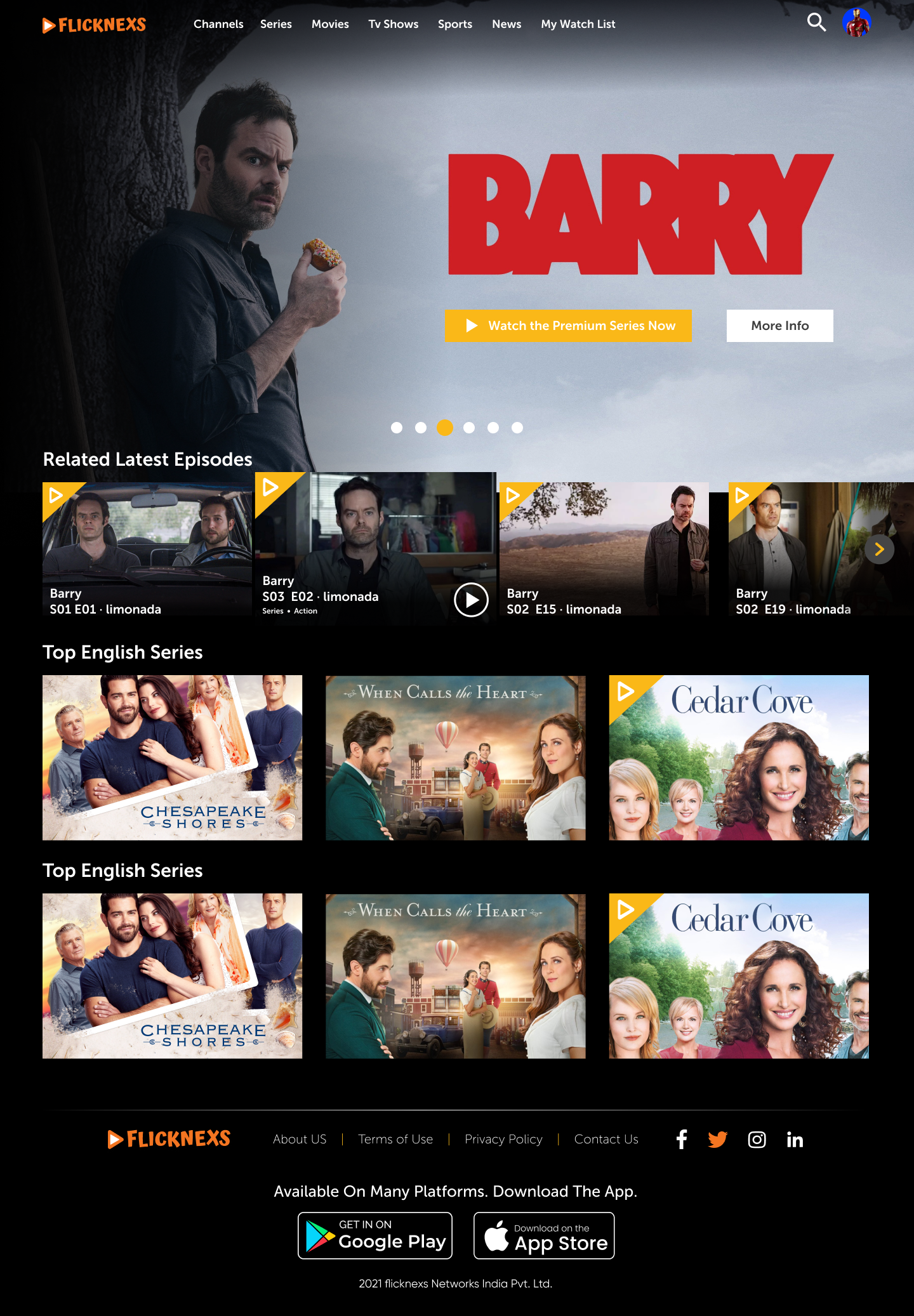
- A centralized page listing only series and episodes.
- Organized into carousels by genre, such as Thriller, Action, Drama, Romance.
- Focused on discovery and category exploration.
Series Page
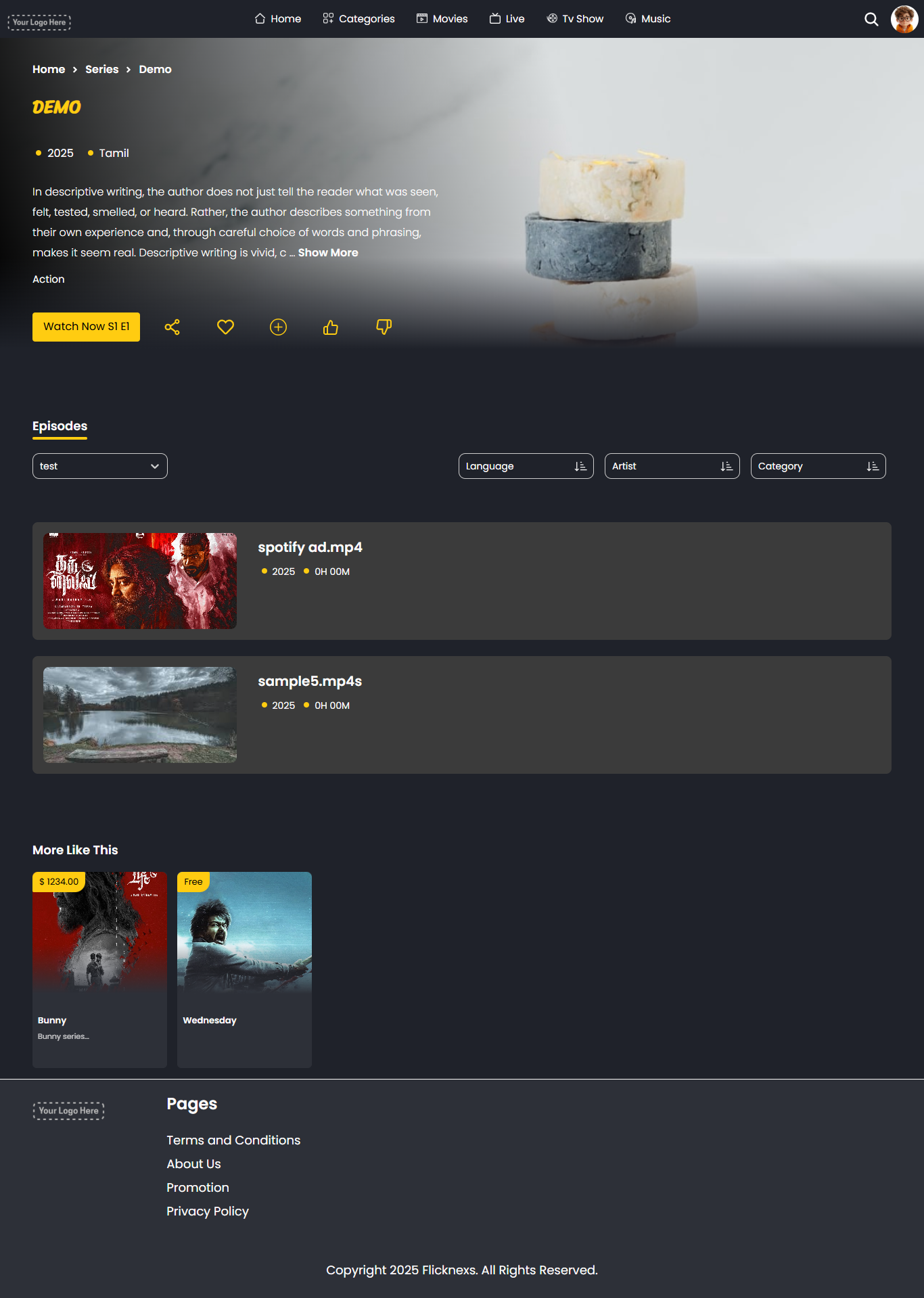
- Clicking a series from the homepage or TV Shows page redirects here.
- Key features include:
- A banner image of the series with title, language, release year.
- A brief synopsis with “Show More” to expand the description.
- Genre tags for quick content classification.
- A Watch Now button for immediate viewing.
- Interactive buttons to like, dislike, share, or add to a list.
- Below the banner:
- Episode listings with thumbnails, duration, and titles.
- Filters for refining episodes by type, language, artist, or category.
- “More Like This” for recommended similar content.
Episode Detail Page
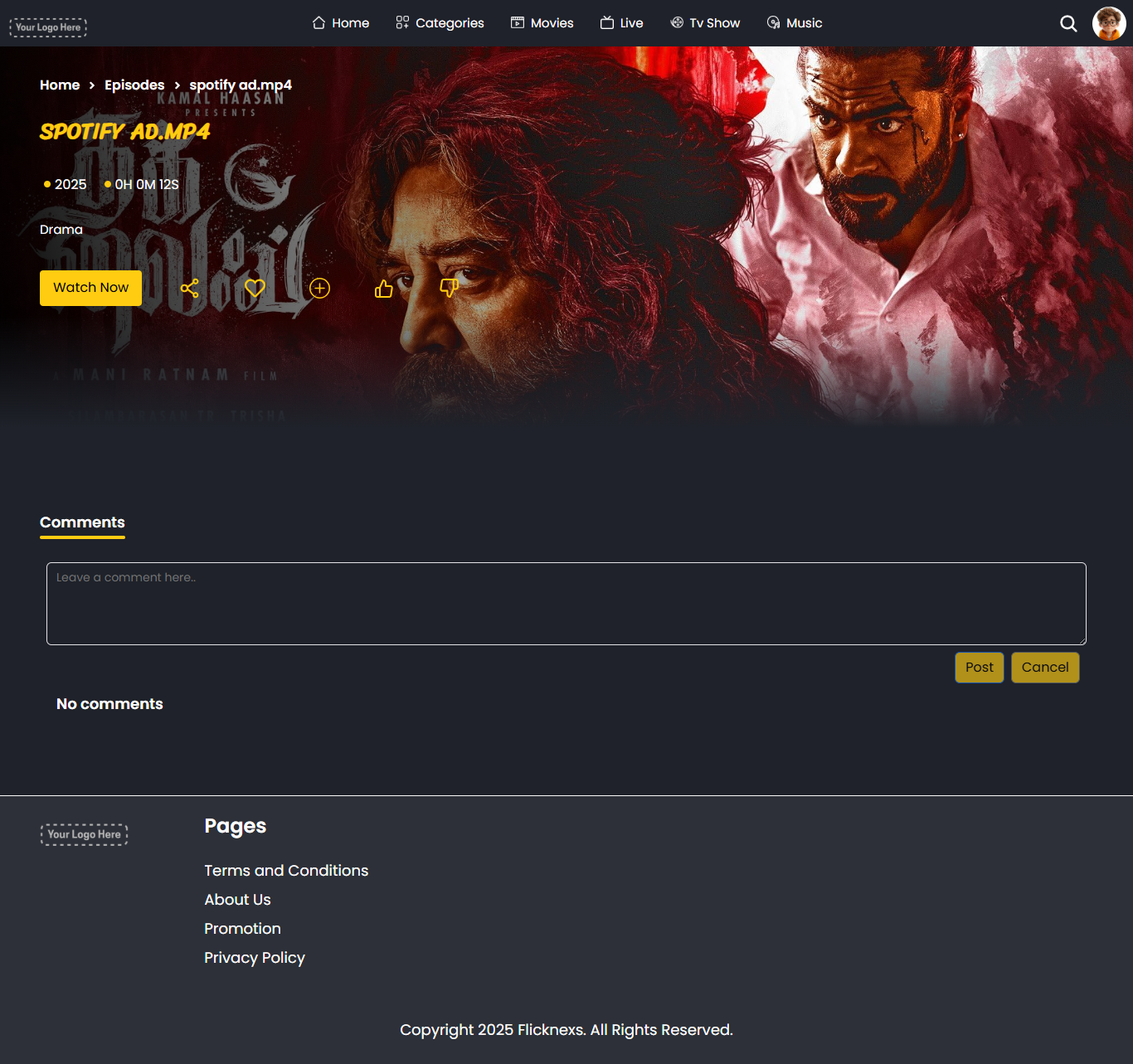
- Accessed by clicking on any episode from a Series Page.
- Provides:
- A detailed view with title, image, runtime, genre.
- Watch Now button that links directly to the player.
- Interaction tools (like, share, add to watchlist).
- Comments section for community engagement.
Watch Now Page
- Clicking “Watch Now” opens the video player interface.
- Users can watch the selected episode with full playback controls.