
The Storage Settings section allows you to configure and manage where and how the media content on your platform is stored. This includes videos, images, audio files, and other media assets. You can choose between local storage (your server) or cloud storage services like Amazon S3, Flussonic CDN, Vdocipher, or Bunny CDN, depending on your platform’s requirements for scalability, reliability, and performance.
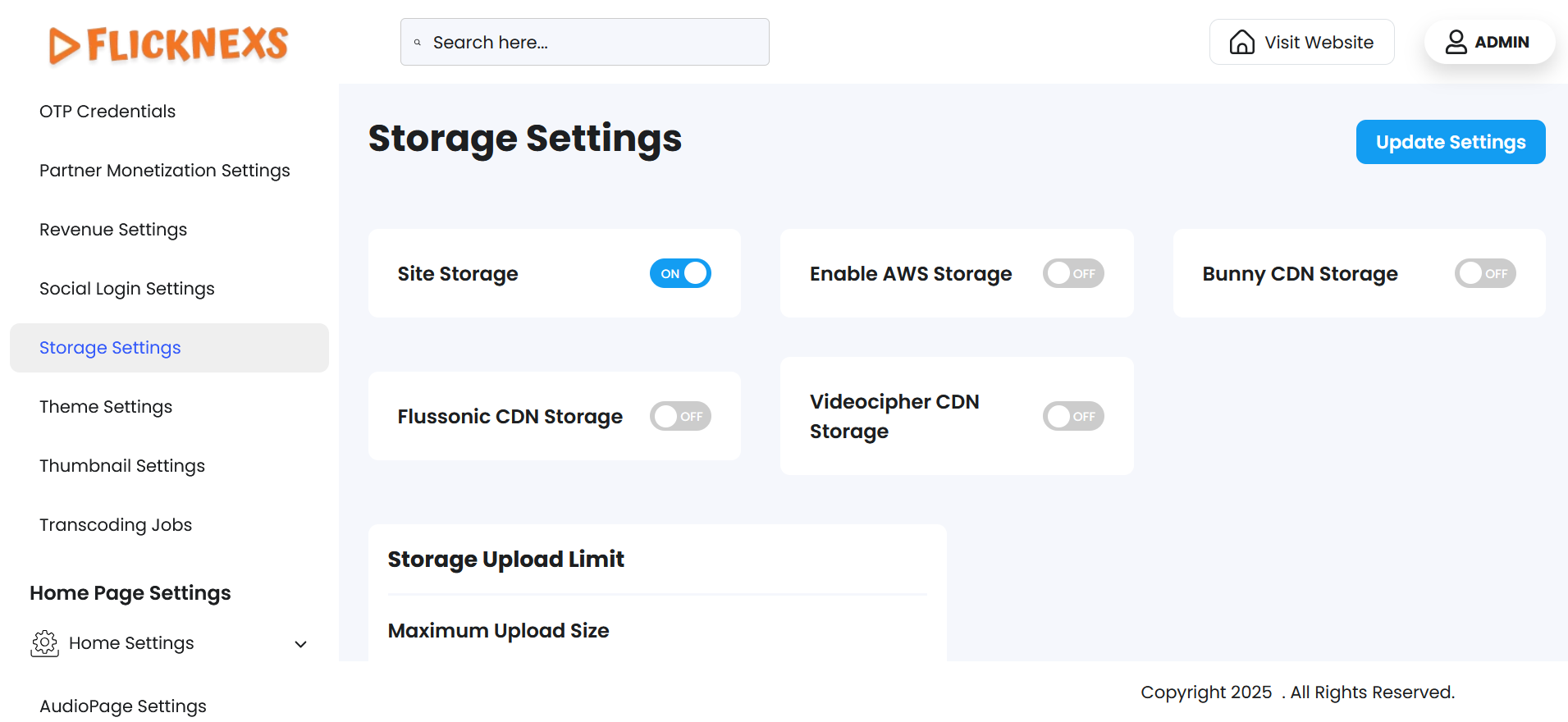
In the Storage Settings, you can manage and configure the storage solutions used for your platform. These settings allow you to control where and how your media files (videos, audios, images, etc.) are stored and accessed. Here’s an elaboration of the options:
Accessing Storage Settings
- Navigate to the Storage Settings section in your admin panel.
- From here, you can enable or disable the storage options depending on your platform’s needs and preferences.
Available Storage Options
You can choose from multiple storage solutions, each catering to specific requirements such as scalability, speed, cost-efficiency, and geographical accessibility. Below is a detailed explanation of each storage type:
a. Site Storage
- Description: This refers to the internal storage of your server where the platform is hosted.
- Key Features:
- Quick access to files.
- Suitable for small-scale platforms with limited storage needs.
- Limitations:
- Depends on the server’s capacity.
- May result in slower performance during heavy traffic.
b. AWS Storage (Amazon Web Services)
- Description: AWS S3 (Simple Storage Service) is a scalable and reliable cloud storage solution.
- Key Features:
- High durability and availability of files.
- Globally distributed servers ensure faster delivery.
- Cost-effective for large-scale platforms.
- Ideal For:
- Platforms requiring extensive scalability and security.
- Use cases with high traffic or global audiences.
- Setup Notes:
- Requires an AWS account.
- Configure S3 bucket and access keys in your platform’s storage settings.
c. BunnyCDN Storage
- Description: BunnyCDN is a high-performance content delivery network with affordable storage options.
- Key Features:
- Optimized for fast file delivery.
- Regional servers ensure low-latency streaming.
- Cost-effective pricing model.
- Ideal For:
- Platforms focused on delivering content efficiently across specific regions.
d. Flussonic Storage
- Description: Flussonic is a media streaming server that offers storage and live video streaming capabilities.
- Key Features:
- Real-time live streaming support.
- Optimized for video content.
- Integrated video encoding and transcoding features.
- Ideal For:
- Platforms with live streaming requirements.
- Use cases that demand seamless integration between storage and streaming.
e. VdoCipher Storage
- Description: VdoCipher provides secure video hosting and streaming solutions, ensuring content protection with DRM (Digital Rights Management).
- Key Features:
- Advanced security features like watermarking and encrypted streaming.
- Optimized for secure video delivery.
- Ideal For:
- Educational platforms or OTT services focused on content protection.
- Platforms dealing with premium or sensitive video content.
- Setup Notes:
- Requires integration with VdoCipher credentials.
How to Enable or Disable Storage Options
- In the Storage Settings, you can enable or disable specific storage options based on your platform’s requirements:
- Enable: Select the storage type(s) you want to use and provide the necessary configuration details (e.g., API keys, credentials).
- Disable: Deselect or toggle off the storage type(s) you do not want to use.
Factors to Consider When Choosing Storage
- Scalability: For platforms expecting growth, cloud storage like AWS or BunnyCDN is more flexible.
- Performance: BunnyCDN and AWS offer faster delivery for global audiences.
- Security: VdoCipher is ideal for platforms requiring DRM and high-security features.
- Cost: Compare the pricing of each storage solution to find what fits your budget.
- Integration: Ensure the storage solution integrates seamlessly with your platform.
Additional Recommendations
- Monitor Usage: Regularly check storage usage to optimize performance and manage costs.
- Backup Strategy: Maintain a backup of important data to prevent loss during outages or migrations.
- Update Settings: If you change storage providers, update the settings and test thoroughly to ensure smooth operation.
By configuring the appropriate storage settings, you ensure efficient, secure, and cost-effective management of your platform’s content.
Storage Upload Limit
The Storage Upload Limit settings allow you to control the maximum file size that can be uploaded to your platform. This ensures efficient resource usage and helps prevent system overload or abuse by limiting unusually large uploads.
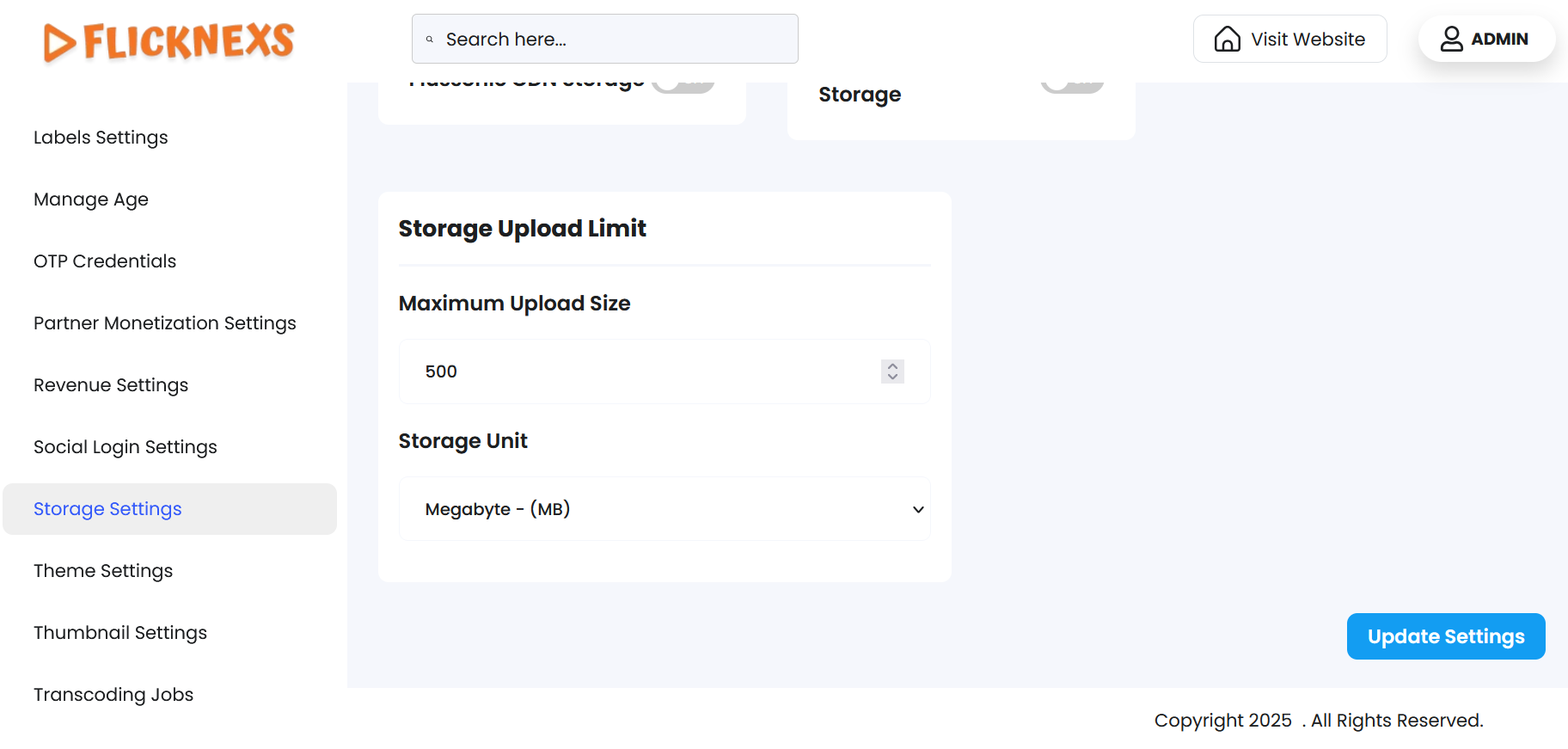
Maximum Upload Size
- You can define the maximum allowable size for file uploads.
- Use the Up and Down arrows to easily increase or decrease the value based on your platform’s needs.
- This setting applies to all types of media, including videos, images, and audio files.
Storage Unit
- Select the appropriate unit of measurement from the dropdown menu: MB (Megabytes), GB (Gigabytes), or TB (Terabytes).
- This provides flexibility based on your platform’s storage capacity and the type of content you allow users or admins to upload.
Example Use Case
If you want to limit uploads to 2 GB per file, you would:
- Set Maximum Upload Size to 2
- Select GB as the Storage Unit
Benefits
- Better Storage Management: Helps in optimizing storage consumption and planning.
- Enhanced Performance: Prevents the system from slowing down due to large uploads.
- Controlled User Activity: Sets clear boundaries for what users can upload.
By configuring these limits properly, you can ensure your platform remains stable, responsive, and secure for all users.