
The Theme Settings section allows you to customize the visual appearance and branding of your platform across web and mobile apps. These settings ensure your platform aligns with your brand identity and provides a consistent user experience across devices.
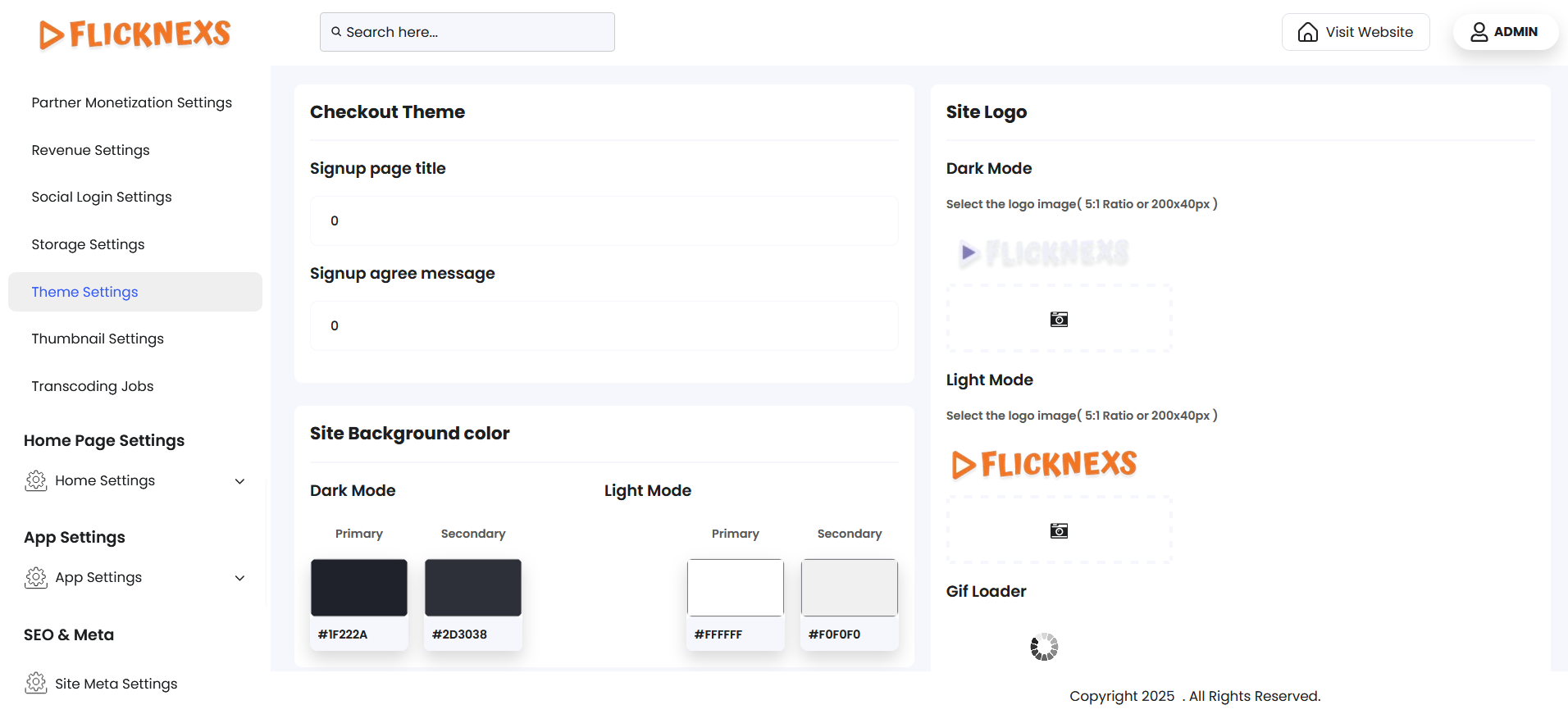
The Checkout Theme Settings section gives you control over the visual and functional presentation of your checkout and user interface, including branding, colors, and display preferences across both dark and light modes. This section ensures a polished, branded user experience throughout the user journey—from signup to content consumption.
Theme Customization Options
Signup Page Settings
- Signup Page Title: Set the custom heading/title text for the signup page.
- Signup Agree Message: Define the terms and conditions or agreement message that users must accept during signup.
Site Background & Text Colors
Site Background Color
- Dark Mode
- Primary: Set the main background color in dark theme.
- Secondary: Set the supporting or secondary background tone.
- Light Mode
- Primary: Main background color in light theme.
- Secondary: Supporting background tone.
Site Text Color
- Dark Mode Primary: Font/text color for dark theme.
- Light Mode Primary: Font/text color for light theme.
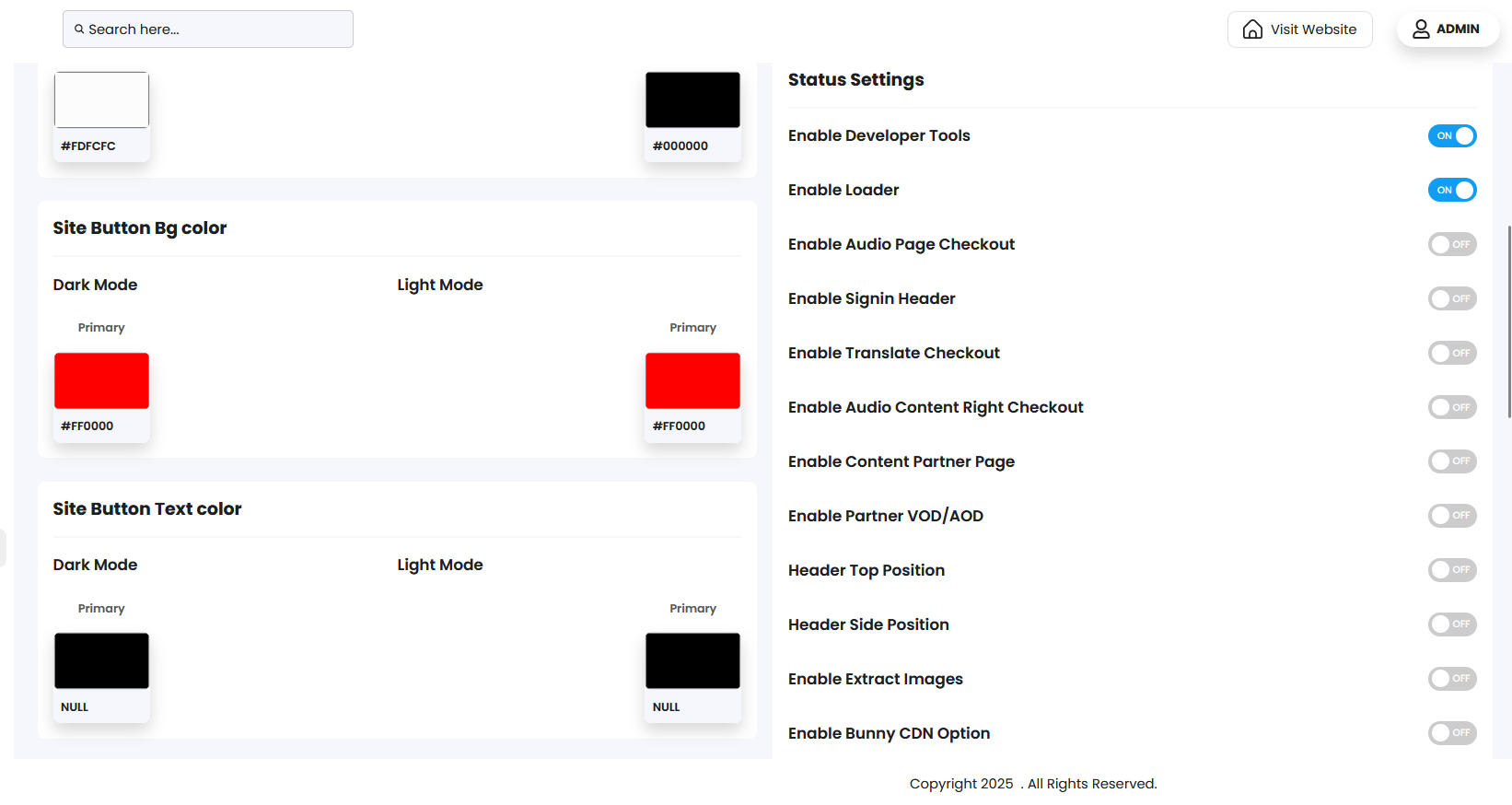
Site Button Colors
Button Background Colors
- Dark Mode Primary: Button background in dark mode.
- Light Mode Primary: Button background in light mode.
Button Text Colors
- Dark Mode Primary: Text color on buttons in dark mode.
- Light Mode Primary: Text color on buttons in light mode.
Admin Panel Theme Colors
Admin Background Color
- Dark Mode Primary: Main admin panel background in dark theme.
- Light Mode Primary: Background for light theme.
Admin Text Color
- Dark Mode Primary: Admin text color in dark mode.
- Light Mode Primary: Admin text color in light mode.
Admin Button Background Color
- Dark Mode Primary: Background color for admin buttons (dark mode).
- Light Mode Primary: Background color for admin buttons (light mode).
Admin Button Text Color
- Dark Mode Primary: Text on admin buttons in dark mode.
- Light Mode Primary: Text on admin buttons in light mode.
Admin Button Color
- Dark Mode Button Color: You can set an accent or main button color used in dark admin mode.
Brand Assets
Site Logo Upload
- Dark Mode Logo: Upload your platform’s logo optimized for dark backgrounds (5:1 ratio or 200x40px).
- Light Mode Logo: Upload a light-theme-compatible version of the logo (same dimensions).
Gif Loader
- Upload a custom animated loading image (GIF) that appears during page loads.
Status Settings
Enable or disable specific frontend/backend features:
- Enable Developer Tools – Restrict the right-click functionality across the platform to prevent certain developer tools from being accessed.
- Enable Loader – Activate a loader or splash screen to display during page loading.
- Enable Audio Page Checkout – Activate audio content at the checkout page.
- Enable Signin Header – Show/hide the header on the sign-in page.
- Enable Translate Checkout – Add a translation option to the platform to support multiple languages.
- Enable Audio Content Right Checkout – Display audio content rights section.
- Enable Content Partner Page – Enable a partner-focused content page on the homepage.
- Enable Partner VOD/AOD – Show partner-based VOD (Video On Demand) or AOD (Audio On Demand) options.
- Header Top Position / Header Side Position – Choose the header layout (top or side).
- Enable Extract Images – Automatically extract up to five images from uploaded videos. Select one of these images as the video thumbnail during the upload process.
- Enable Bunny CDN Option – Integrate and use BunnyCDN for faster content delivery. You can enable it by using the Bunny CDN option.
- Enable Frontend Hover Theme Slider – Activate the hover effect slider on content tiles.
- Enable Multi PPV Resolution – Allow users to select from multiple resolution-based Pay-Per-View options.
These Checkout Theme Settings give you deep control over branding and interface elements for both the frontend user experience and the backend admin interface. You can ensure consistency across light/dark modes, match the platform to your brand colors, and enable only the features relevant to your content strategy and user flow.