
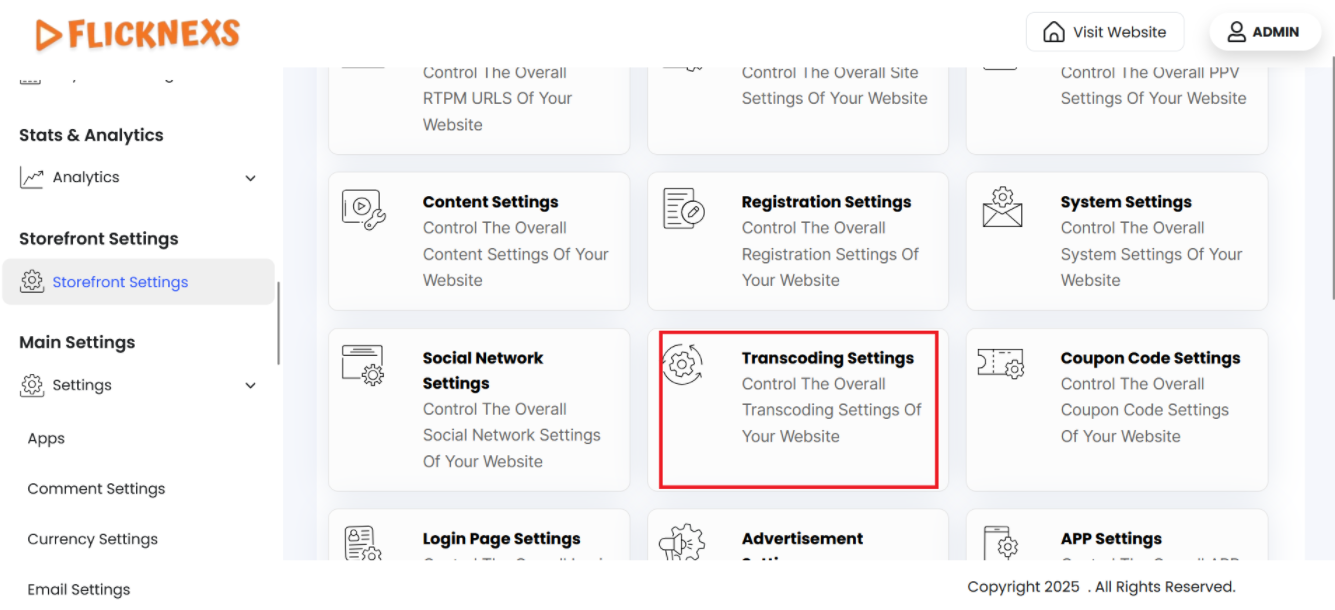
You will find three options to configure video processing and optimize playback across different platforms.
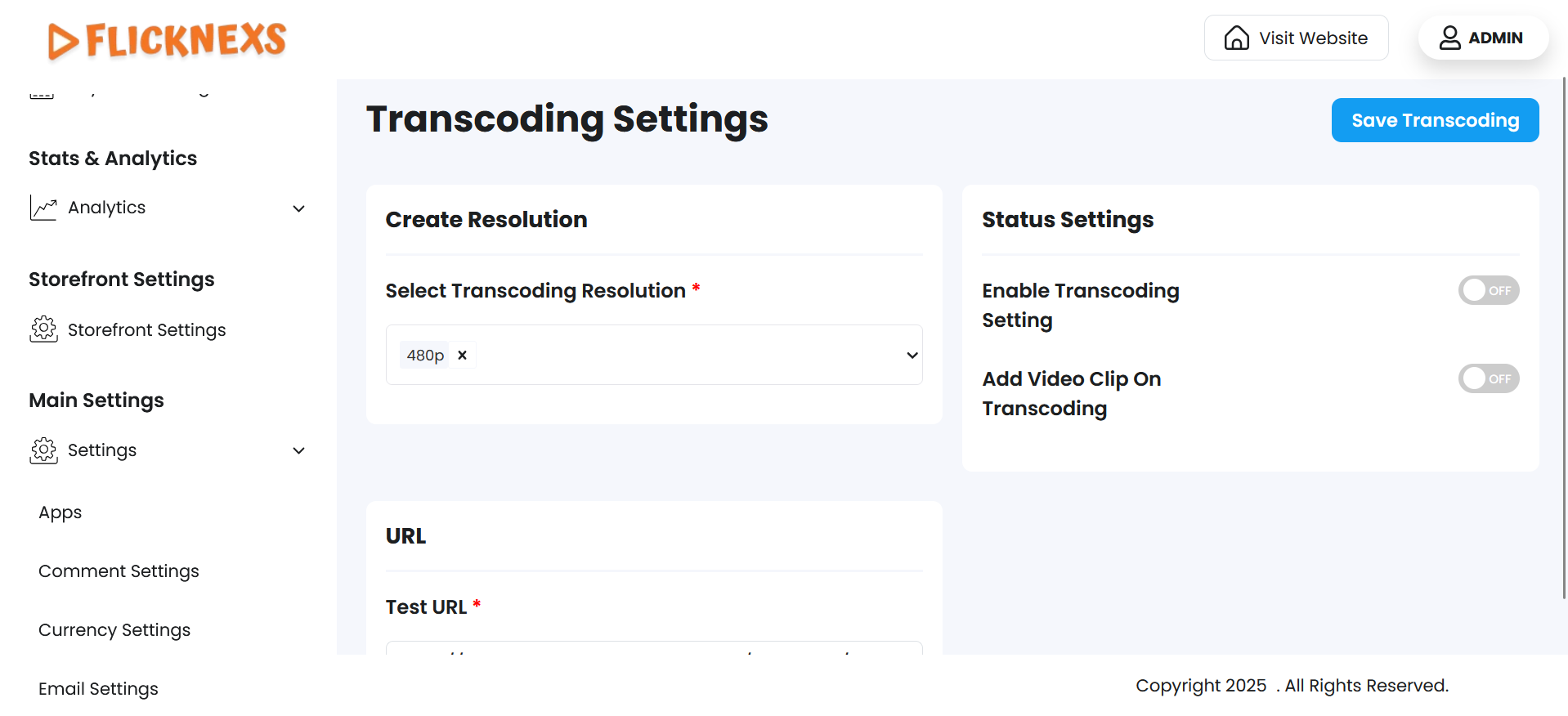
Create Resolution
- Select Transcoding Resolution: From the dropdown menu — 240p, 360p, 480p, 720p, 1080p, select the required one. Since this is a mandatory field, an error message ‘Transcoding resolution cannot be empty’ will appear if you omit it.
Status Settings
- Enable Transcoding Setting: Turn the transcoding feature on or off by toggling the ‘On’ and ‘Off’ button. To enable this toggle switch, you must set the server configuration.
- Add Video Clip on Transcoding: Automatically append a video clip during the transcoding process by toggling the ‘On’ and ‘Off’ button.
URL
Test URL
- Enter the video file’s source URL for transcoding. An error message ‘URL cannot be empty’ will appear if you omit it. If you enter an invalid URL, an error message ‘Invalid URL format. Use http://, https://, or rtmp://’ will appear.
- Once you have set the configuration, click on ‘Save Transcoding’ to apply your changes. A toast notification ‘Settings Updated Successfully’ will appear to confirm the update.
NOTE: Only if you enter the valid URL, the ‘Enable Transcoding Setting’ option will enable to toggle between ‘On’ and ‘Off’.
- In case the server is not configured, these error messages will appear:
- ‘Server Error: Redis is not connected’
Redis handles real-time processing. This error means it’s not connected. Check your server setup and ensure Redis is running.
- ‘FFmpeg is not ready’
FFmpeg is used for video processing. This error shows it’s not installed, running, or detected. Make sure FFmpeg is set up correctly.
- ‘FFmpeg path is invalid or missing’
The system can’t find FFmpeg. Check and set the correct path in your server configuration.
- ‘FFprobe path is invalid or missing’
FFprobe analyzes video files. This error means its path is wrong or missing. Update the path in your system settings.
NOTE: Only if all the dependencies are properly installed and configured interruptions can be avoided in video processing and system performance.
- To go back to the table, you can click on the ‘Back’ button at the top of the ‘Transcoding Settings’ section.