
Video Detail Page
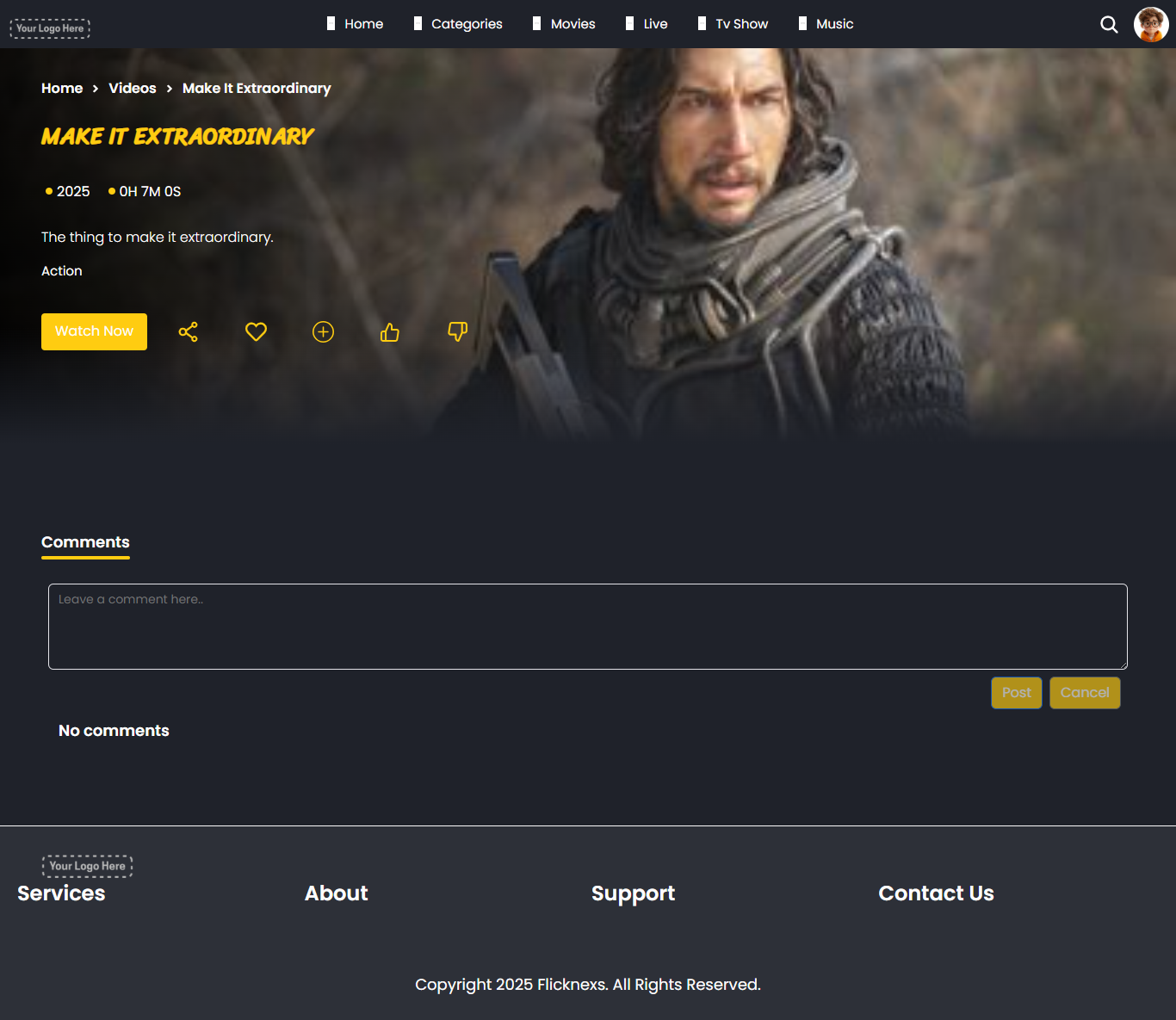
This page provides detailed information about a specific video title, including description, cast, duration, language, and playback options.
1. Breadcrumb Navigation (Top Left)
- Appears as: Home > Videos > [Title]
- Helps users understand where they are within the site structure.
- Clicking “Home” or “Videos” will navigate back to those pages.
2. Video Title and Meta Info
- Title (e.g., GOOD BAD UGLY): Clearly displayed in bold.
- Metadata icons:
- Year: Indicates the release year (e.g., 2025).
- Duration: Total runtime (e.g., 2H 2M 25S).
- Language: Display here as “English”.
- Year: Indicates the release year (e.g., 2025).
- Gives users quick access to the key video info at a glance.
3. Description Section
- Gives a brief overview or synopsis of the video.
- A “Show More” option is available for expanded content.
- Useful for users to understand what the video is about before watching.
4. Genre Tags
- E.g., Action, Thriller
- Clicking on these tags may redirect users to a category page containing similar content.
- Helps in discovering related videos by genre.
5. Playback & Actions Panel
Watch Now (Button)
- Function: Starts video playback immediately (based on user’s access level or subscription).
- Behavior:
- May initiate inline playback directly on the current page.
- Alternatively, may redirect to a dedicated player screen.
- May initiate inline playback directly on the current page.
Plus Icon – Add to Watch Later
- Function: Adds content to the user’s Watch Later list.
- Behavior:
- Saves the video for future viewing.
- Visible in the “My List” or “Watch Later” section of the user’s library.
- Saves the video for future viewing.
Heart Icon – Add to Wishlist
- Function: Adds the content to the user’s Wishlist.
- Behavior:
- Marks interest without initiating playback.
- Useful for upcoming or premium content the user wants to track.
- May trigger reminders or availability alerts.
- Marks interest without initiating playback.
Star Icon – Mark as Favorite
- Function: Marks the video as a Favorite.
- Behavior:
- Creates a quick-access list of frequently watched or highly rated content.
- May influence personalized recommendations.
- Creates a quick-access list of frequently watched or highly rated content.
Share Icon
- Function: Opens sharing options.
- Behavior:
- Allows users to share content via social media, messaging apps, or by copying a link.
- Promotes wider distribution and user-driven engagement.
- Allows users to share content via social media, messaging apps, or by copying a link.
Like Icon
- Function: Provides positive feedback on content.
- Behavior:
- May improve visibility of content in platform recommendations.
- Contributes to user-specific content personalization.
- May improve visibility of content in platform recommendations.
Dislike Icon
- Function: Indicates disinterest or negative feedback.
- Behavior:
- Helps refine recommendation algorithms by removing unwanted content.
- May also hide similar content in future suggestions.
- Helps refine recommendation algorithms by removing unwanted content.
6. Details Tab
- Contains extensive technical and production details:
- Cast & Crew: Lists actors, producers, music directors, editors, DOP, stylists, etc.
- Production Notes: Additional details about stunts, sound, editing, and post-production.
- Cast & Crew: Lists actors, producers, music directors, editors, DOP, stylists, etc.
- Important for users who want more information beyond the summary.
7. Comments Tab
- Likely shows user-generated comments or feedback.
- Helps users get social proof or peer opinions about the video.
- May include a form for users to add their own comments.
8. More Like This Section
- Carousel of Related Videos with thumbnails.
- Each card shows:
- Thumbnail image
- Year & duration
- Title
- Short description
- Access Badge (Free / Registered / Premium)
- Thumbnail image
- Enables discovery of similar or recommended videos.
- Clicking a card redirects to that video’s detail page.
9. Footer Section
- Contains links to:
- Services: Audio, Live, etc.
- About: Pages like “Latest Videos”, “TV Shows”
- Policies: Terms & Conditions, Privacy Policy
- Services: Audio, Live, etc.
- Includes social media icons for platform connectivity.
- Shows copyright notice.
Additional Notes
- If you can’t watch a video, check your access type (Free vs Registered vs Subscription).
- Use the breadcrumb for easy navigation back to previous sections.
- Favoriting or saving a video doesn’t automatically download it—it just bookmarks it.
- Check “More Like This” for exploring new content based on your interest.