
The Video Player Settings section allows administrators to configure and customize how video content is presented and played on the platform. These settings directly influence the viewer’s playback experience across web, mobile, and TV apps.
This section is essential for controlling features such as video quality, player layout, user interaction options, and performance enhancements.
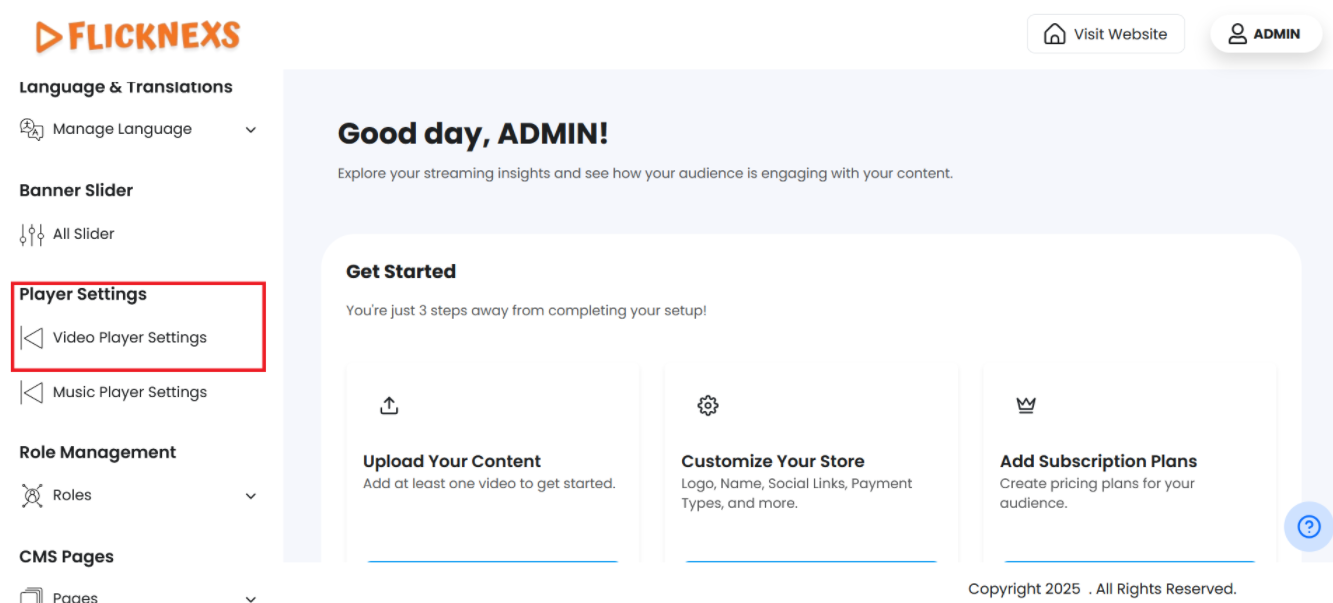
To navigate to the Player settings section, follow these steps:
- Log into the Admin Panel: First, access your admin panel with your credentials.
- Locate the Sidebar Menu: On the left side of the admin dashboard, you’ll see a menu with various sections.
- Find the “Video Player Settings” Section: Scroll down to the menu options until you find the “Video Player Settings” section.
- Click on “Video Player Settings”: Under the “Player settings” section, click on the “Video Player Settings” option to access and manage the Player settings.
By following these steps, you’ll be able to configure or update the Player UI as needed.
Video player watermark settings
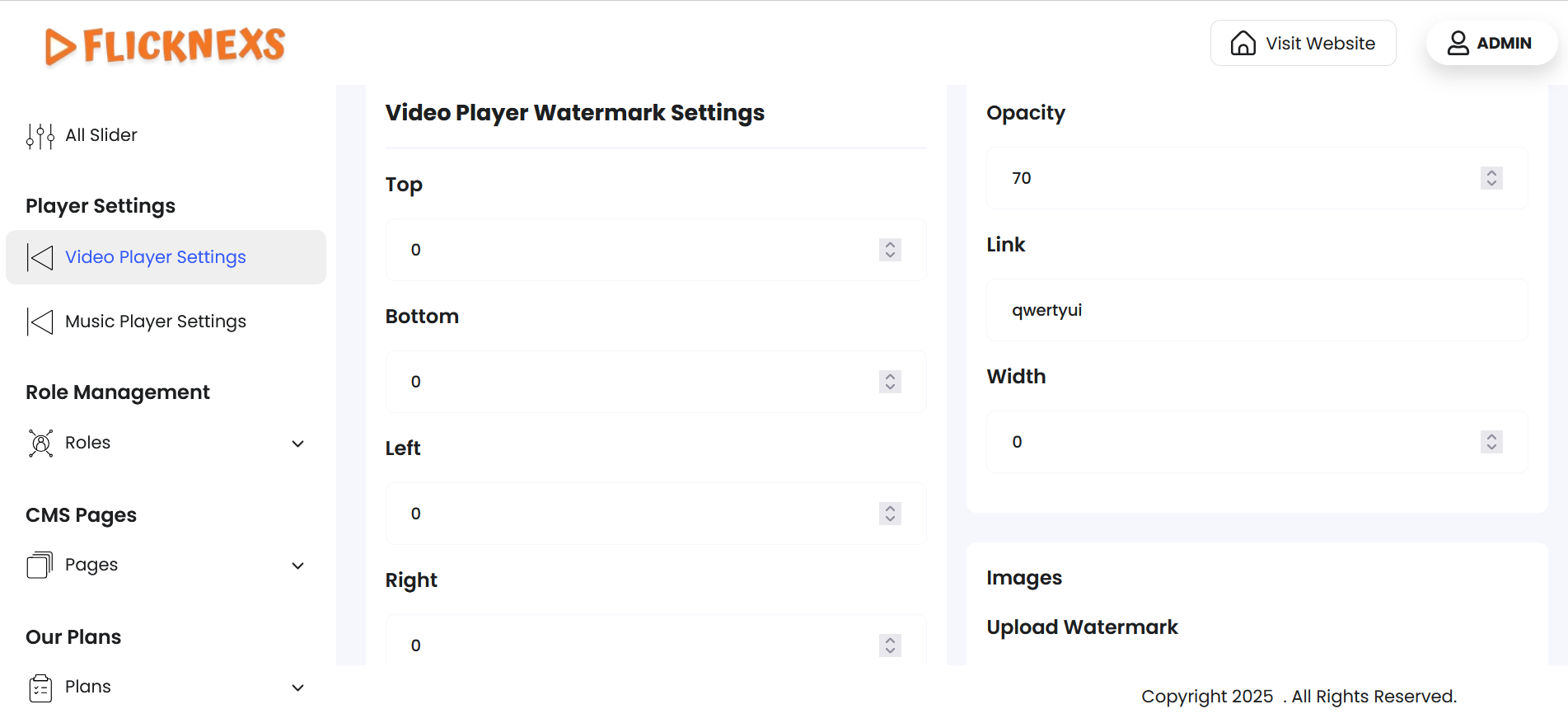
Watermark Customization Options:
Watermark Positioning:
- You have full control over where the watermark appears on the video. By adjusting the following parameters, you can precisely position the watermark:
- Right: Specify how far from the right edge the watermark should be placed.
- Left: Set the distance from the left edge.
- Top: Define how far from the top of the video the watermark should be.
- Bottom: Control how close to the bottom the watermark should be positioned.
- Width: Adjust the size (width) of the watermark for optimal visibility.
- Opacity: Control the transparency of the watermark, making it either more visible or subtle on the video.
- Link to: If you wish to add functionality to the watermark, you can link it to a URL. This is useful if you want users to be directed to a specific website, landing page, or additional content when they click on the watermark. Simply input the desired link in the provided field.
Upload Watermark:
These settings give you flexibility in branding your videos with watermarks while offering customization to match your preferences or branding requirements.
Player Settings Overview:
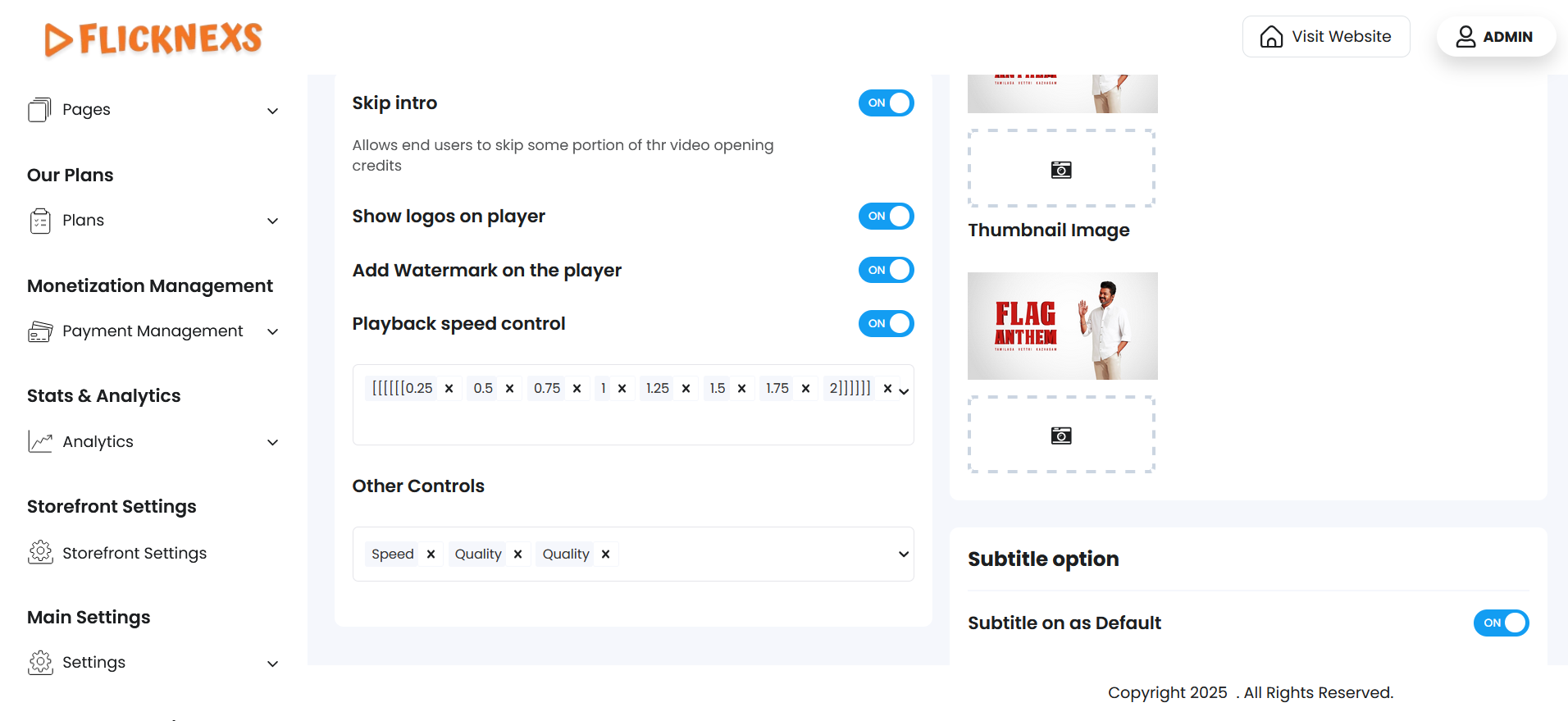
- Skip Intro:
- You can enable or disable the Skip Intro option. When enabled, it allows users to skip a designated portion of the video’s opening credits. This feature enhances user convenience by allowing them to bypass introductions.
- Show Logos on Player:
- This option lets you display or hide logos on the player. If you want your logo or branding to be visible on the player interface, enable this feature. Otherwise, disable it to keep the player clean and logo-free.
- Playback Speed Control:
- Enable or disable playback speed control to allow users to change the speed of the video. When enabled, users can choose to watch videos at slower or faster speeds depending on their preference.
- Add Watermark on Player:
- You can choose to add a watermark to the player interface. When enabled, the watermark will be visible on the player itself, providing branding or protection.
- Subtitle Options:
- Subtitle On as Default: Subtitles will be enabled by default if this option is turned on. You can disable it if you prefer not to show subtitles automatically when videos are played.
These options allow you to fully customize the video player experience to meet the needs of your platform and users.